What you build once and use again. It's the section that saves you the most time once you have it loaded.
It can be a whole plan or a single piece
A four-week beginner training plan, your usual warm-up block, a circuit you repeat, a whiteboard, a guided activity.
The shortcut worth using
If a client's routine already has something you like, its menu has Export as template. You don't have to build them from scratch.
What you insert is a copy
Editing the routine afterwards doesn't change the template, and editing the template doesn't touch the routines that already came out of it.
Look before you insert
When you pick a block, session or circuit template you see everything in it, with the exercises and the sets, before adding it. A session template can go at the end of the session you have open.
The weight comes preloaded
When you build the routine from a template or a training plan, each set takes the weight from the client's history. If a set uses % 1RM, each client gets the kilos that match their 1RM, and if they don't have one logged yet, their routine keeps the percentage.
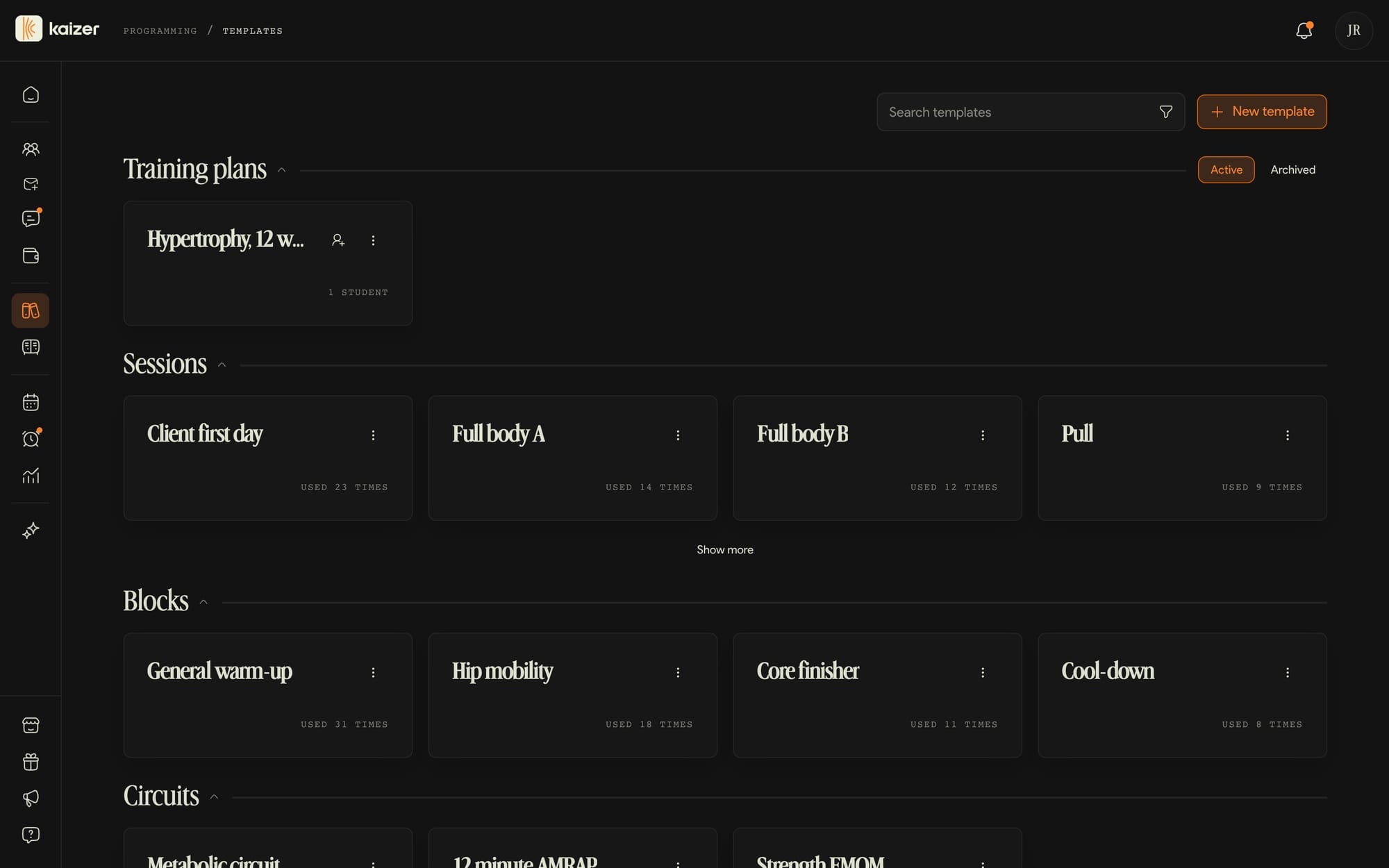
Each card tells you how many times you used it, so you see at a glance which ones actually serve you.
Common questions
What your template library is
Templates is your library: the things you build once and use again. Five kinds live in there. Training plans are the multi-week plans you assign to clients (they used to have their own screen). Sessions are complete training days. Blocks are groups of exercises for building sessions. Circuits are circuits and supersets. And whiteboards are free-form content: notes, guidelines, instructions.
Every card tells you how many times you have used that template, so you can see at a glance which ones actually earn their keep. Up top there is a search box, a filter by type and a sort by Most used or Most recent. Each section collapses, and Show more reveals everything it holds.
One distinction matters: inserting a template copies its content. Anything you edit afterwards in that routine leaves the template untouched, and anything you edit in the template leaves the routines already built from it untouched.
To get started, see Create a template.
Create a template
From Templates, the New template button opens a two-step wizard. First you pick what you want to create: Training plan, Session, Block, Circuit or Whiteboard. Then you give it a name (required), an optional description and any tags you want.
When you confirm with Create, the template is saved and its editor opens. You fill it in like a routine: the Add button lets you drop in exercises, whiteboards, blocks, circuits and supersets, and everything saves on its own. An empty template exists, but it will not be offered for insertion until it has content.
If what you want to save is already built inside a routine, there is no need to redo it: see Save something you already built as a template.
To rename or delete a template, use the menu on its card. Deleting is permanent, but the routines you already created from it are not affected.
Insert a template into a routine
While you edit a client's routine or a training plan, the Add menu has a From template… option. It opens the picker with your templates of the matching type, and you choose the one you want.
What comes in is a copy of the content. From there it is yours to edit: changing sets, adding exercises or deleting half of it does not modify the original template. And the other way around: if you edit the template later, the routines where you already inserted it stay as they were.
Every time you insert a template we add one to its usage counter, which you see on its card in Templates. That is why sorting by Most used surfaces your workhorses right away.
If the picker looks empty, it is because you do not have templates of that type with content yet. The same message offers a shortcut to create one.
Save something you already built as a template
You do not have to build templates from scratch. If a client's routine or a training plan already has a session, a block, a circuit or a whiteboard you like, its menu has Export as template.
You give it a name and it lands in your library as a standalone template. Standalone means exactly that: changes you make afterwards in that routine do not modify it, and editing the template does not change the routine it came from.
It is the fastest way to fill up Templates: instead of sitting down to load them, you export the good stuff as you program.
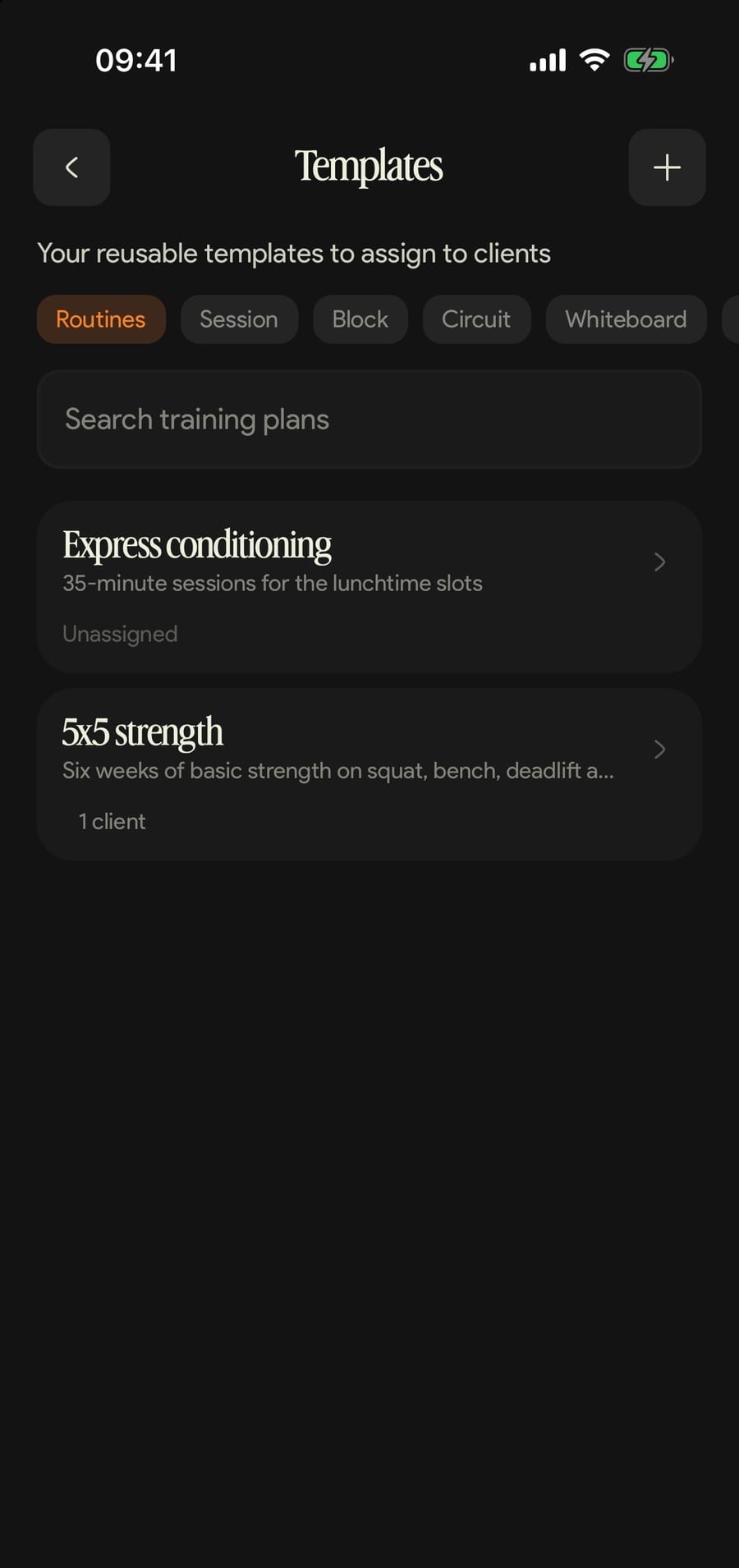
What you build once and use again. They're in More, Templates, and they save you the most time once you have them loaded.
Create them from scratch
New template lets you create an empty session, block, circuit, whiteboard or guided activity, and build it right there.
Or save what you already have
If a client's routine has something you like, Save as template keeps that piece for next time.
What you insert is a copy
Editing the routine afterwards doesn't change the template, and editing the template doesn't touch the routines that already came out of it.
Each template tells you how many times you used it, so you see at a glance which ones actually serve you.