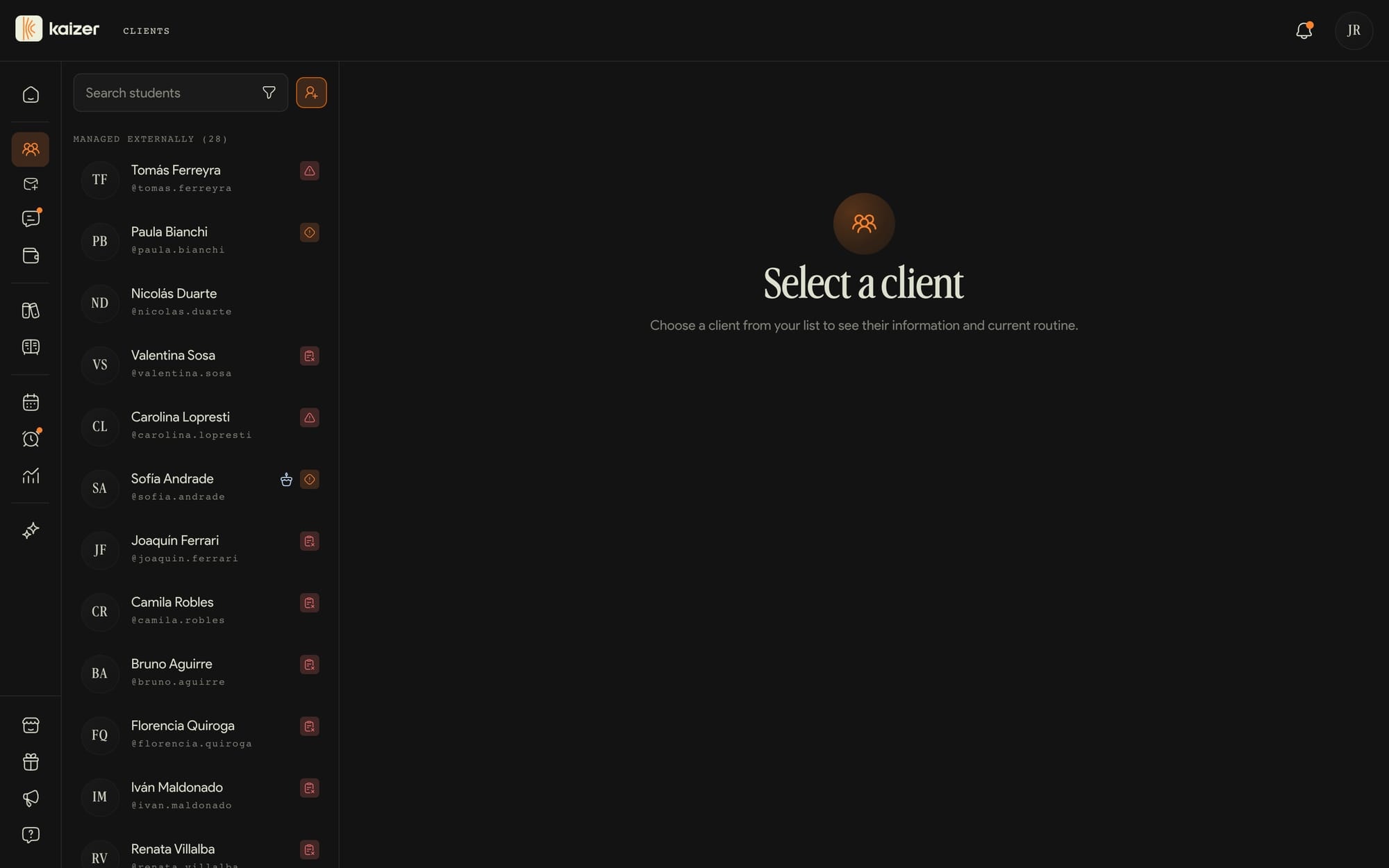
The screen where you'll spend the most time. Your full list on the left, the profile of whoever you select on the right.
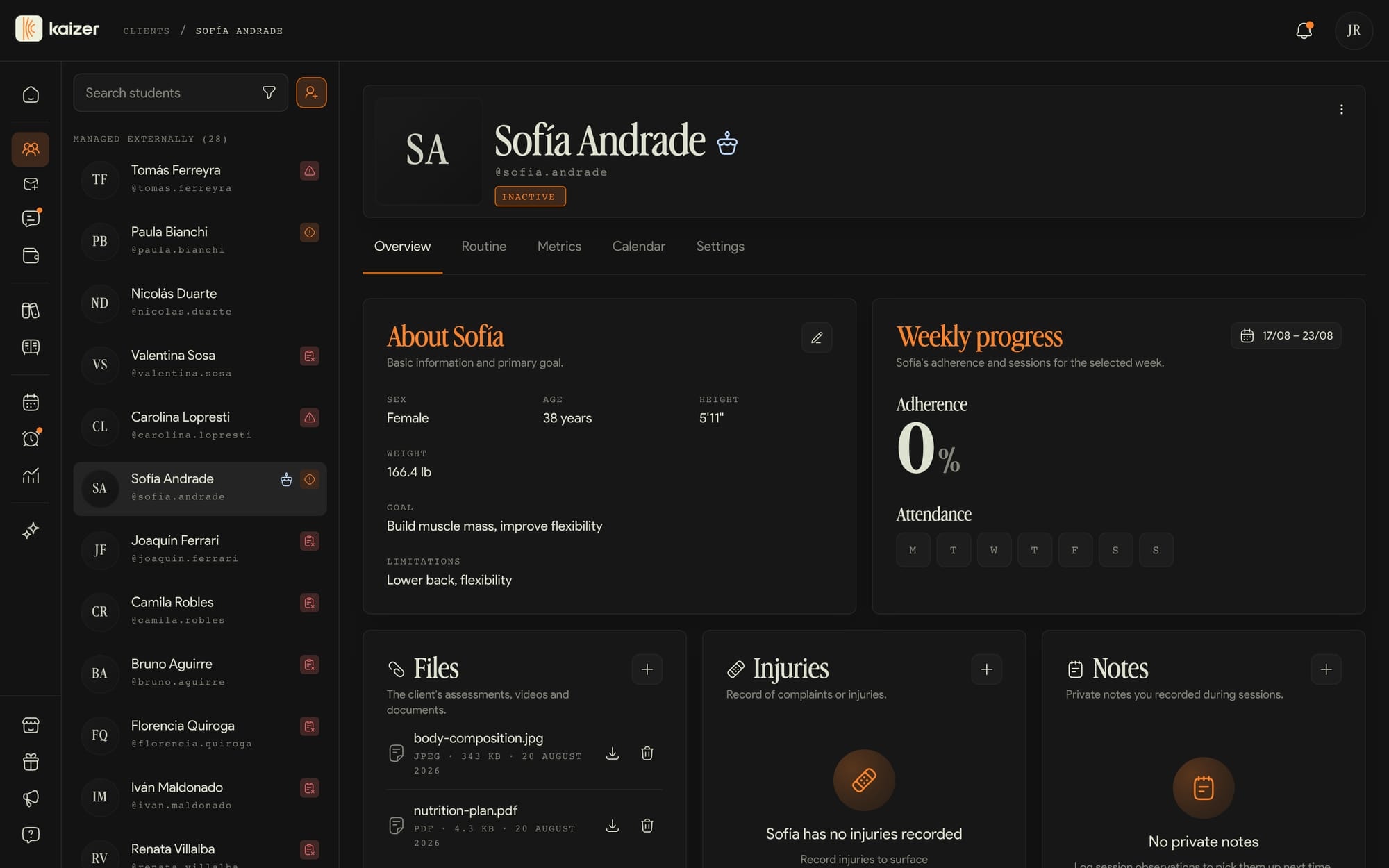
The profile has seven tabs
Overview, Routine, Nutrition, Analytics, Calendar, Payments and Settings. Everything about that person, without jumping between tools.
The colored icon is asking for something
It shows up to the right of the client when they need an action from you.
Filter by what you're about to resolve
At risk, no routine, routine about to expire, never trained. The filters combine with each other.
Tag them your way
With the + under the name you give each client the tags you use, like their time slot or whether they train in person or online. Then you filter the list by them or group it by tag.
Medical clearance, with its expiry
From the pencil on their details, in the Overview tab, you upload their medical clearance with the date it expires. The profile tells you whether it's valid or expired, and Kaizer warns you before it lapses.
Filter by routine about to expire on Monday mornings and in a minute you have the exact list of who needs a new block this week.
Common questions
Filtering and searching your client list
On Clients, the filter icon next to the search box opens a panel with two groups.
The first is alerts: at risk, no routine, routine not sent, routine completed, routine expired, routine expiring, never trained, not training lately and invited. These are the same signals you configure in Settings → Automations, offered here as filters so you can assemble your to-do list for the day.
The second is the client's subscription status: externally managed, active, payment pending, payment overdue, cancelled or rejected. Clients who pay you outside Kaizer show as externally managed.
Filters combine with each other and with the search by name or @tag: for example, you can ask for the ones who are up to date and also have a routine about to expire, to know who to renew first.
View and edit a client's routine
Select any client from your list to enter their profile. Inside you have their Overview, their Routine, and their Settings.
The Routine tab is the central one: it shows the assigned routine with its weeks, its sessions, and each exercise with sets, reps, weight, and rest. You edit everything inline: swap an exercise, reorder sessions, add a week or a whiteboard with notes.
The changes you make here are only for that client: they don't affect the others or the plan the routine came from (see Routine vs. plan).
Client birthdays
A client's date of birth goes in at one of two moments: when you add them, in the Manual registration tab of the Add client dialog, or later, editing About the client from their Overview in Clients. If the client filled in their own profile in the app, it is already there.
With that date, on the birthday we tell you in three places: in the Alerts on your Home board, with a notification, and on their profile, where the name carries a Birthday today tag. On the Calendar you see them coming, on the day they fall.
If you do not want the reminder, turn it off in Settings → Automations, in the Attention panel alerts card: it is the Birthdays switch.
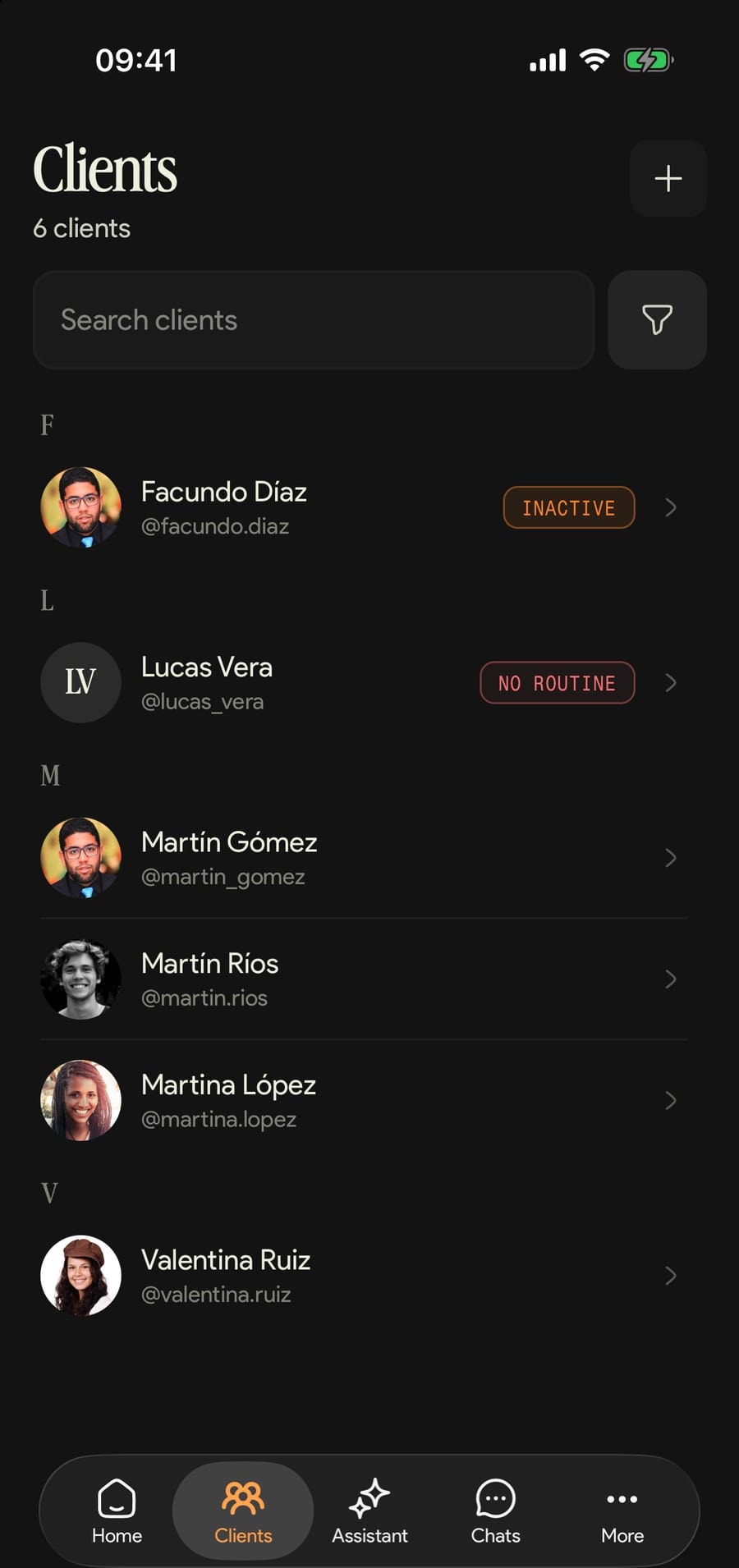
The Clients tab has your full list. Tap someone and their profile opens.
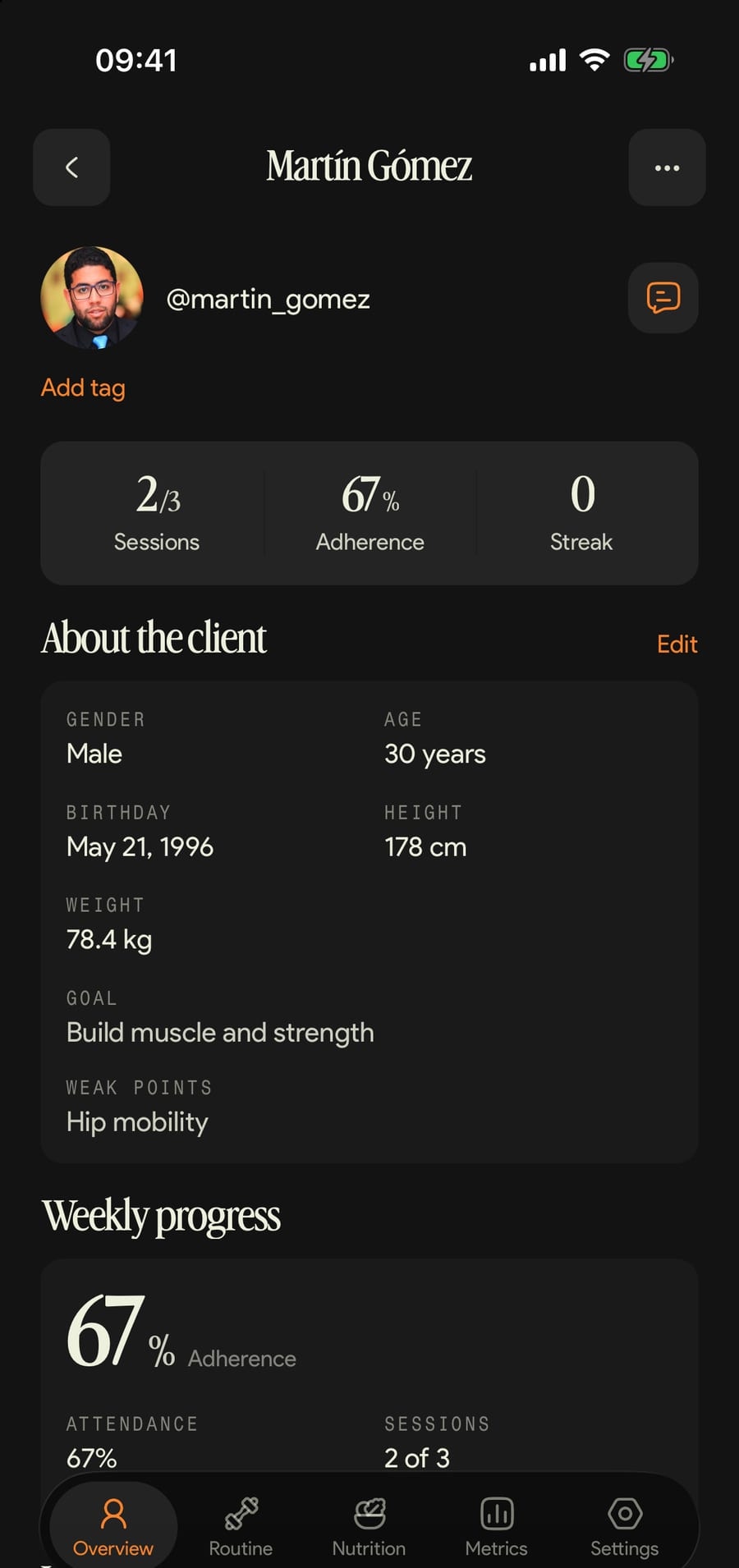
The profile has five tabs
Overview, Routine, Nutrition, Metrics and Settings. Overview has their details, their progress for the week, their last session and your notes about them.
Filter and group
From the filter you pick the tags you want to see or group the list by tag. A client with several tags shows up in each group.
Medical clearance, with its expiry
In each client's Overview you upload their medical clearance with the date it expires. The profile tells you whether it's valid, and Kaizer warns you on Home before it lapses.
Injuries and files
You also note their injuries and keep files for them, like a medical report or a photo, so you have them at hand when you build their routine.
Send message, in their Overview, opens the chat with that client without going to look for them in the Chats tab.