What Kaizer does on its own, so you stop having to remember.
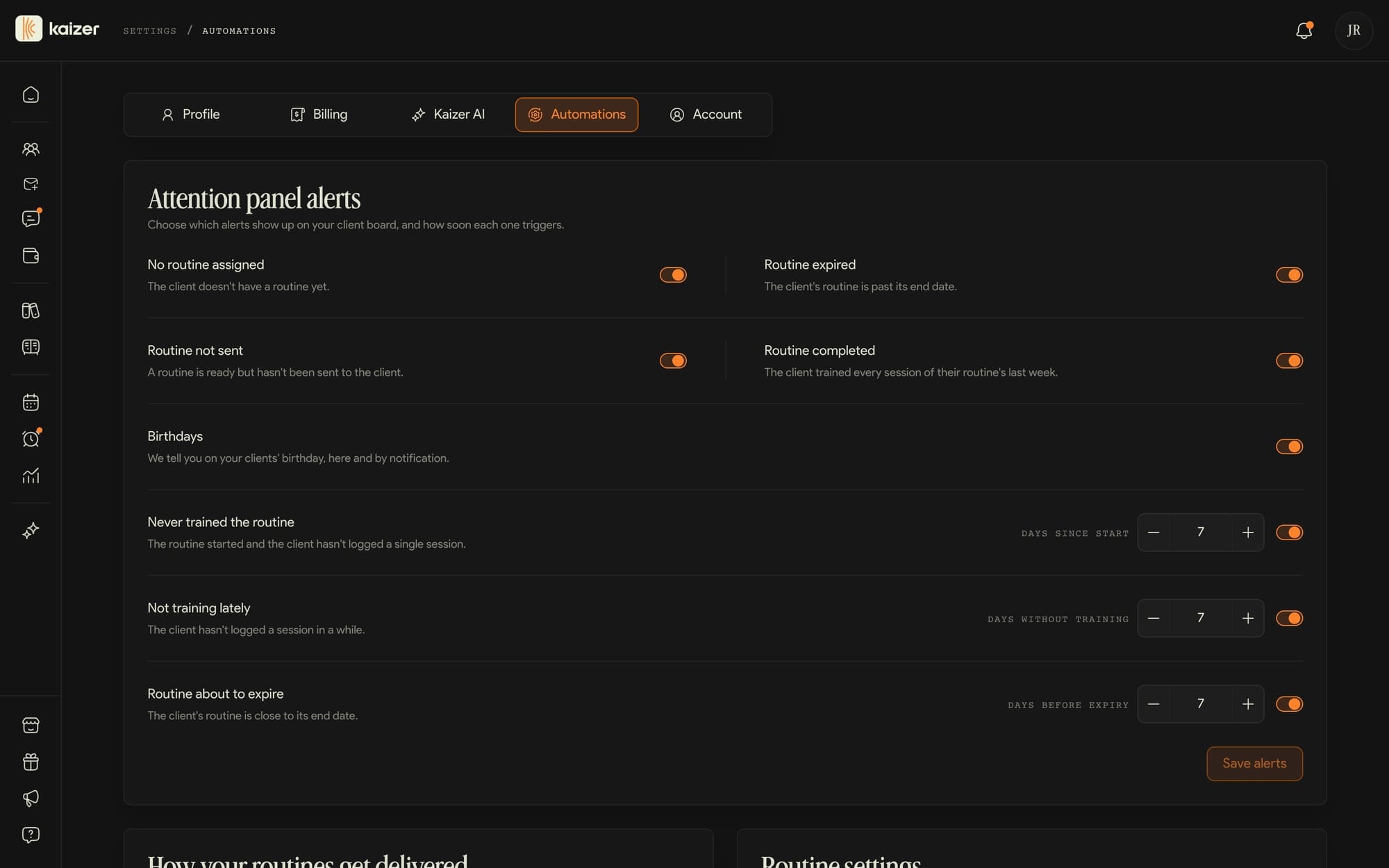
Choose which alerts you want to see
No routine assigned, routine expired, routine not sent, routine completed, birthdays and expired medical clearance; plus the ones measured in days: routine not started, not training lately, routine about to expire and medical clearance about to expire.
Client welcome
The message someone new gets as soon as they link up with you, and the training plan that gets assigned to them on its own.
Auto-archive finished routines
It stores the routine when the client completes their last session and takes it out of their view, so they don't pile up over time. It comes turned off: by default you archive them by hand.
When to ask for effort
The app asks your client for their effort, as RIR or RPE depending on the exercise's scale, at the end of each exercise, after each set or never. It's the data that feeds progressive overload, and it asks for it on weighted exercises.
All of this is your general setup, but from a client's Settings tab you can change any of it just for them. Default scope, for example, decides whether adding an exercise in a four-week routine adds it to that week only or to all four. And what you don't use, like nutrition, chat or payments, you turn off in My business › Features: it disappears from the dashboard and from your clients' app.
Common questions
What Automations are
In Settings → Automations you decide what Kaizer does so you do not have to. There are four cards, each covering a different moment of your operation.
Attention panel alerts picks which warnings about your clients show on your board and how far ahead. How your routines are delivered decides whether AI-generated routines go out on their own or wait for your review. Routine settings controls progressive overload, automatic archiving, the RIR question and the editor's default scope. And Client welcome defines the message and the training plan a new client gets as soon as they link to you.
Automations is not the same thing as Settings → Kaizer Assistant: that tab is about how your routines get built, this one about what happens on its own once they exist.
Client attention alerts
The Attention panel alerts card in Settings → Automations controls the warnings you see about your clients: on the Home board, as tags in Clients and in the at-risk list in Analytics.
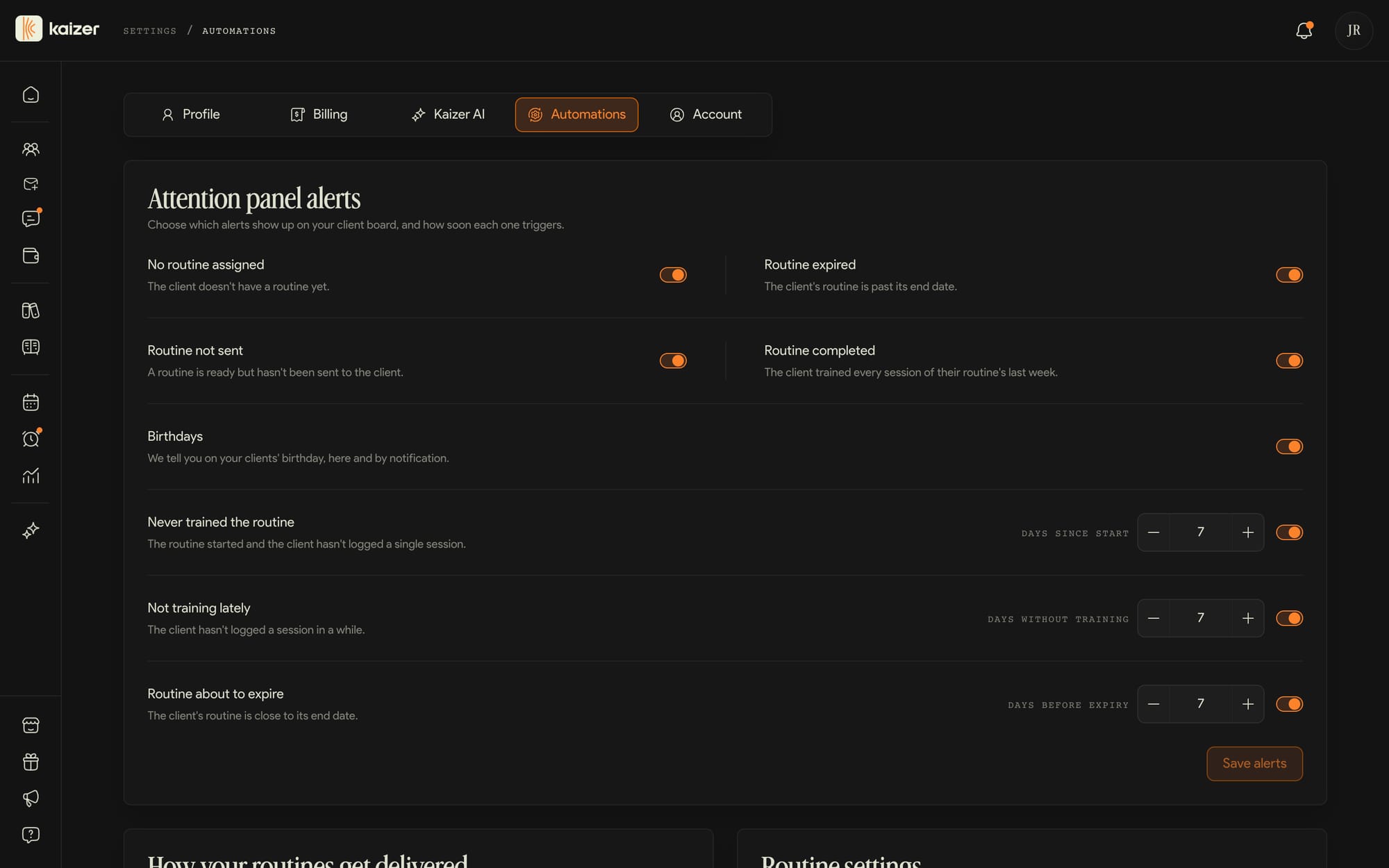
Five alerts are a simple switch: no routine assigned, routine expired, routine not sent, routine completed and birthdays. Three more also carry a number of days: never trained the routine (days since it started), not training lately (days without logging a session) and routine expiring (days before its end date). You can set anywhere from 1 to 365 days.
Alerts are calculated on the routine the client is actually training, not on the newest one on file, so they reflect what is really going on.
They are yours: they apply across your board and change nothing on your clients' side. Changes only take effect when you tap Save alerts.
Automatic welcome for new clients
In the client welcome card of Settings → Automations you write the message a new client receives over Chat the moment they link with you. You can use text, emojis, and links, up to 2000 characters, and the preview beside the field shows exactly how they'll see it. Leave it empty if you'd rather not send anything.
Below the message you pick a welcome planification. Choose one of your training plans and every new client who joins you gets it assigned automatically, with no extra step from you.
Both are optional and independent, and you can change or remove them whenever you want: a new planification only affects the clients who join after the change.
Automatic routine delivery and updates
Review trigger, scope and outcome before activating a rule. The How your routines are delivered card in Settings → Automations holds a single decision: whether AI-generated routines are sent to the client automatically. Say no and they stay pending for you to review and send yourself.
The Routine settings card covers what happens to routines already running. Automatic progressive overload adjusts weight per set and per week based on the client's progress, goal and calculated 1RM. Automatic archiving files the routine as soon as the client completes their last session, and new accounts start with this off. The RIR question asks the client how many reps they had left in reserve at the end of each exercise.
That same card holds the Default scope: the option preselected when you add, delete or duplicate something in a multi-week routine. If you almost always work on the whole block, leave it on All weeks and save yourself the click every time.
Those three switches are your default for everyone, but each client can differ: from the client's settings in Clients you can override any of the three or leave it inheriting your global configuration.
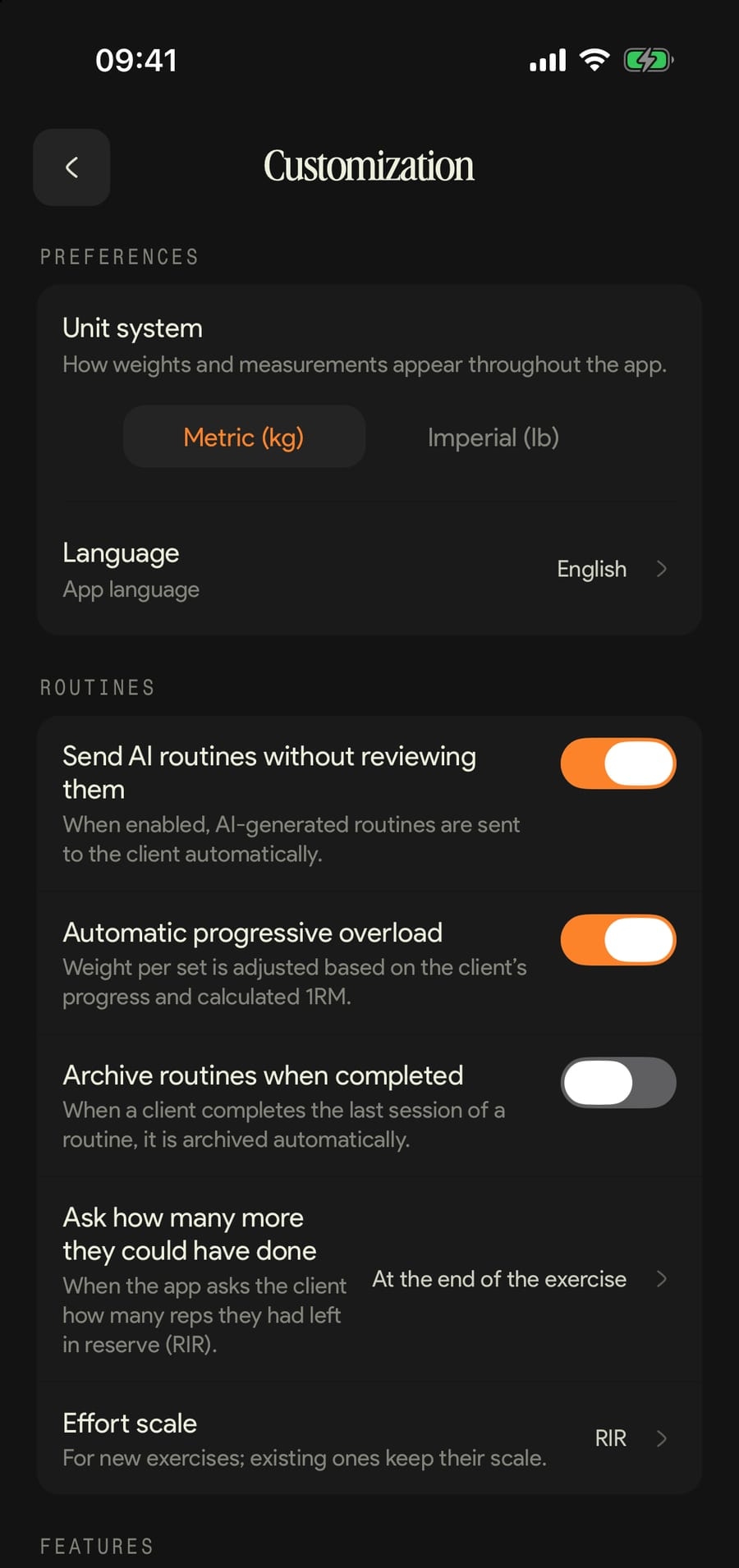
What Kaizer does on its own, so you stop having to remember. You set it up in More, Customization.
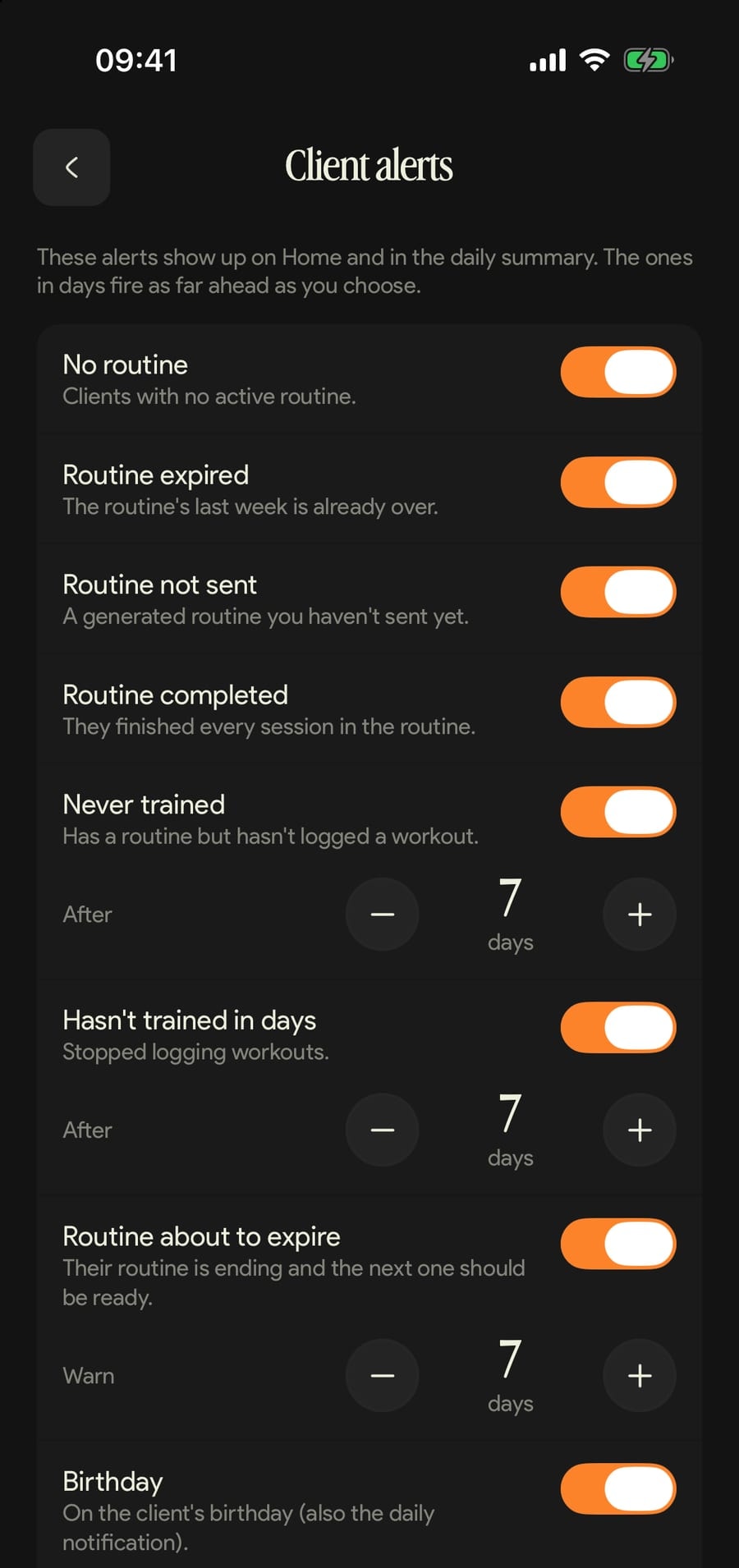
Choose which alerts you want to see
In Client alerts you decide which ones show up on Home: no routine, routine about to expire, not training lately, birthdays, medical clearance and the rest.
Welcome message
What a client gets by chat as soon as they link up with you.
Your routines
Whether AI routines go out without review, automatic progressive overload and whether a routine archives itself when the client finishes their last session.
When to ask for effort
The app asks your client how many reps they had left in reserve at the end of each exercise, after each set or never. It's the data that feeds progressive overload.
Units and language
Kilos or pounds for the whole app, and the language you see it in.
All of this is your general setup, but from a client's Settings tab you change overload, archiving and the effort question just for them.