Telling someone they owe you money is awkward. Kaizer does it for you: it sends the client a notification and an email with what they owe.
Collect with your Mercado Pago
You connect your Mercado Pago account in Settings and your clients pay you by link or automatic debit: the money goes straight into your account, with no Kaizer commission. Cash and transfers you record by hand.
Set it up once
Currency, amount, frequency (weekly, biweekly, monthly, quarterly, every six months or every so many days) and whether you charge the period upfront or in arrears. That's what decides when Kaizer marks someone as past due.
Record it when they pay
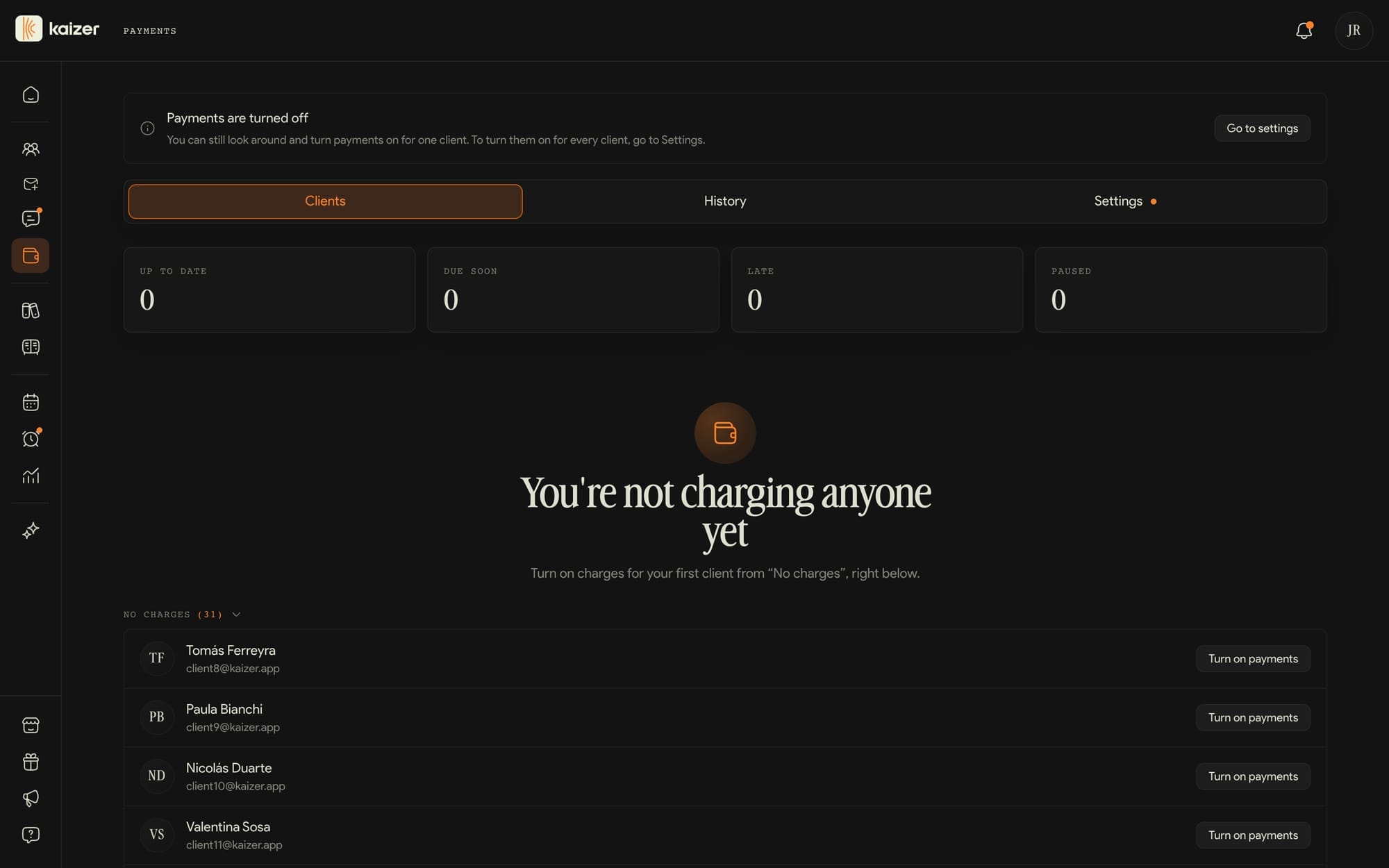
Each payment settles one period. The list shows you who's up to date, whose payment is due soon, who's past due and whose charges you paused.
From the profile too
Each client's Payments tab shows their status, the periods they owe, the history and the reminder. You record the payment right there, without going to the Payments section.
How they pay you is the text that reaches your client in the reminder, so write your real alias or CBU there.
Common questions
What Payments is
Payments is where you track what each of your clients pays you. If you connect your own Mercado Pago account from Settings, your clients pay you by link or by automatic debit and the money goes straight into your account, with no Kaizer commission. It works in Argentina, Brazil, Chile, Colombia, Mexico, Peru and Uruguay. What they pay you in cash, by bank transfer or any other way you record by hand, as always.
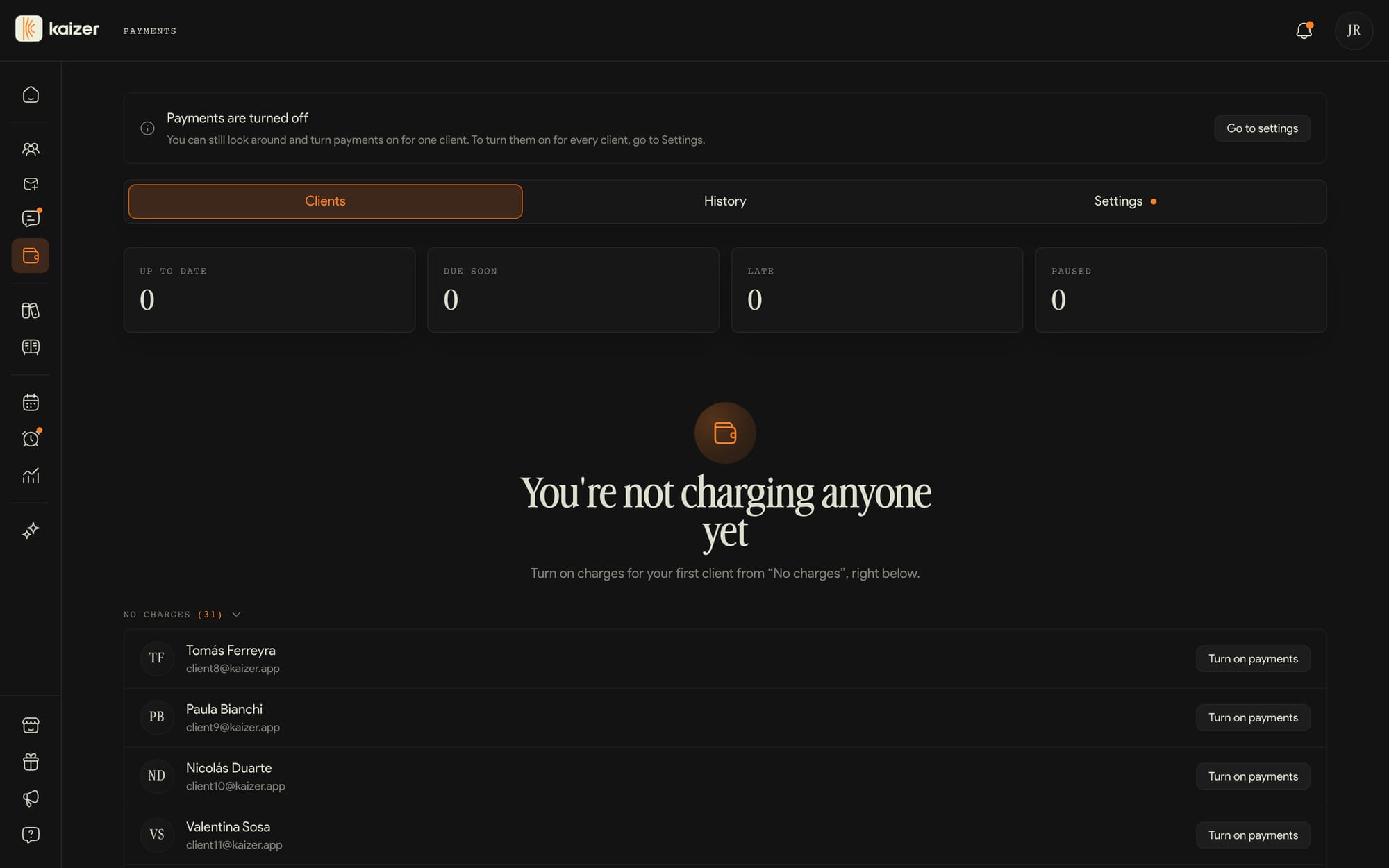
The Clients tab shows one row per client with their status: up to date, due soon, late, or paused. From that row you record a payment, send a reminder, or edit how you charge them. History gathers every payment you've recorded, and Settings holds the defaults every new charge starts from.
To start, turn the feature on from Settings (see Turn payments on for everyone).
Turning payments on for all your clients
Payments tracks agreements, due dates and records; Kaizer does not move this money. Go to Payments → Settings. The Payments for all your clients card holds the master switch, and right below it sits the default configuration every charge starts from: currency, amount, method, frequency, billing mode and How they pay you.
Billing mode is the underlying decision: whether you charge the period in advance (they pay you at the start of the month) or in arrears (they pay you at the end of it). Pick the one you actually use, because it determines when Kaizer marks a client as late.
With the switch on and those values filled in, every client who joins you from then on gets their charge configured automatically with them. While something is missing, the Settings tab flags it with an orange dot and you configure charges by hand, one at a time.
How they pay you is the text your client receives in the reminder, so write how they actually have to pay you: a handle, a bank account or cash at the gym. Payment links are not accepted. With the switch off you can still turn on a charge for a specific client from the list.
Setting up a client's charge
Clients who do not have a charge yet appear in the yellow banner at the top of Payments → Clients. Tap Set up charge and pick the first due date, whether you charge the period in advance or in arrears, and how often you charge: weekly, fortnightly, monthly, quarterly, half-yearly or custom, which lets you build the cycle in days, weeks or months (every 3 weeks, for example). Advance notice is how many days before the due date you want to see it as due soon: 3 by default, up to 30.
Amount, currency, method, billing mode and How they pay you come prefilled from your default configuration, and whatever you do not touch keeps inheriting it: if you raise the general amount later, this client updates on their own. Whatever you do edit here stays fixed for them.
Below the form we sum up when it is due and how often it renews. If you pick a date in the past, the charge deliberately starts late. Afterwards you can change everything with Edit charge, from the row menu or from the client's profile.
Payment reminders
Kaizer sends your client a notice when a payment is coming due and a reminder if it is late. You can also send one yourself with the Remind button, on the client's row inside Payments or from the Reminder card on their page. It goes out as a push notification and an email at once, and it's a single message per client covering everything they owe, not one per period.
Two things have to be in place. That How they pay you is filled in under Settings, because that text is exactly what reaches your client: without it the button stays disabled for everyone. And that the client actually has something to pay: the button only works while their charge is due soon or late.
After sending one there's a wait of a few hours before the next. Whenever the button is disabled, hover over it and the tooltip tells you why: the wait, the missing detail, nothing owed yet, a paused charge, or a client with payments turned off.
Record a payment and read the history
When a client pays you, hit Record payment on their row in Payments or on their page, and pick the date they paid. The dialog shows which period that payment covers, the amount, and how it gets recorded.
Each payment settles exactly one period. If someone owes you three, you record three payments, and the dialog keeps telling you how many late ones are left after this one.
The History tab gathers every payment, with a search by client and a date-range filter; each client's page shows only theirs. Every record keeps the amount that was in force the day you logged it, not today's. You can delete each client's most recent payment for up to 30 days after recording it: that's the only row that shows the delete button.
Turn off, resume, or delete a charge
Turn off payments stops the clock for that client: nothing piles up while they're off, their setup is kept, and they move down to the No charges section of Payments → Clients. It's what you use for someone taking a break. For a client you're simply not charging, Don't charge in the yellow notice does the same thing.
To bring them back, hit Turn on payments in that section. If they had a charge, it comes back paused and you pick the next due date to restart it. Careful here: resuming discards any period left unpaid, so record whatever they did pay you first, when there's something to lose, we warn you.
Delete charge is the last step: it removes the amount, the frequency, and the due dates. They stay your client and the payments you already recorded stay in the history, so you can set a new charge up from scratch later.
Telling someone they owe you money is awkward. Kaizer does it for you: it sends the client a notification and an email with what they owe.
Collect with your Mercado Pago
You connect it from the web dashboard and your clients pay you by link or automatic debit, straight to your account and with no Kaizer commission. What they pay you outside it, you record here.
Who owes you and since when
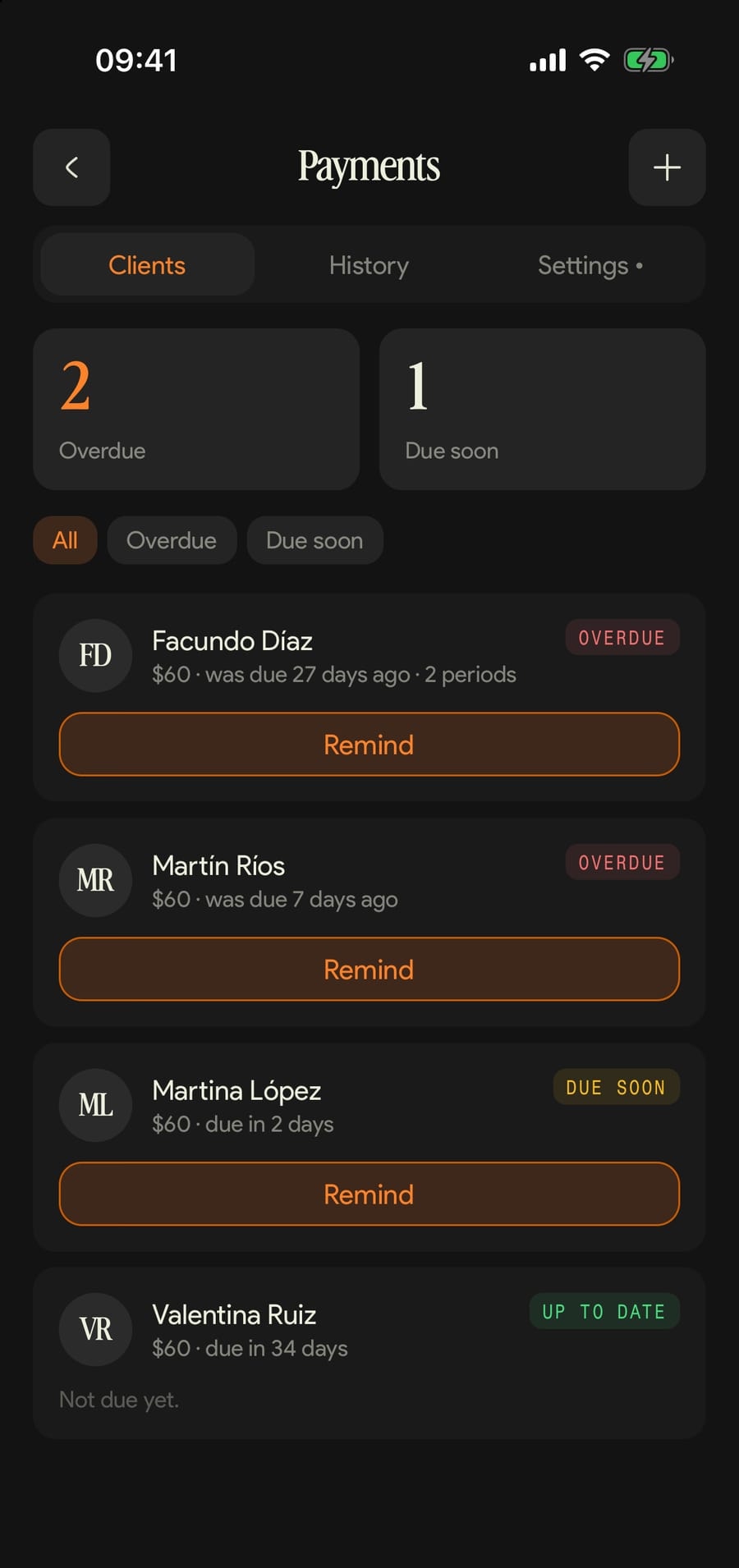
In More, Payments, you see each client with their status: up to date, due soon or overdue.
A reminder in one tap
Remind sends the notice to that client, and Remind everyone sends it to everyone who owes.
Record it when they pay
From the client, Record payment settles the period and the list updates.
How they pay you is the text that reaches your client in the reminder, so write your real payment details there.