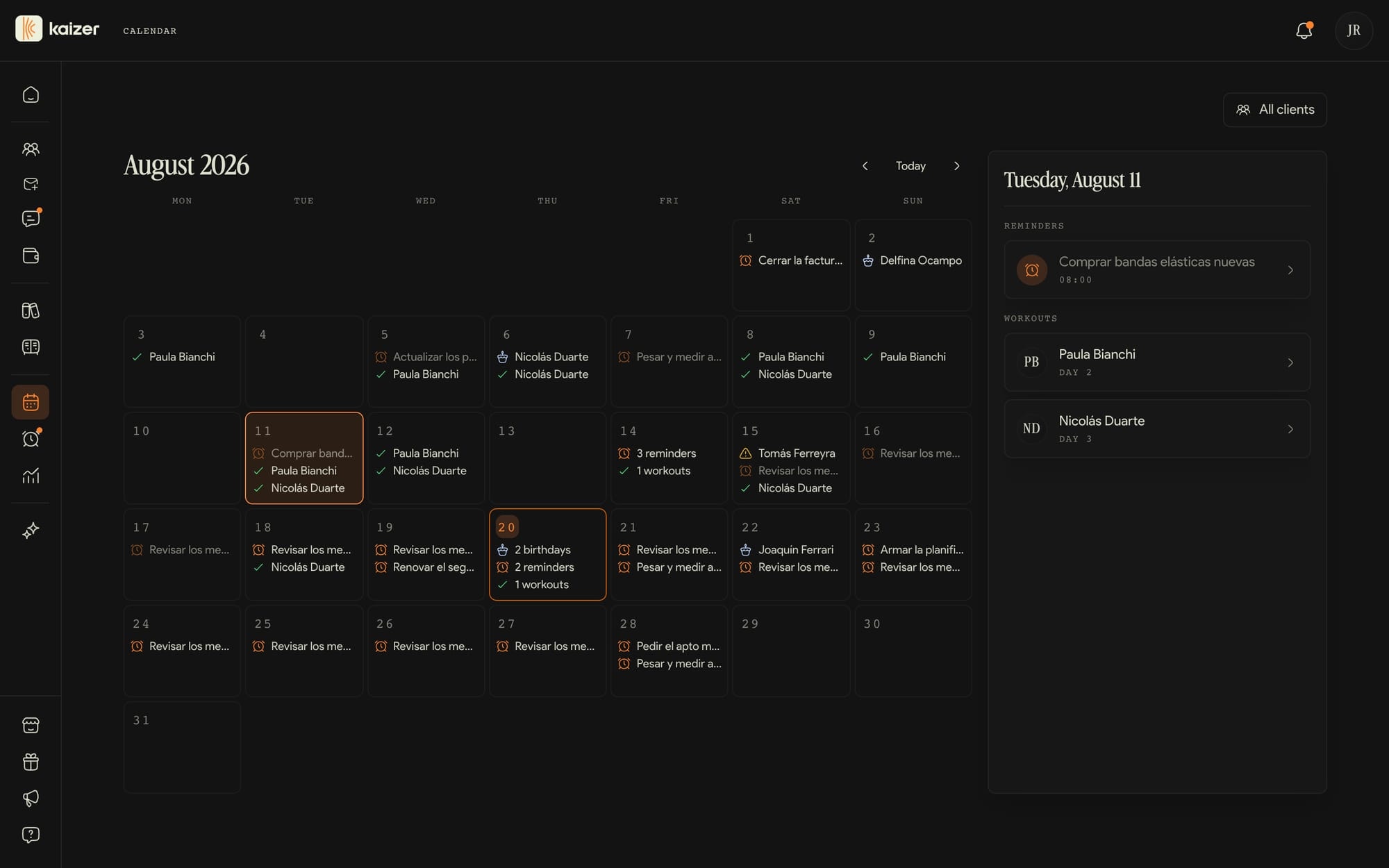
A calendar where you see when your clients trained, when their routines expire and whose birthday it is, along with your reminders.
Filter by client
Useful when you have many and want to follow a specific group. Each client also has their own calendar inside their profile.
Reminders live here
You tap a day and create the reminder with the date and time already filled in: "Call Sofía about the knee injury", with daily, weekly or monthly repetition if you need it. You get the notification at that time, and your client sees none of this. From the Calendar tab in their profile you create one about that client and see the ones they already have.
For the adherence conversation there's nothing better: instead of saying "you're not training enough", you open their calendar for the month and it explains itself.
Common questions
What the calendar shows
The Calendar is the month view of your whole operation. Each day shows four things: the workouts your clients completed, the routines expiring (or already expired), birthdays and your reminders.
Clicking a day opens the detail panel on the right. From there you jump straight to whatever you need: View workout takes you to the session your client logged, View expiring routine to the routine that needs renewing, View profile to the birthday client's page and View reminder to your reminder list.
Up top you have the arrows to move between months and Today to come back to the current one. The All clients filter lets you pick who shows up on the calendar, handy when you have many and want to follow one group.
Each client also has their own calendar inside their profile: see A client's calendar.
A client's calendar
Beyond the general calendar, each client has their own. Open their profile from Clients and go to the Calendar tab: there you see, month by month, which sessions they completed, which they skipped and when their routine expires.
It serves two concrete conversations. One is adherence: instead of saying "you are not training enough", you show them the month and it speaks for itself. The other is programming: before you build the next block, you look at how the current one went.
It is the same information behind their Overview and your Analytics, only laid out on a calendar instead of summed into a number.
What reminders are
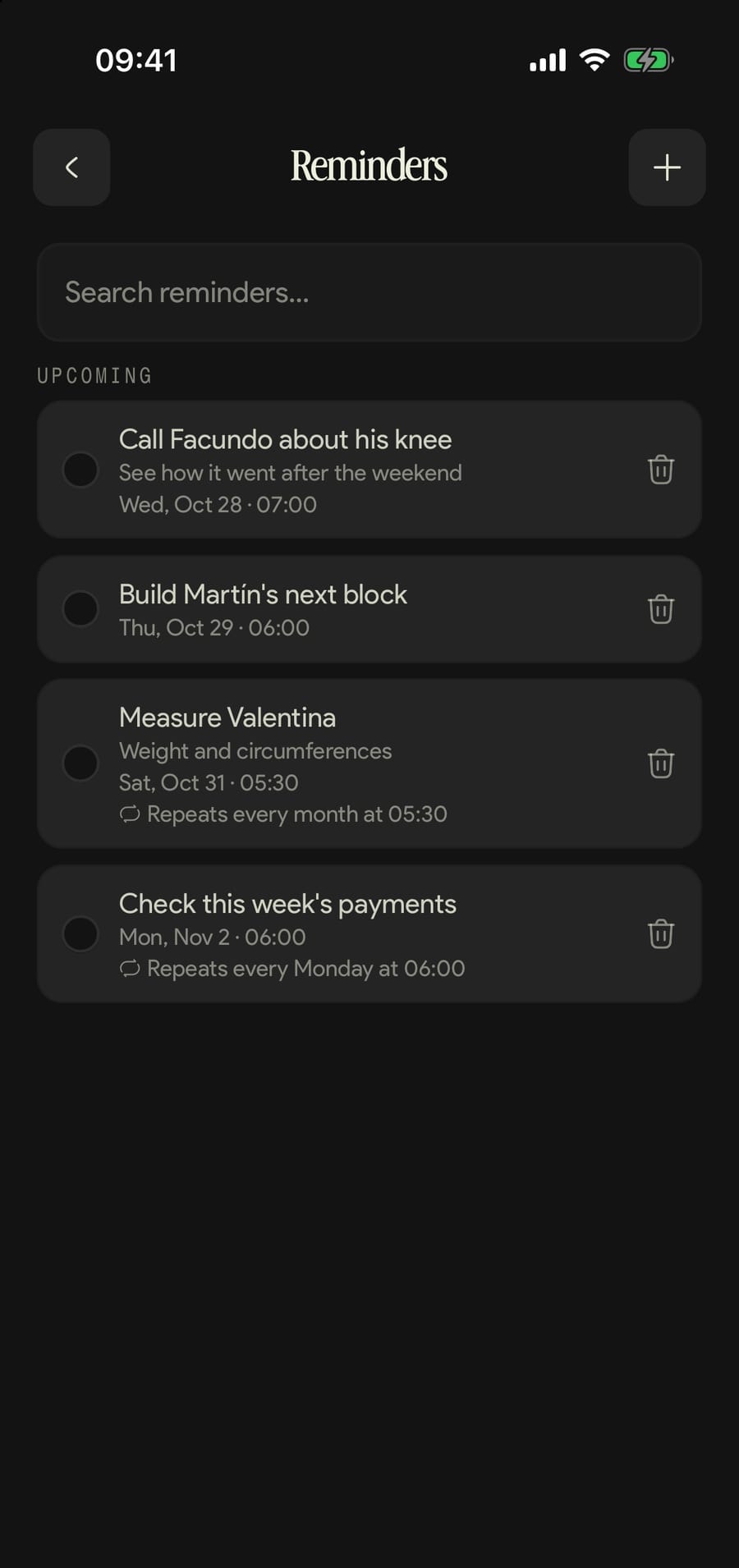
Reminders is your to-do list, inside Kaizer instead of on a sticky note. You write down what you have to do and when, and we send you a notification when the moment comes.
To create one, tap New reminder. Give it a title (for example, "Call Sofía about her knee"), an optional description with the details, and the date and time. If it repeats, you set that up right here: see Repeating reminders.
They are yours and private: your client sees none of this. If you want to tell them something, that is Chat.
The list sorts itself into three sections (Overdue, Upcoming and Completed) and has a search box and a status filter. See Where your reminders show up.
Repeating reminders
In the reminder form, the Repeat field gives you four options: Does not repeat, Every day, Every week and Every month. Picking any of the last three reveals Until, where you set the date the series stops generating. It has to be the same as or later than the start date.
In the list, every repeating reminder states its rule in one line: "Repeats every day at 06:00", "Repeats every Thursday at 15:00" or "Repeats on the 5th of every month at 17:00". You do not have to open it to know how it ended up.
Deleting a repeating reminder asks about scope: Delete only this reminder or Delete this and the following ones. Repetitions that already happened are kept either way, whether you completed them or not, so you do not lose the record of what you did.
Where your reminders show up
A reminder crosses your path in five places, so nothing slips.
Reminders holds them all, grouped into Overdue, Upcoming and Completed. The circle on the left marks one as completed, and the row menu lets you edit or delete it. If you have many, the search box and the status filter shorten the list, and Show more loads the rest.
In the sidebar, Reminders carries a counter with how many are overdue. On the Home board, your overdue ones appear under Alerts with a Complete button so you can clear them without leaving. On the Calendar they show on their day, next to workouts and birthdays.
And when the time comes we send the notification, which also stays in the bell at the top right of the dashboard.
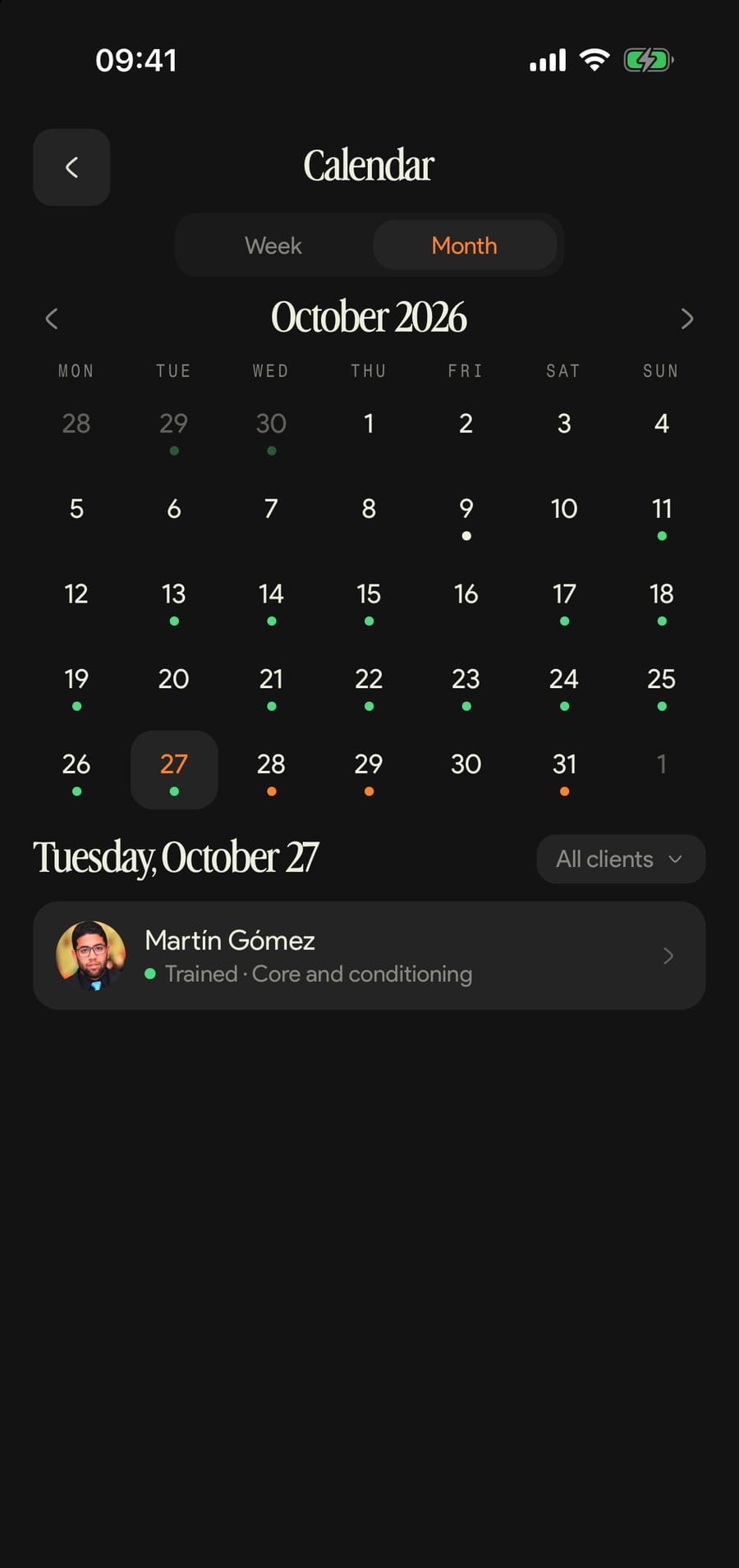
In More, Calendar, you see when your clients trained, when their routines expire and whose birthday it is.
Week or month, by client
You switch between the week view and the month view, and filter by the clients you want to follow.
Your reminders
In More, Reminders, you create yours with a date, a time and a repeat if you need one: "Call Sofía about the knee injury". You get the notice at that time, and your client sees none of this.
For the adherence conversation there's nothing better: instead of saying "you're not training enough", you filter the month by them and show it to them.