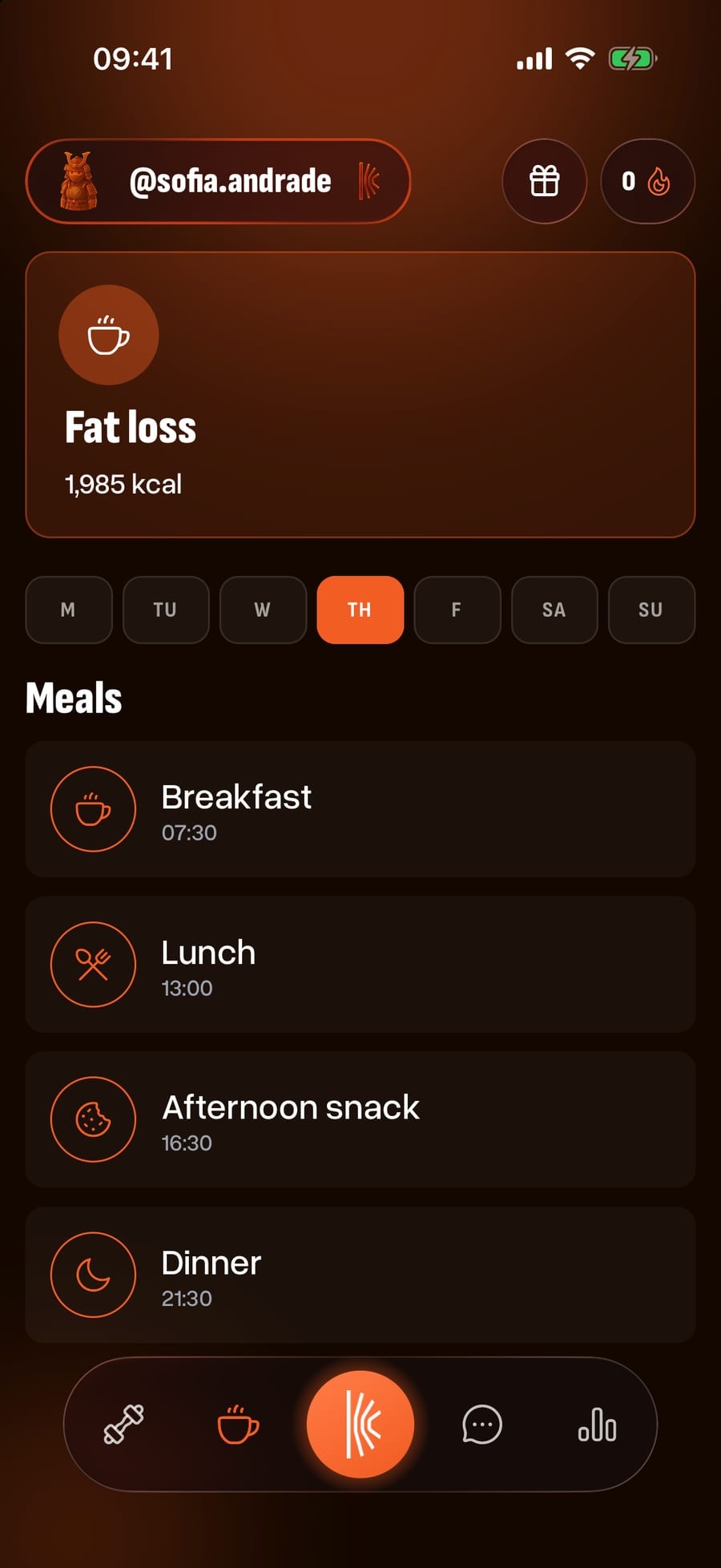
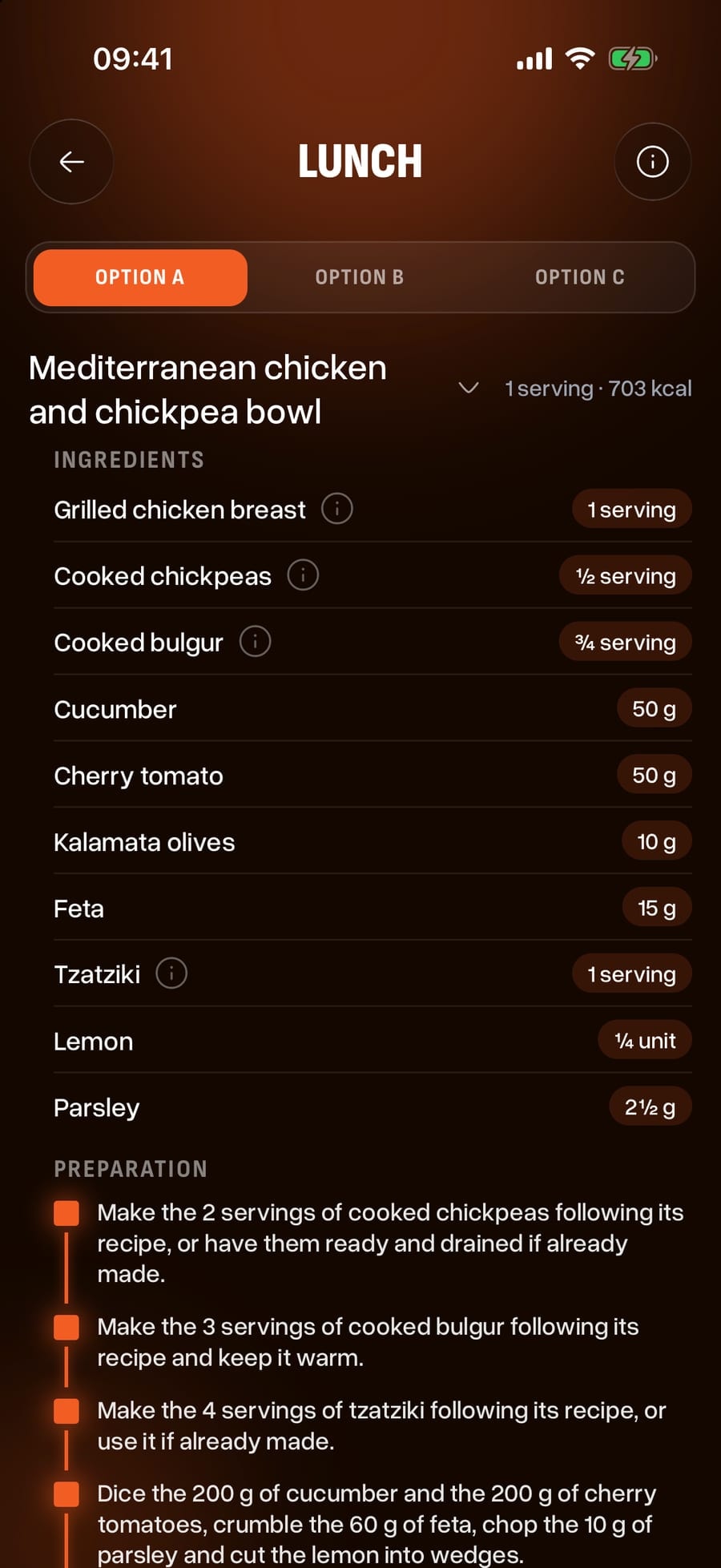
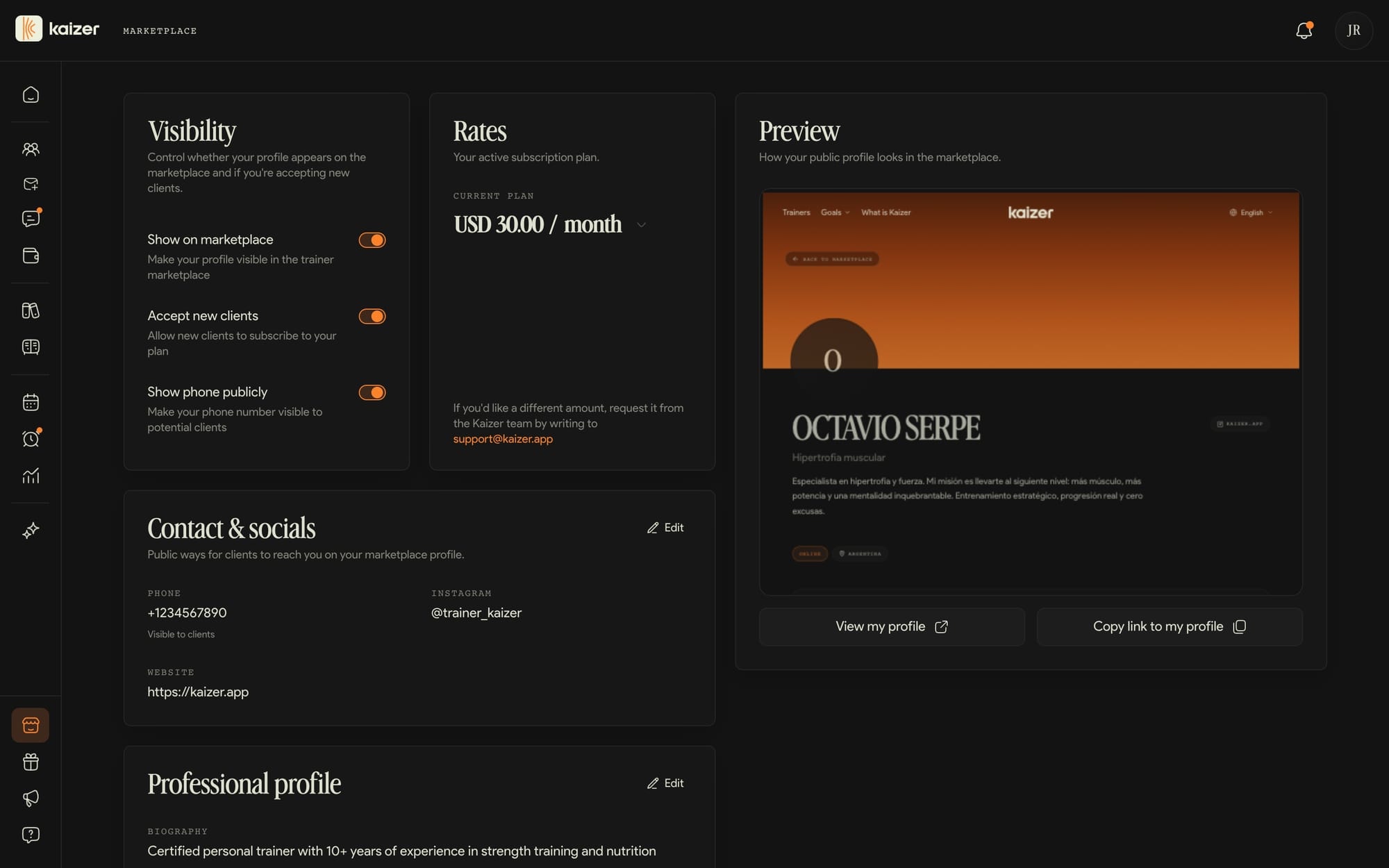
Kaizer is the platform 1200+ trainers around the world work with. From the dashboard you build each client's routine, follow what they train, build their meal plan, message them, run your calendar and get a library of exercises on video. Your client receives all of it in their phone app. And when you are away from the computer, Kaizer Coach lets you keep going from yours.
Useful links
Dashboard
Your workspace. It opens in the browser and it is where you build routines, check who trained and track payments.
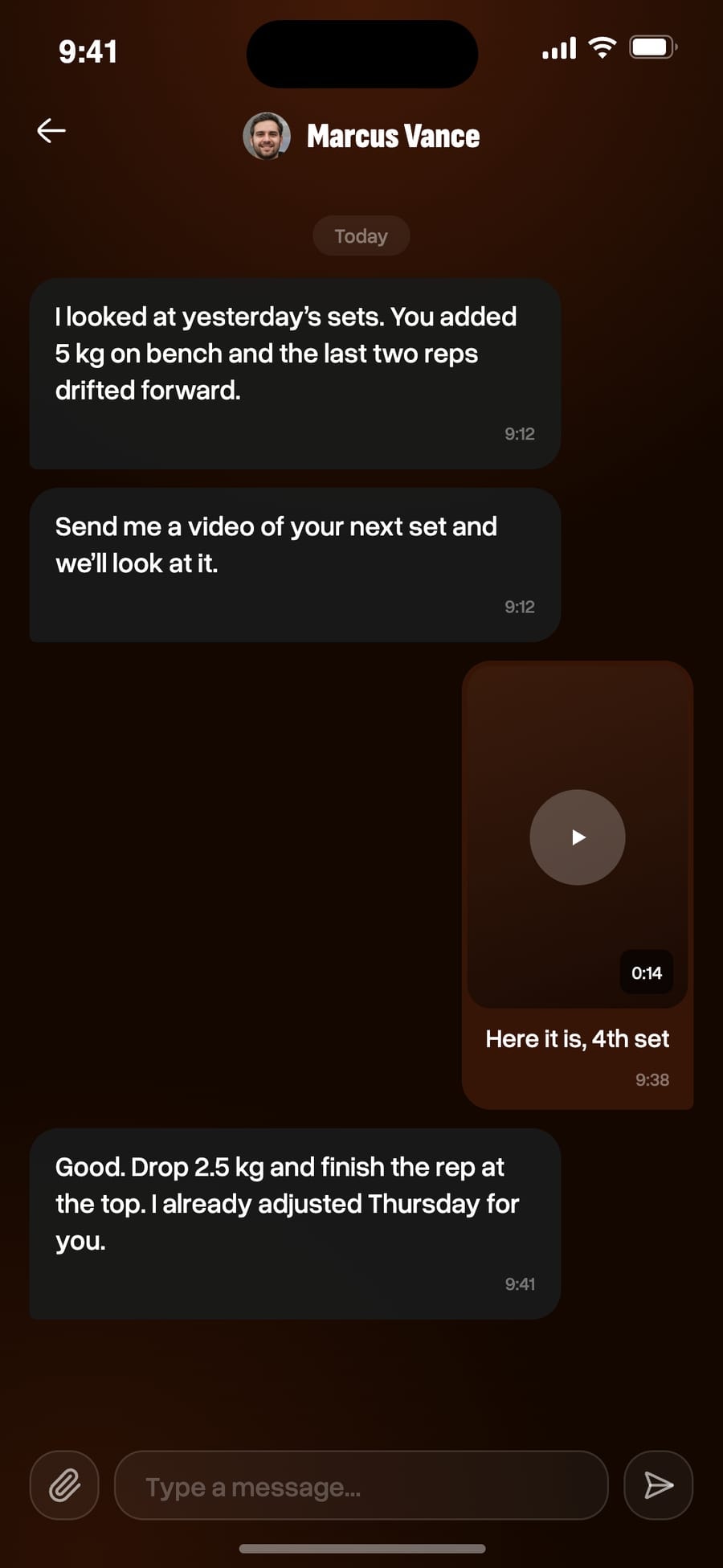
Everything the dashboard does, from your phone, for when the computer is not with you or you want to change something on the spot. It is a companion: for real work the computer is still the best place, and you get the most out of it using both.
With email and password, or with Google in one click.
02
Verify your email
Without that step the dashboard won't let you in. If the email doesn't arrive, check spam.
03
Choose your KaizerTag
It's your identifier, like an Instagram handle. It goes inside your invitation link and your referral link, so take your time picking it.
Before you start
Create your trainer account
From the sign-up screen you create your account with your email and a password of at least 6 characters (you confirm it twice). You can also sign up with your Google account in a single click.
As soon as you create it, Kaizer sends a verification email to the address you used. Until you verify it, you can't enter the dashboard, so that's the mandatory first step (see Verify your email).
Once your email is verified, you complete your profile just once and your trainer account becomes active.
Verify your email to log in
Email verification is mandatory: until you confirm the address, the session stays on the verification screen and you can't access the dashboard.
From that same screen you can ask us to resend the email. The button waits 30 seconds between attempts to avoid spam, so you'll see a countdown in the meantime. Always check your junk folder.
When you open the link in the email and return to Kaizer, the app detects the change and takes you to the next step. If you mistyped your email, sign out and register again with the correct address.
Complete your trainer profile
After verifying your email, you complete your profile just once. There are three required fields: first and last name, your @tag, and your date of birth (you must be over 18).
The @tag is your unique identifier in Kaizer. It's written with a leading @ and only accepts letters, numbers, dots, and underscores (for example, @agus.fit). It's the one that goes inside your invite link, so choose it carefully.
Afterward you can add optional details: a profile photo (jpg, png, or webp, up to 5 MB), a short bio, your phone number, and your Instagram. You can edit all of this whenever you want from Settings → Profile.
Plans and trial period
Kaizer has four plans that differ mainly by how many clients you can have: Basic up to 3, Starter up to 15, Pro up to 50, and Arnold up to 500.
When you create your account you start with a 14-day trial, with the same client cap as Basic. When it ends, you pick a plan to keep using Kaizer.
You can pay month to month or choose the annual cycle, which gives you 2 months free.
Prices show in Argentine pesos if your profile country is Argentina, and in US dollars everywhere else.
Each plan has a maximum number of active clients: Basic 3, Starter 15, Pro 50, and Arnold 500. During the 14-day trial the cap is the same as Basic. When you reach the cap, you won't be able to add more clients until you free up a spot or upgrade your plan.
To raise it, go to Settings → Billing and choose a plan with more capacity.
Keep in mind that the limit counts your active clients, so removing someone you no longer train frees up a spot.
Change your plan, card, and view invoices
From Settings → Billing you manage your Kaizer subscription: change your plan, switch between monthly and annual billing, update your card, and view your past invoices.
When you upgrade or downgrade your plan, the change takes effect on your next renewal. The annual cycle gives you 2 months free, and prices show in the currency of your profile country.
Don't confuse this with your Marketplace rate: here you pay Kaizer; the Marketplace rate is what your clients pay you.
Your day to day
What you'll use every day, in the order you'll need it.
The dashboard at a glance
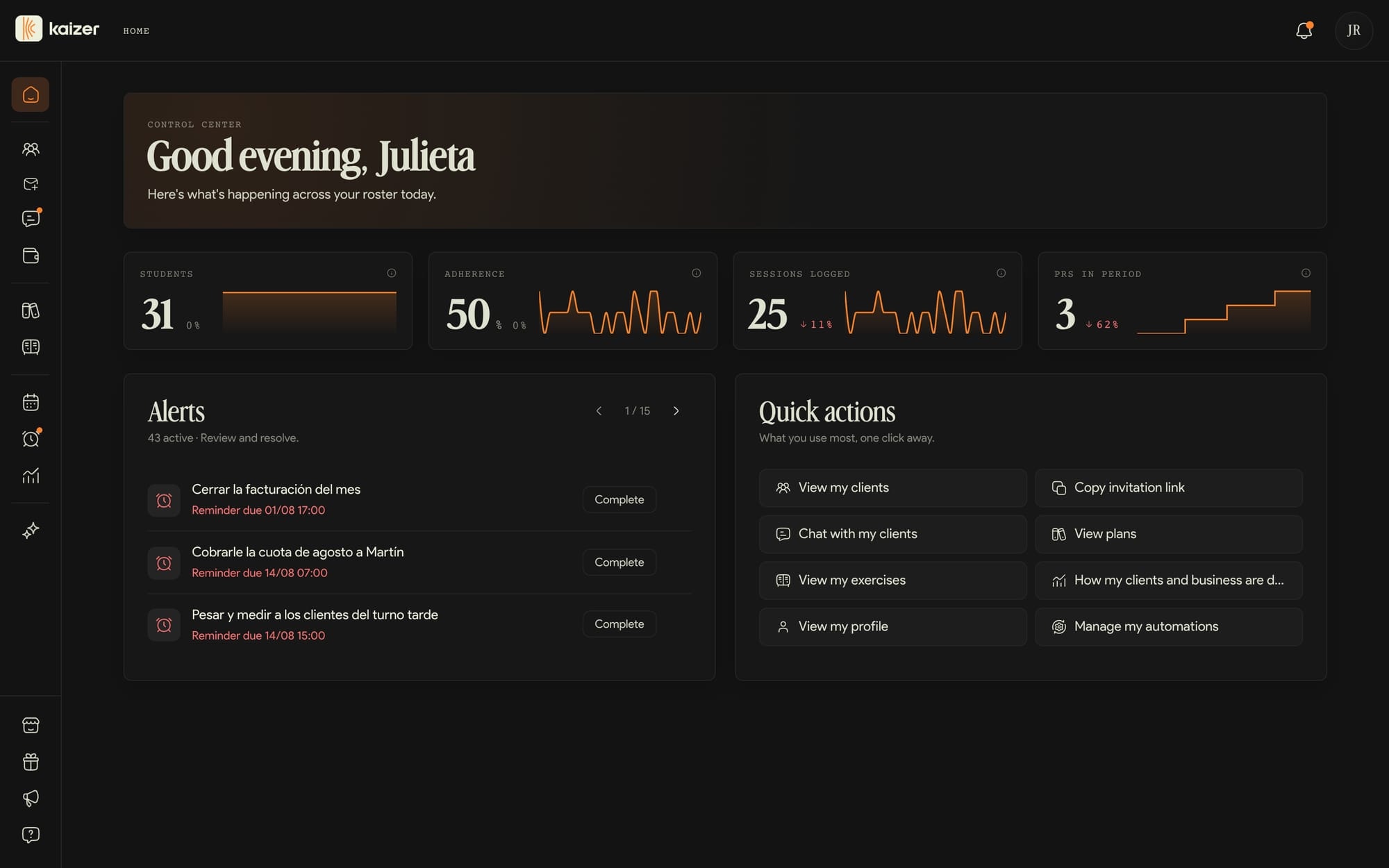
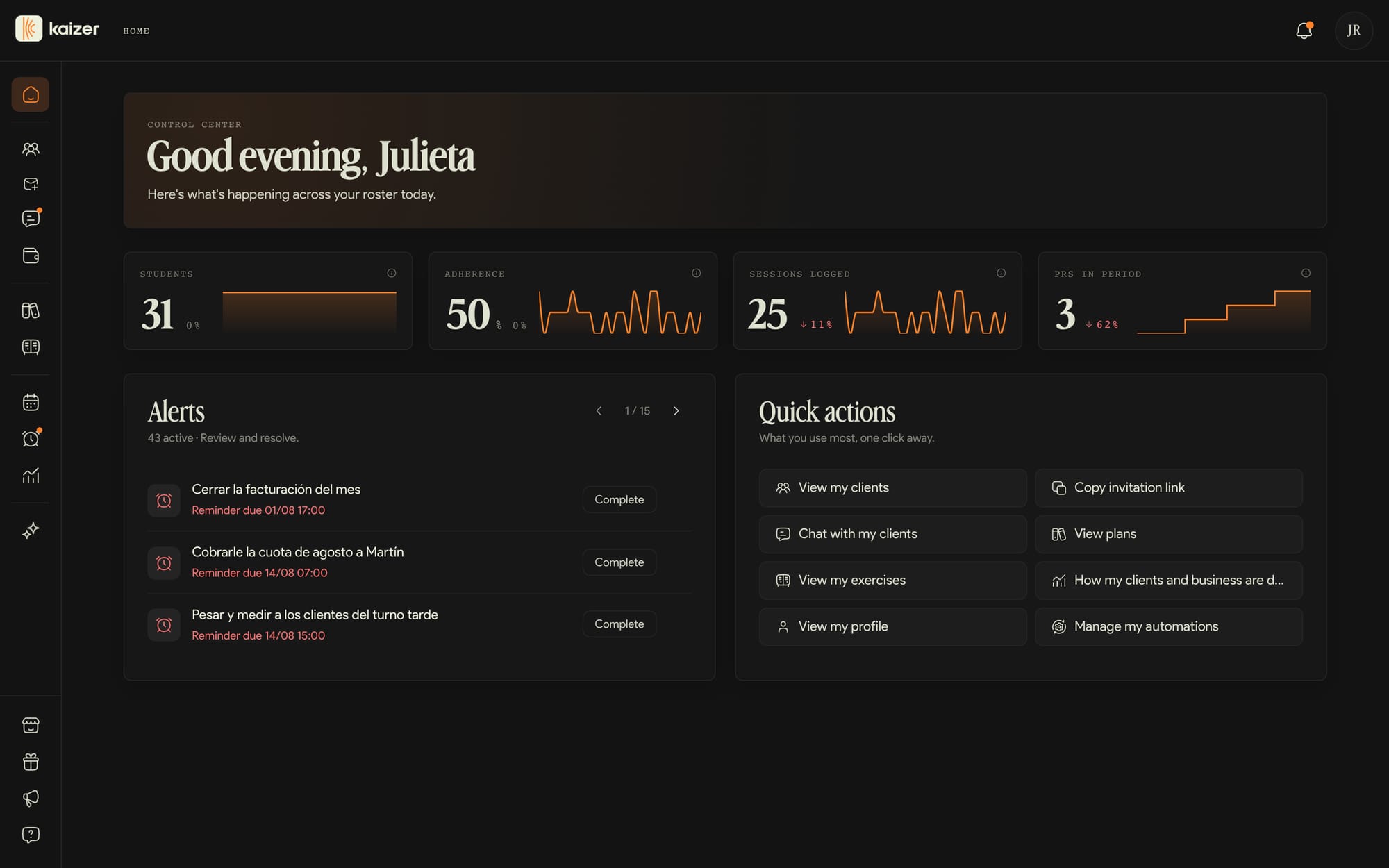
It's the first thing you see when you log in and it works as a control center: what's happening today and what needs an action from you.
dashboard.kaizer.app
The indicators up top
Clients, adherence, sessions logged and PRs in period, each with its change against the previous period.
Alerts
Your real to-do list: who has no routine, whose routine is expiring, who hasn't trained in a while. Each one comes with the button that resolves it.
Quick actions
Shortcuts to what gets used most: view clients, copy your invitation link, open the chat.
On your phone too
If you open the dashboard on your phone, the navigation moves to the bottom and the lists take the full screen.
Kaizer Coach gives you this same thing on your phone, for when the computer is not with you or you want to change something on the spot. It is a companion to the dashboard, not a replacement: for building and reviewing properly the computer is still the best place, and you get the most out of it using both.
Common questions
A tour of the dashboard
Home brings daily priorities together; the sidebar opens each area.
The sidebar groups everything into blocks and expands when you hover over it. Right at the top is Home, your summary of the day: the totals, alerts for the clients who need something from you, and quick access to what you use most.
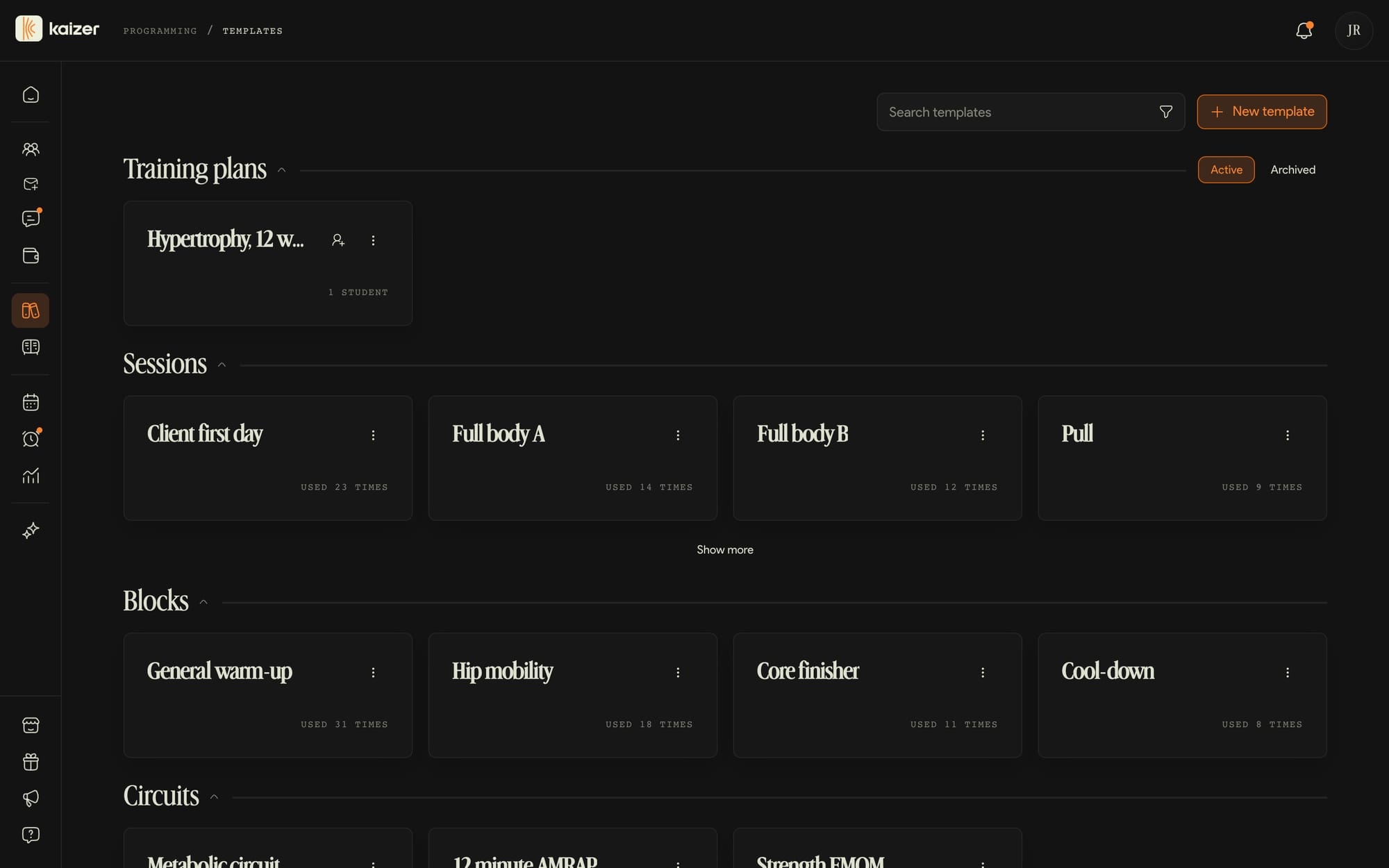
The first block is your clients: the Clients list with Invitations nested under it, Chats and Payments. The second is programming: Templates, where your training plans and everything you save to reuse live, and the Exercise library.
At the foot of the bar are the four things that are not part of your daily loop: the Marketplace, Refer and earn, What's new (what changed in each version) and this Help centre.
The items that need you speak up without being opened: Chats shows unread messages, Reminders shows overdue ones and Payments shows clients behind on their money.
Your clients
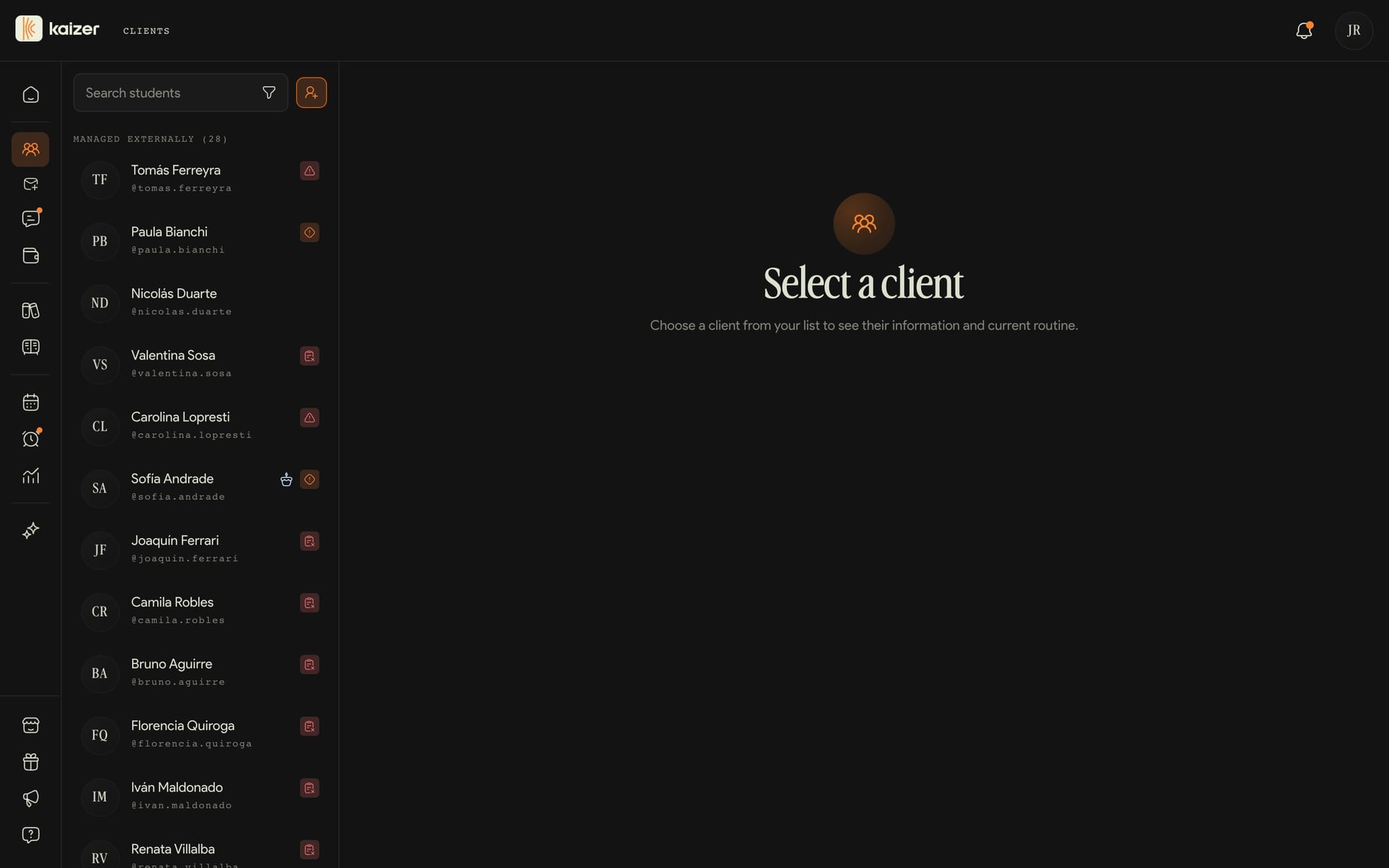
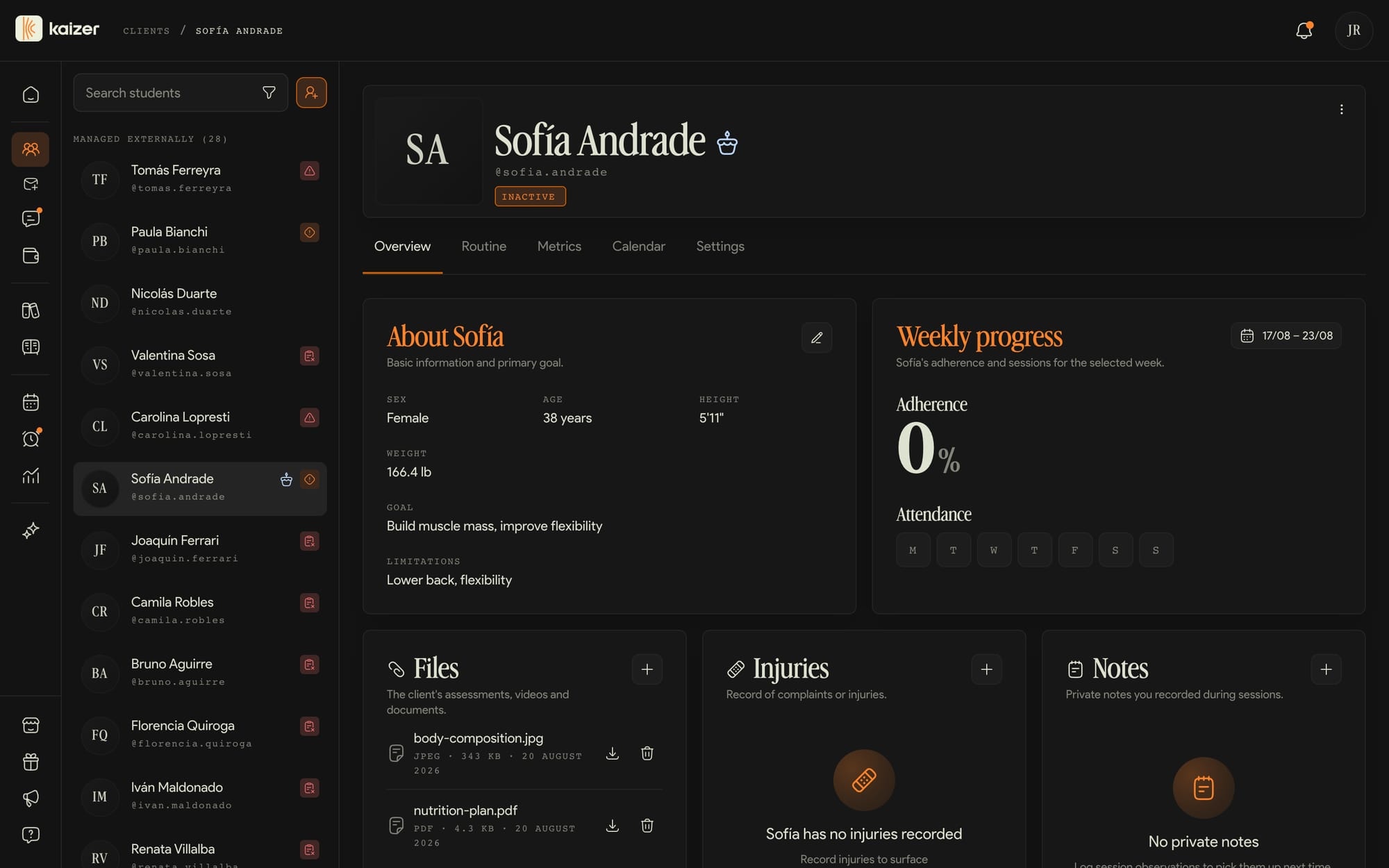
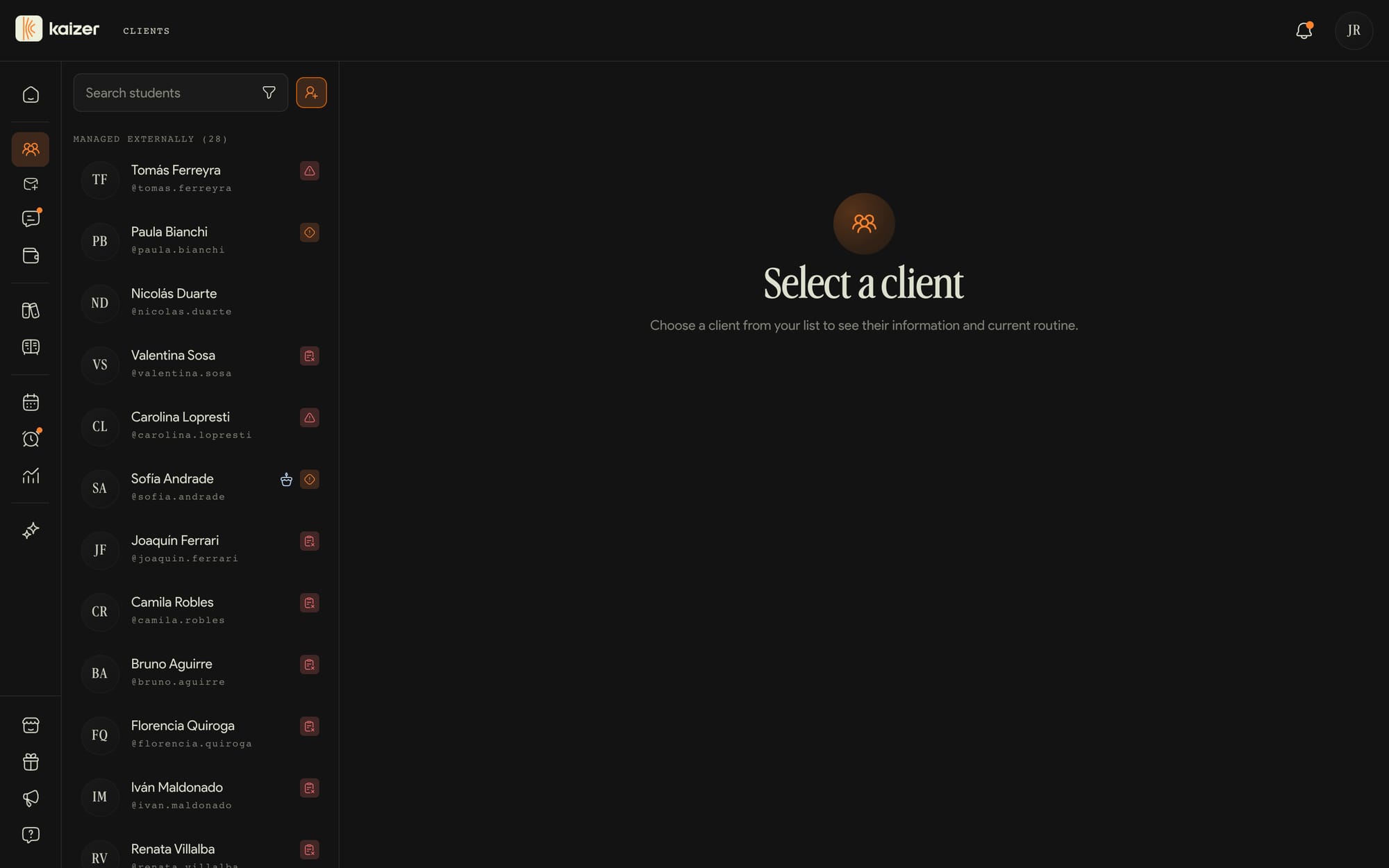
The screen where you'll spend the most time. Your full list on the left, the profile of whoever you select on the right.
dashboard.kaizer.app/clients
dashboard.kaizer.app/clients
The profile has six tabs
Overview, Routine, Nutrition, Metrics, Calendar and Settings. Everything about that person, without jumping between tools.
The colored icon is asking for something
It shows up to the right of the client when they need an action from you.
Filter by what you're about to resolve
At risk, no routine, routine about to expire, never trained. The filters combine with each other.
Tag them your way
With the + under the name you give each client the tags you use, like their time slot or whether they train in person or online. Then you filter the list by them or group it by tag.
Medical clearance, with its expiry
From the pencil on their details, in the Overview tab, you upload their medical clearance with the date it expires. The profile tells you whether it's valid or expired, and Kaizer warns you before it lapses.
Filter by routine about to expire on Monday mornings and in a minute you have the exact list of who needs a new block this week.
Common questions
Filtering and searching your client list
On Clients, the filter icon next to the search box opens a panel with two groups.
The first is alerts: at risk, no routine, routine not sent, routine completed, routine expired, routine expiring, never trained, not training lately and invited. These are the same signals you configure in Settings → Automations, offered here as filters so you can assemble your to-do list for the day.
The second is the client's subscription status: externally managed, active, payment pending, payment overdue, cancelled or rejected. Clients who pay you outside Kaizer show as externally managed.
Filters combine with each other and with the search by name or @tag: for example, you can ask for the ones who are up to date and also have a routine about to expire, to know who to renew first.
View and edit a client's routine
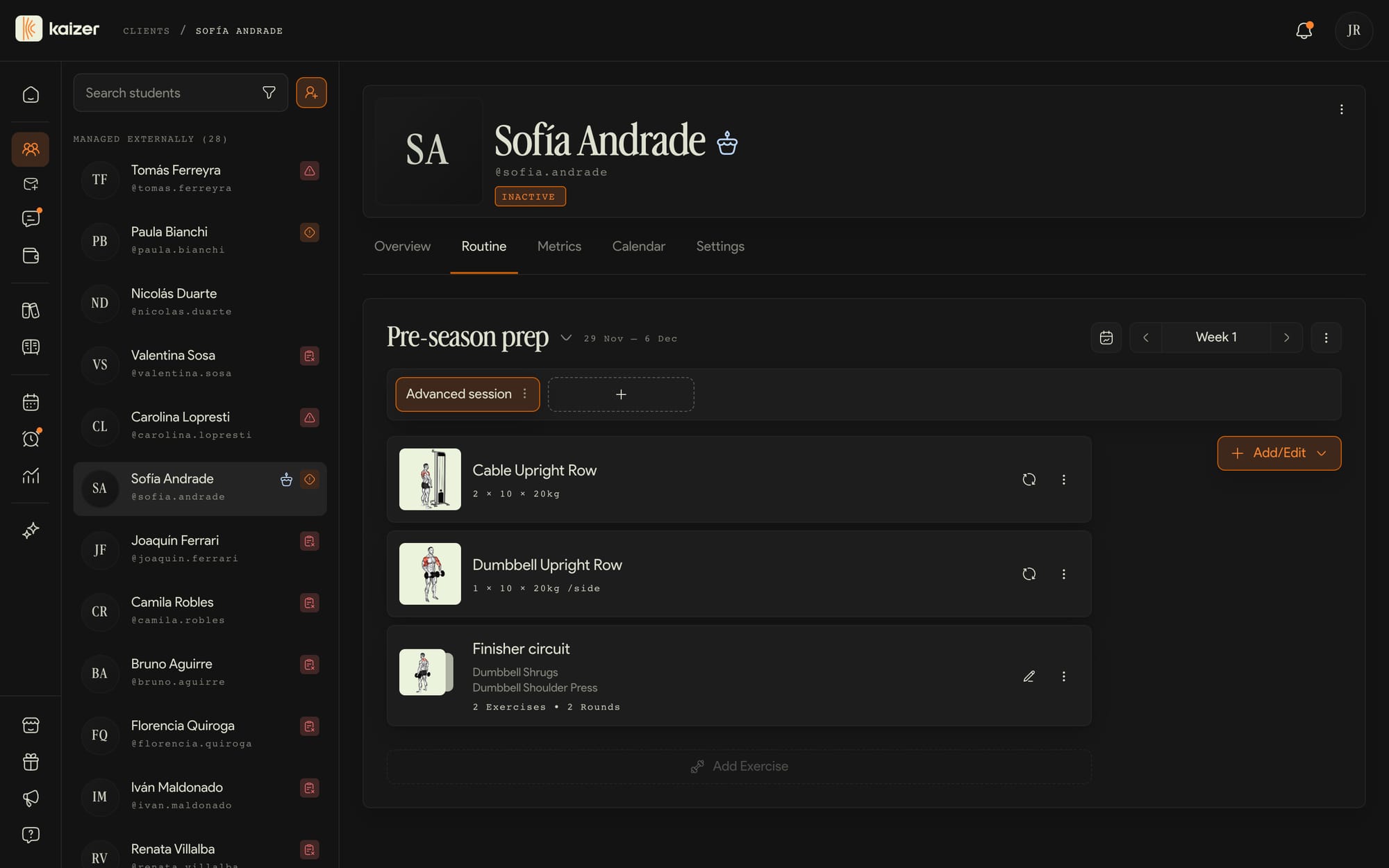
Select any client from your list to enter their profile. Inside you have their Overview, their Routine, and their Settings.
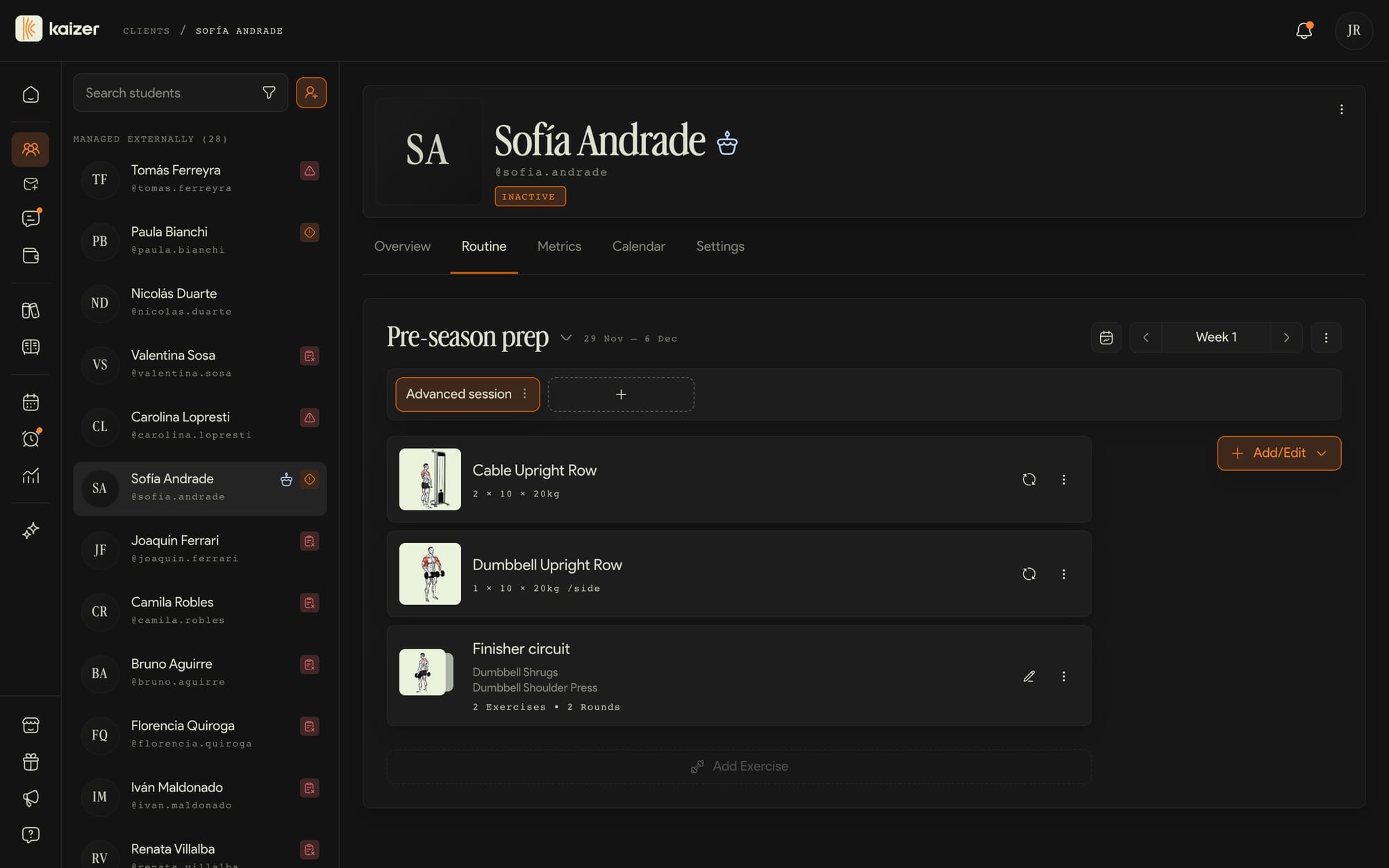
The Routine tab is the central one: it shows the assigned routine with its weeks, its sessions, and each exercise with sets, reps, weight, and rest. You edit everything inline — swap an exercise, reorder sessions, add a week or a whiteboard with notes.
The changes you make here are only for that client: they don't affect the others or the plan the routine came from (see Routine vs. plan).
Client birthdays
A client's date of birth goes in at one of two moments: when you add them, in the Manual registration tab of the Add client dialog, or later, editing About the client from their Overview in Clients. If the client filled in their own profile in the app, it is already there.
With that date, on the birthday we tell you in three places: in the Alerts on your Home board, with a notification, and on their profile, where the name carries a Birthday today tag. On the Calendar you see them coming, on the day they fall.
If you do not want the reminder, turn it off in Settings → Automations, in the Attention panel alerts card: it is the Birthdays switch.
Adding clients
Two paths, for two different moments. The + button above your list opens both.
dashboard.kaizer.app/clients
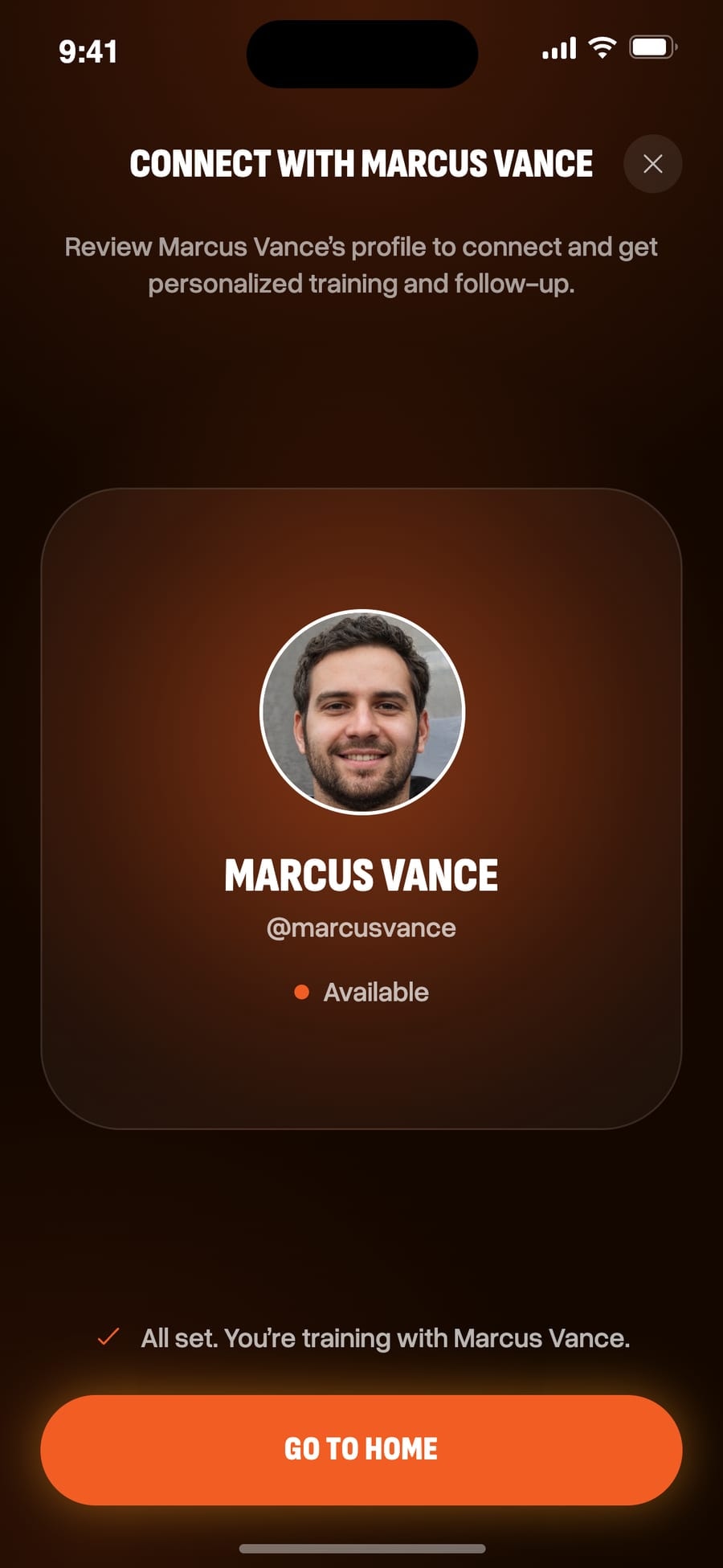
This is what your client sees when they open your link.
Your invitation link
It's unique and never expires, so you can leave it pinned in your Instagram bio. If your client doesn't have the app yet, the link takes them to download it and then to link up with you.
Manual registration
You enter a first and last name and you can start programming right away. Email is optional, and you can also pick a welcome planification so they don't land on an empty screen.
Clients with no app
Without an email the client is created all the same and gets marked as No app: you build their routine and track their payments in the meantime. When you want them on the app, Invite to Kaizer gives you a link to send over WhatsApp, or you send it by email. When they sign up they keep everything already loaded.
The link for a client with no app is for them only: the first person who opens it and signs up keeps that profile, and it expires after 30 days. It's how you digitize your whole gym in one go, even if nobody has downloaded the app yet.
Common questions
Adding a client
Create a profile or open the invitation flow from Clients.
On Clients, the + button above the list opens Add client, with two tabs.
Quick invitation gives you your unique access link, built from your KaizerTag (something like links.kaizer.app/trainers/your-tag). Copy it and send it over WhatsApp, Instagram or email. If your client does not have the app, the link sends them to download it and then connects them to you; if they already have it, it opens the screen to link to your profile directly. The link never expires and is always the same, so reuse it as often as you like.
Manual registration is for when you already have their details and do not want to wait. You enter first and last name — the only required fields — and optionally their email, their date of birth and a welcome training plan, which is assigned as you create them so it is ready when they log in. Leave the email empty and the client is still created, just without the app: see Clients without the app.
With an email, the client stays as invited until they sign up in the app with that same address, at which point they are linked to you automatically. Meanwhile you see them in Invitations, and you can already start building their routine.
What your client does to get started
Your clients use the Kaizer app (not the dashboard). When they open your invitation link, if they don't have the app yet it takes them to download it.
Once in the app, the client creates their account, verifies their email, and completes their own onboarding. Only then does the screen appear for them to confirm they want to train with you: they tap a button and get linked to your list. That link-based association is free.
The other way they reach you is through the Marketplace: they find you, view your profile, and subscribe to your monthly rate from the app. In either case, when the client accepts they move from Invitations to your Clients list.
Clients without the app
You can add a client without their email. In the Add client dialog on Clients, the Manual registration tab treats email as optional: leave it empty and the client is created anyway, flagged as No app.
No app means they have no Kaizer account. You build their routine, track their payments and write notes just like anyone else, but they see none of it: no app, no notifications, no way to log workouts. Their profile reminds you with a banner at the top. In your roster they are grouped under No app.
When you want them on board, the Invite to Kaizer button on their profile gives you two paths: by email, typing their address, or by link, to send over WhatsApp. The link expires in 30 days and whoever opens it first and signs up claims that profile, so share it only with your client.
The important part: accepting the invitation keeps everything already loaded — their routines, their history and their payments. Nothing starts over.
Pending invitations
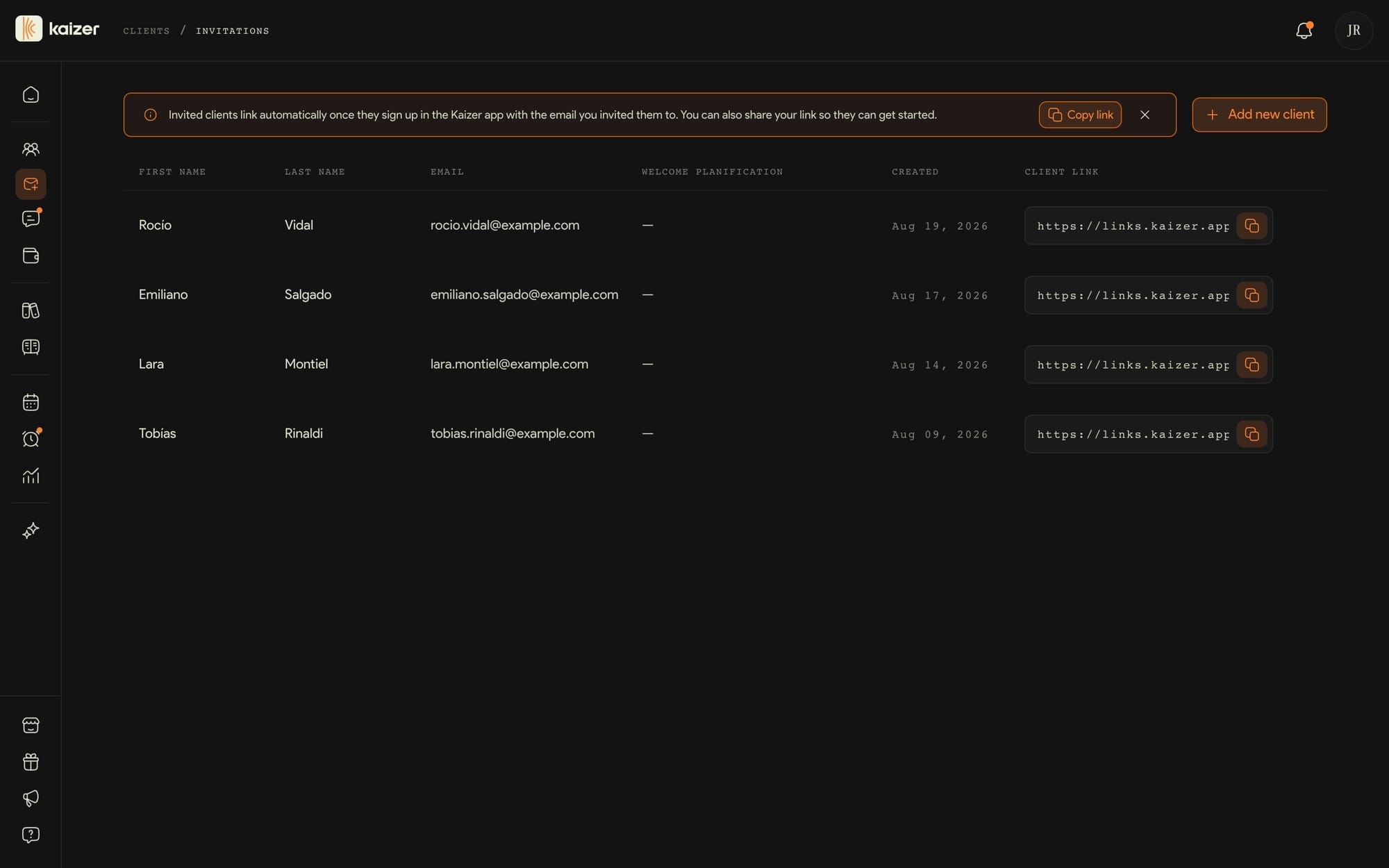
Invitations lists the clients you added with an email who have not finished activating their account. The table shows first and last name, email, the welcome training plan you assigned, when you invited them and their link.
The client links to you on their own, as soon as they sign up in the Kaizer app with the address you invited them at. They do not have to do anything else. If you want to nudge them, each row has its own link to send again, and your general one sits above with Copy link.
You can also add people from this screen: Add new client opens a blank row where you enter first name, last name, email and, if you want, the welcome training plan.
As soon as they confirm in the app they disappear from here and move to your Clients list. If a lot of time goes by, resend the link or ask whether they got around to installing the app.
Routines
It's the heart of Kaizer. Everything else exists so this screen is fast.
dashboard.kaizer.app/training-plans
Routine or training plan
The routine belongs to one client. The training plan is the template you assign to several: each gets an independent copy, so adjusting it for one doesn't touch the others.
Weeks, sessions and what goes inside
Exercises with their sets, loads and rests; blocks, circuits and supersets for what gets done together; and free-text whiteboards for the warm-up or the rules of a TABATA. Everything reorders by dragging, and when you add an exercise you choose whether it goes in every week or only the ones you pick.
Four ways to start
From scratch, from a template, by importing a PDF, Word, Excel or even a photo, or by asking the AI for the first draft.
Draft until you send it
Until you send it, the routine carries the Draft label. When you send it, your client gets an email and a notification in the app to start training.
Export and archive
You can download the routine as a PDF to print it or send it to someone who won't install the app. Archiving takes it out of the active view and off the client without losing the history; deleting has no way back.
The more detail you give the AI, the better it comes out. A request that works: "4-day hypertrophy routine, 60 minutes per session, with a warm-up block for the rotator cuff and four-week progression". Kaizer builds the draft; sending it to the client is your call.
Common questions
Routine vs. training plan — when to use each
A routine lives inside a client's profile. It is built for that person and changes never affect anyone else.
A training plan is a template. You build it once and assign it to several clients. Each time you assign it, Kaizer creates an independent copy (a new routine) for that client, so adjustments stay isolated. Your training plans live in Templates, in the Training plans section, alongside everything else you save to reuse.
Rule of thumb: if you are programming for one person, work directly in their Routine tab. If you want the same block on several people, build a training plan and assign it.
If what you want to reuse is smaller than a whole plan — a single day, a block of exercises, a circuit — that gets saved too: see What your template library is.
Build a routine from scratch
Build from broad to specific and review before assigning.
A routine has three levels: weeks, sessions (the training days), and, inside each session, nodes.
There are two types of node: an exercise (with its sets, reps, weight, and rest) and a whiteboard, which is a free-form text block for the warmup, notes, or anything that doesn't fit as an exercise. You reorder everything by dragging, and each change saves on its own when you drop.
One detail to keep in mind: when you add a new week, it comes in empty (it doesn't copy the previous one). If you make a mistake, you can always delete it. If you want the AI to build it, see Generate a routine with AI.
Generate a routine or a plan with AI
Generated work ends in the editor so you can validate it.
Kaizer can put together a first draft of a routine or a plan with AI so you don't start from a blank page. You give it the goal and the context, and it generates the structure with its sessions and exercises.
You can request it from the builder or directly from Kaizer AI, your assistant. The AI prepares the proposal and you review it: you adjust whatever is needed and only then assign it or send it to the client.
Think of it as a starting point, not a replacement for your judgment. What gets sent always stays under your control.
Import a routine from a file
If you already program outside Kaizer, you don't have to retype anything. Open the create-routine dialog from a client's Routine tab and the first step has an Import routine button at the bottom; the same thing exists as Import plan when you create one from Plans. Drop the file in and Kaizer AI transcribes it into an editable routine.
It accepts PDF, Word (.docx), Excel (.xlsx), CSV, plain text, and images — one file at a time, up to 700 KB. Old .doc and .xls files aren't supported; re-save them in the modern format first.
The dialog closes as soon as you confirm and the transcription runs in the background: a Kaizer AI card in the bottom-right corner shows the job's status, and clicking it takes you to the routine once it's done. Importing always creates a new routine (or a new plan) and never writes over an existing one. There's no preview step either, so read it over in the editor before it reaches your client.
Circuits and supersets
Inside a session you can group two or more exercises so the client runs them together. A group of two exercises is a superset; with more, a circuit.
When you group them, you define the rounds and the rest between them. If the exercises had different numbers of sets, Kaizer matches up the rounds so the block stays tidy.
You can apply the grouping to that day only or propagate it to all the repeated sessions in the plan at once. And if you later want to undo it, you ungroup the block whenever you like and the exercises go back to being separate.
Sync a plan to your clients
A plan and the routines built from it drift apart: assigning it creates an independent copy per client, so editing the plan afterwards changes nothing for them. Syncing is how you close that gap. Open the plan from Plans and, in the Assigned clients card of its Overview tab, the Sync plan button pushes the current version to everyone it's assigned to.
You can also go one client at a time: hover a client's avatar in that card and the same button appears, and inside View all, clicking a client's row syncs just that person.
Syncing overwrites. Whatever you adjusted directly on that client's routine is replaced by the plan, and there's no undo — that's what the confirmation warns about before it runs. It has a "Don't ask me again" box, so only tick it once you're comfortable, because there's no setting to bring the warning back. An archived plan can't be synced; restore it first (see Archive and restore routines and plans).
Archive and restore routines and plans
Archiving is how you retire a routine without losing it. In a client's Routine tab, the ⋮ menu next to the routine name has Archive: the routine leaves the active list, your client stops seeing it, and all of its training history stays intact. It's not a delete — Delete sits right below in the same menu, and that one is permanent.
An archived routine is still there to consult. The routine name dropdown splits routines into Active routines and Archived, and opening an archived one shows it read-only, with a banner reminding you to restore it before you can edit, extend, or send it again. Restore is on that banner, on each archived row of the dropdown, and in the ⋮ menu — one click and it's active again.
Plans work the same way, from the ⋮ menu on the plan card in Plans or on the plan's own page, with one difference worth knowing: archiving a plan also archives the routine of every client it was assigned to, and restoring it brings all of them back. The confirmation tells you how many clients that is. To find archived plans, open the filter next to the search box and switch Status to Archived.
Kaizer can also do this on its own. Settings → Automations has "Auto-archive finished routines", which files a routine as soon as your client completes its last session. New accounts start with it off, and you can override it for a single client from that client's settings.
Export a routine or a plan as PDF
In a client's Routine tab, the ⋮ menu has Export as PDF. It opens a full-screen preview of the real document, where you choose what goes in it — the full routine, one whole week, or a single session — and the preview redraws with each change. When it looks right, Download PDF saves the file.
Plans export the same way: the ⋮ menu on the plan card in Plans, or on the plan's own page, opens the same preview with the same choices. The only difference is that a plan doesn't have a client yet, so the Student line comes out empty.
The PDF carries your name and your client's, and then each session with its exercises: muscle and equipment, your notes, and a table with reps, weight, RIR, and rest, plus drop sets, circuits and supersets round by round, and any whiteboards. Videos, images, and QR codes are not included, and the document comes out in your account's language. Two things can't be exported: sessions your client already trained (those are a record, not a plan) and archived routines or plans.
Sets, rep ranges and RIR
Each exercise in the routine has its own sets table. That's where you decide what each set measures, how much weight it carries and at what effort it's done.
dashboard.kaizer.app/clients
dashboard.kaizer.app/clients
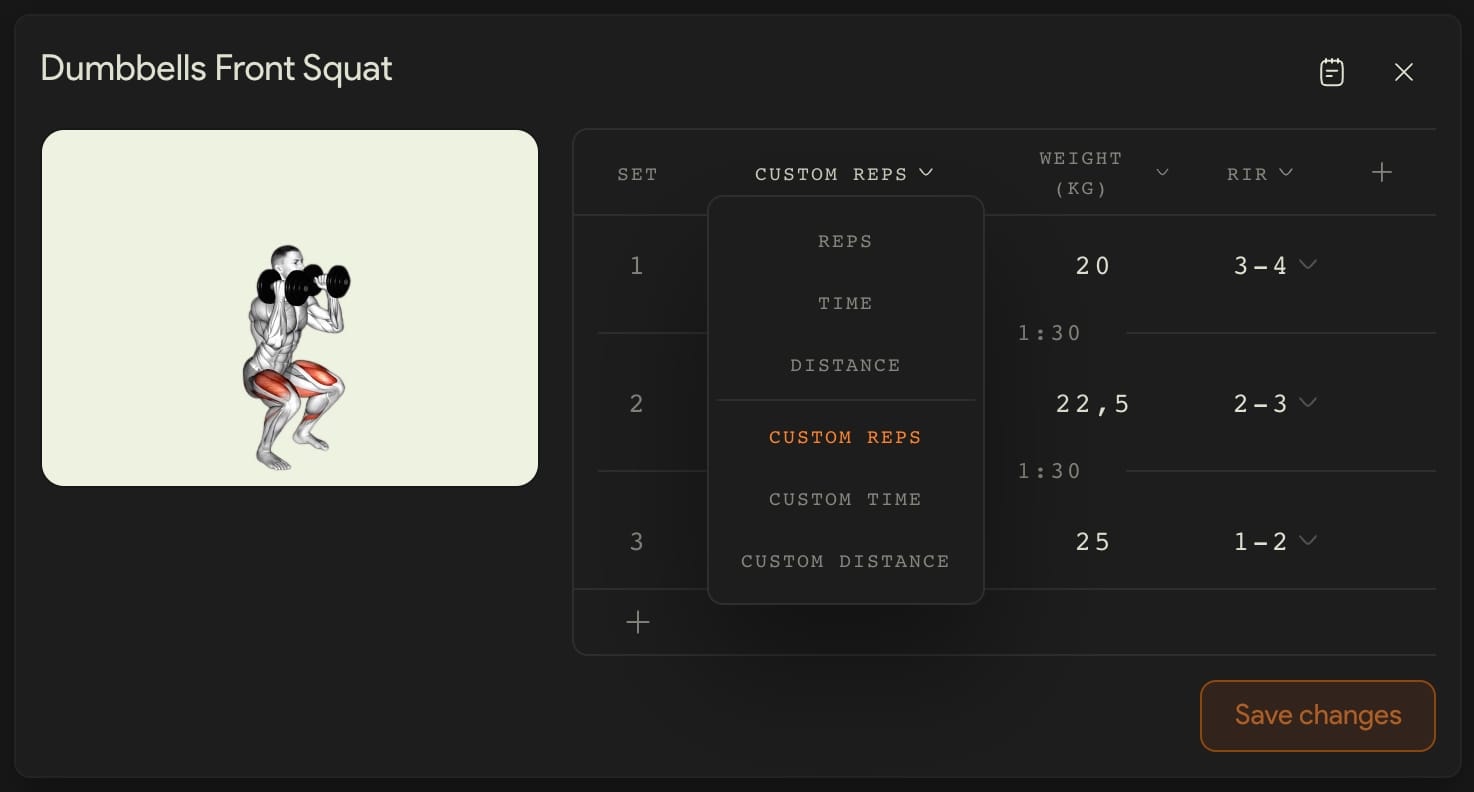
Reps, time or distance
You tap the header of the first column and choose what the exercise measures: reps, time or distance, in meters, kilometers, yards or miles. The change applies to that routine; the exercise in your library stays the same.
Rep ranges
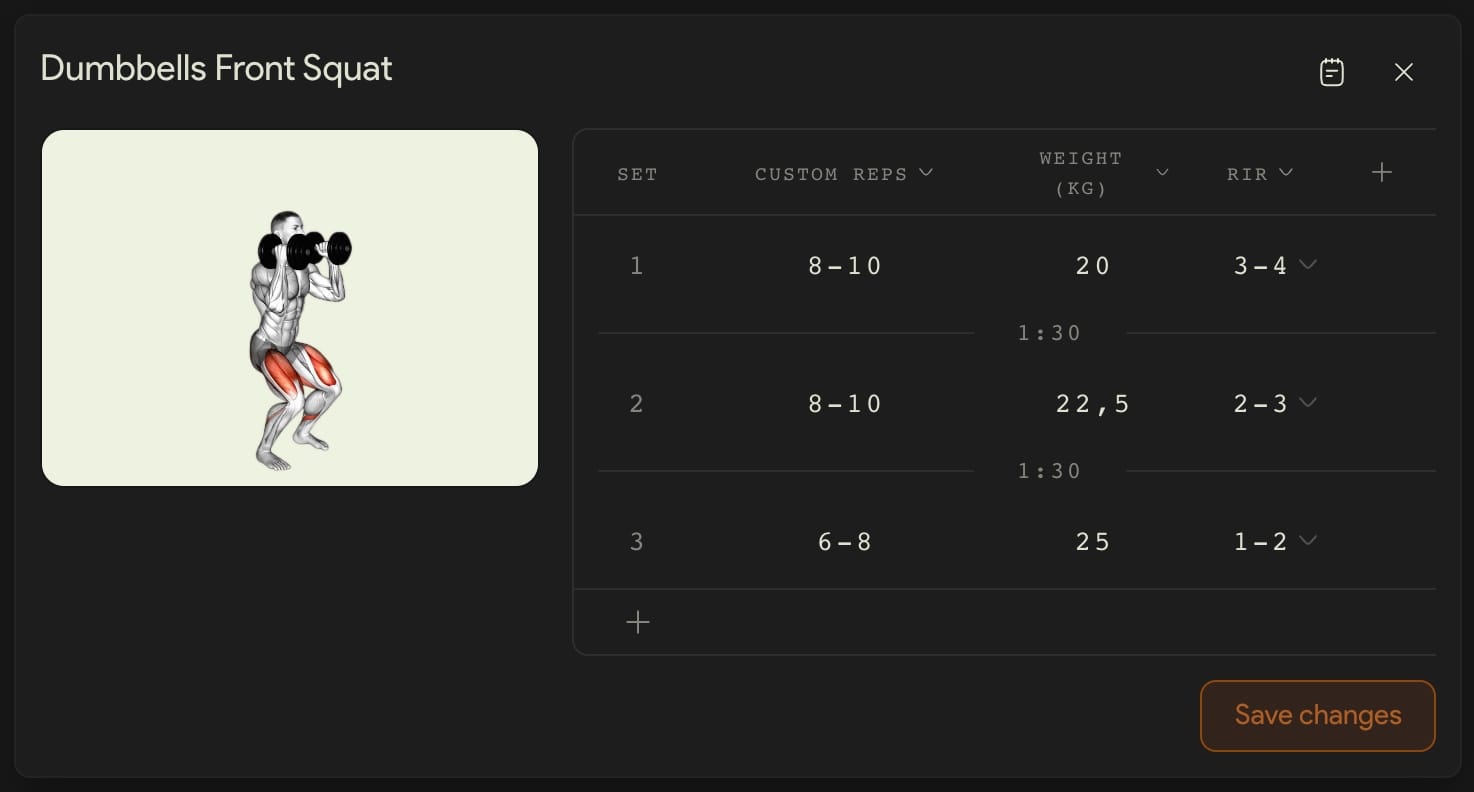
In the same menu, Custom reps lets you write each set's target as text: 8-10, 10-12, 10+, AMRAP or to failure, up to 15 characters. There's custom time and distance too, to write 30-40s or 1-5km. Your client sees it exactly like that in their app.
Fixed weight or % of 1RM
From the weight header you choose kilos or pounds, or add the % 1RM column: you type a percentage and Kaizer swaps it for the weight that matches their latest 1RM. If they haven't logged that exercise yet, you enter their 1RM right there, just once.
RIR set by set
RIR goes per set, just like reps and weight: 3-4 on the first and 1-2 on the last, for example. The app shows it to your client that way.
The columns you need
With the table's + you add or remove Weight, RIR and Technique, which is where you build drop sets. Technique stays hidden until you add it.
Automatic progressive overload works with fixed reps. If you write a range, Kaizer leaves it alone and carries the weight your client used into the next weeks: the progression of that exercise is your call.
Automatic progressive overload
Kaizer adjusts the weight of each set week by week based on how the client is doing, and saves you the work of recalculating by hand.
It leans on how they actually train
It uses the client's history on that movement, the average of their last three 1RMs and the RIR they've been closing sets with. One weak session doesn't shift your whole plan.
It's trained on evidence
It follows the literature on RIR and effort-based training, not a fixed rule of adding two kilos a week.
The last word is yours
It turns on and off per client from their Settings tab, and any value it proposes you can change before they see it.
It works with fixed reps
Sets by time, by distance or with a written range move to the next week with what the client logged, with no automatic adjustment.
The more RIR your client logs, the better it adjusts. In Automations you choose whether the app asks for it at the end of each exercise, after each set or never.
Common questions
Automatic weight suggestion
When you add an exercise that uses weight, Kaizer can suggest a working value calculated from the client's history on that movement: it estimates their strength based on what they've been lifting and proposes the weight for the sets and reps you entered, rounded to the exercise's increment (by default 1 kg or 2.5 lb).
The suggestion appears as a tentative number. If it works for you, you confirm it; if not, you type your own.
For new exercises or clients without history on that movement, the field stays blank: there it's better to enter the weight by hand based on your assessment.
Automatic routine delivery and updates
Review trigger, scope and outcome before activating a rule.
The How your routines are delivered card in Settings → Automations holds a single decision: whether AI-generated routines are sent to the client automatically. Say no and they stay pending for you to review and send yourself.
The Routine settings card covers what happens to routines already running. Automatic progressive overload adjusts weight per set and per week based on the client's progress, goal and calculated 1RM. Automatic archiving files the routine as soon as the client completes their last session, and new accounts start with this off. The RIR question asks the client how many reps they had left in reserve at the end of each exercise.
That same card holds the Default scope: the option preselected when you add, delete or duplicate something in a multi-week routine. If you almost always work on the whole block, leave it on All weeks and save yourself the click every time.
Those three switches are your default for everyone, but each client can differ: from the client's settings in Clients you can override any of the three or leave it inheriting your global configuration.
Templates
What you build once and use again. It's the section that saves you the most time once you have it loaded.
dashboard.kaizer.app/templates
It can be a whole plan or a single piece
A four-week beginner training plan, your usual warm-up block, a circuit you repeat, a whiteboard.
The shortcut worth using
If a client's routine already has something you like, its menu has Export as template. You don't have to build them from scratch.
What you insert is a copy
Editing the routine afterwards doesn't change the template, and editing the template doesn't touch the routines that already came out of it.
Look before you insert
When you pick a block, session or circuit template you see everything in it, with the exercises and the sets, before adding it. A session template can go at the end of the session you have open.
The weight comes preloaded
When you build the routine from a template or a training plan, each set takes the weight from the client's history. % 1RM isn't available in templates because it's worked out from each client's records.
Each card tells you how many times you used it, so you see at a glance which ones actually serve you.
Common questions
What your template library is
Templates is your library: the things you build once and use again. Five kinds live in there. Training plans are the multi-week plans you assign to clients (they used to have their own screen). Sessions are complete training days. Blocks are groups of exercises for building sessions. Circuits are circuits and supersets. And whiteboards are free-form content: notes, guidelines, instructions.
Every card tells you how many times you have used that template, so you can see at a glance which ones actually earn their keep. Up top there is a search box, a filter by type and a sort by Most used or Most recent. Each section collapses, and Show more reveals everything it holds.
One distinction matters: inserting a template copies its content. Anything you edit afterwards in that routine leaves the template untouched, and anything you edit in the template leaves the routines already built from it untouched.
From Templates, the New template button opens a two-step wizard. First you pick what you want to create: Training plan, Session, Block, Circuit or Whiteboard. Then you give it a name (required), an optional description and any tags you want.
When you confirm with Create, the template is saved and its editor opens. You fill it in like a routine: the Add button lets you drop in exercises, whiteboards, blocks, circuits and supersets, and everything saves on its own. An empty template exists, but it will not be offered for insertion until it has content.
To rename or delete a template, use the menu on its card. Deleting is permanent, but the routines you already created from it are not affected.
Insert a template into a routine
While you edit a client's routine or a training plan, the Add menu has a From template… option. It opens the picker with your templates of the matching type, and you choose the one you want.
What comes in is a copy of the content. From there it is yours to edit: changing sets, adding exercises or deleting half of it does not modify the original template. And the other way around: if you edit the template later, the routines where you already inserted it stay as they were.
Every time you insert a template we add one to its usage counter, which you see on its card in Templates. That is why sorting by Most used surfaces your workhorses right away.
If the picker looks empty, it is because you do not have templates of that type with content yet. The same message offers a shortcut to create one.
Save something you already built as a template
You do not have to build templates from scratch. If a client's routine or a training plan already has a session, a block, a circuit or a whiteboard you like, its menu has Export as template.
You give it a name and it lands in your library as a standalone template. Standalone means exactly that: changes you make afterwards in that routine do not modify it, and editing the template does not change the routine it came from.
It is the fastest way to fill up Templates: instead of sitting down to load them, you export the good stuff as you program.
Exercise library
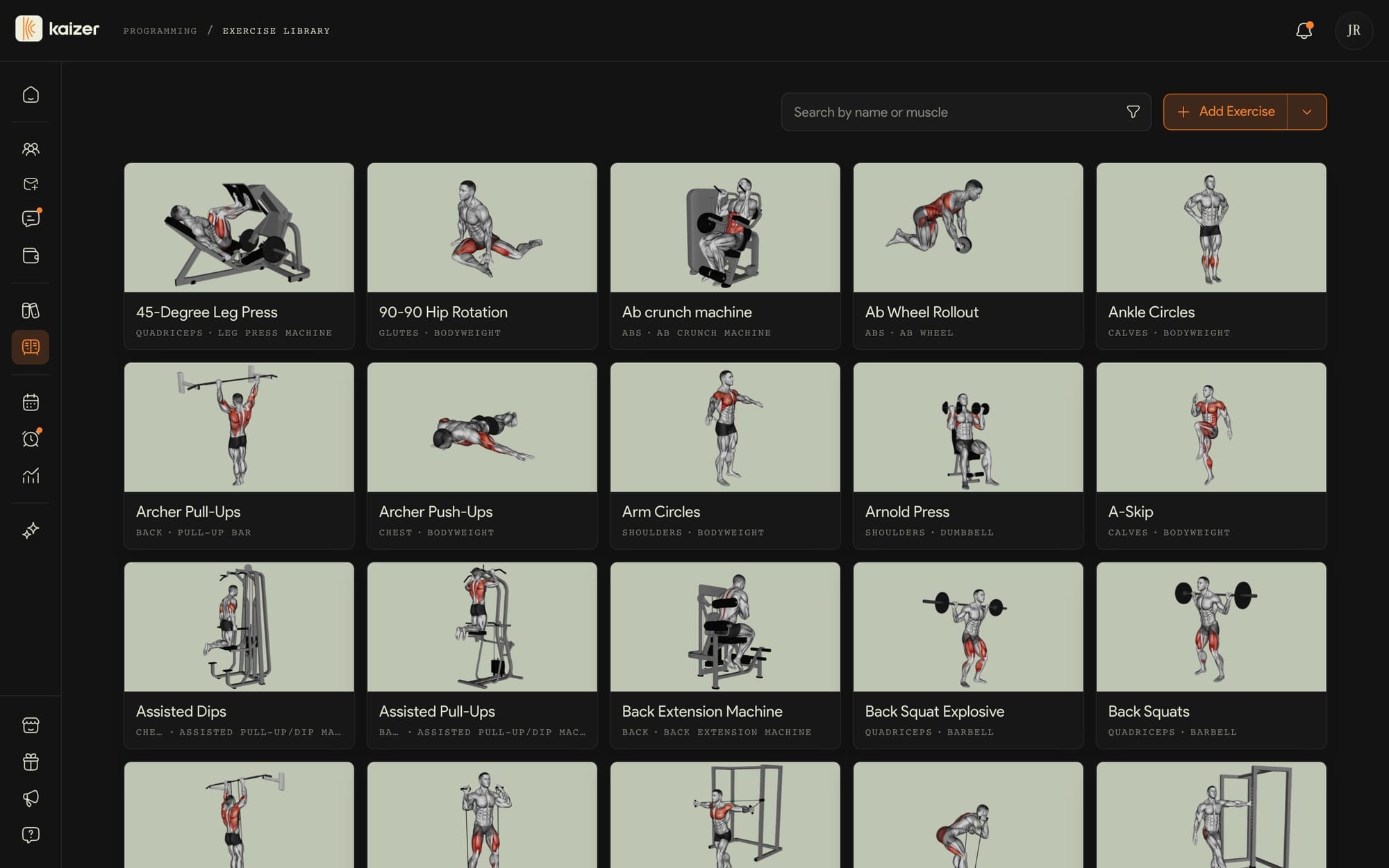
Kaizer comes with more than 1500 exercises with an illustration, the muscle worked and the equipment. On top of that base you add your own.
dashboard.kaizer.app/exercises
Create your own
Name, muscles, equipment, instructions and a demo video your client sees inside their routine.
Or start from a Kaizer one
Editing it creates your customized version, with your name, your video and your notes, which replaces the original only for you. The ones you don't use, you hide from your library.
Organize with tags
Create your own by goal, phase or equipment, add them to several exercises at once by selecting them, then filter the library by them.
Common questions
Search and filter exercises
The Exercise library has a search that tolerates typos and accents, so you don't have to type the exact name.
You can also filter by muscle group, by equipment, and by origin (Kaizer's base exercises or your own). The filters combine with each other, and you have an alphabetical A-Z or Z-A sort.
Your custom exercises appear separately from Kaizer's base library so you can find them quickly.
Create your own exercise
From the Library you create a new exercise with its name, the muscles it works, the equipment and a description of up to 3000 characters — enough to explain the technique end to end. You also tick useful options, such as whether it carries weight, whether it carries reps, or whether it is done per side.
Once saved it is available for any routine, and it shows up among similar exercises from the very first moment when you look for a variation.
You can also start from one of Kaizer's base exercises and edit it: that creates your customised version, which replaces the original for you only. Other trainers keep seeing the factory version.
Upload video and thumbnail
From an exercise's detail you can upload a demo video. The thumbnail is generated automatically from the video.
Kaizer accepts mp4, webm, and mov (.mov files are converted automatically), up to 10 MB per file. If your video is larger, compress it before uploading.
Your clients see that video in the app when they open the exercise within their routine. If the video gets stuck while uploading, see The video won't upload.
Organize your library with tags
Tags are labels you create to sort the Exercise library your way — by block, by phase, by client type, by whatever you actually think in. You add them from the Tags field when you edit an exercise, or from the Tags chip in the quick create dialog; both have a Create new tag row where you give it a name and pick a color. They're yours, and nobody else's library is affected.
You can tag any exercise, including Kaizer's base ones. Tagging doesn't fork your own copy of a base exercise — it stays the same exercise with your label on it. Each exercise holds up to 20 tags. Names and colors are fixed once created: to change either, delete the tag (it disappears from every exercise that had it) and make a new one.
To use them, open the filter next to the search box. The Tags section lists all of yours as checkboxes; picking several matches any of them, and it combines with the muscle, equipment, origin, and difficulty filters. The ones you pick show up as chips you can drop one by one. There's also Group by → Tag, which lays the library out in one section per tag, with Untagged at the end.
How it suggests exercises
While you build a session, Kaizer looks at the sequence of exercises you've already added and suggests which one could come next. It's a help to speed things up, not a requirement: take it or ignore it.
Also, when you want to vary an exercise, it proposes similar alternatives based on the movement pattern and the muscles it works.
These are suggestions designed to speed up programming; the final word is always yours.
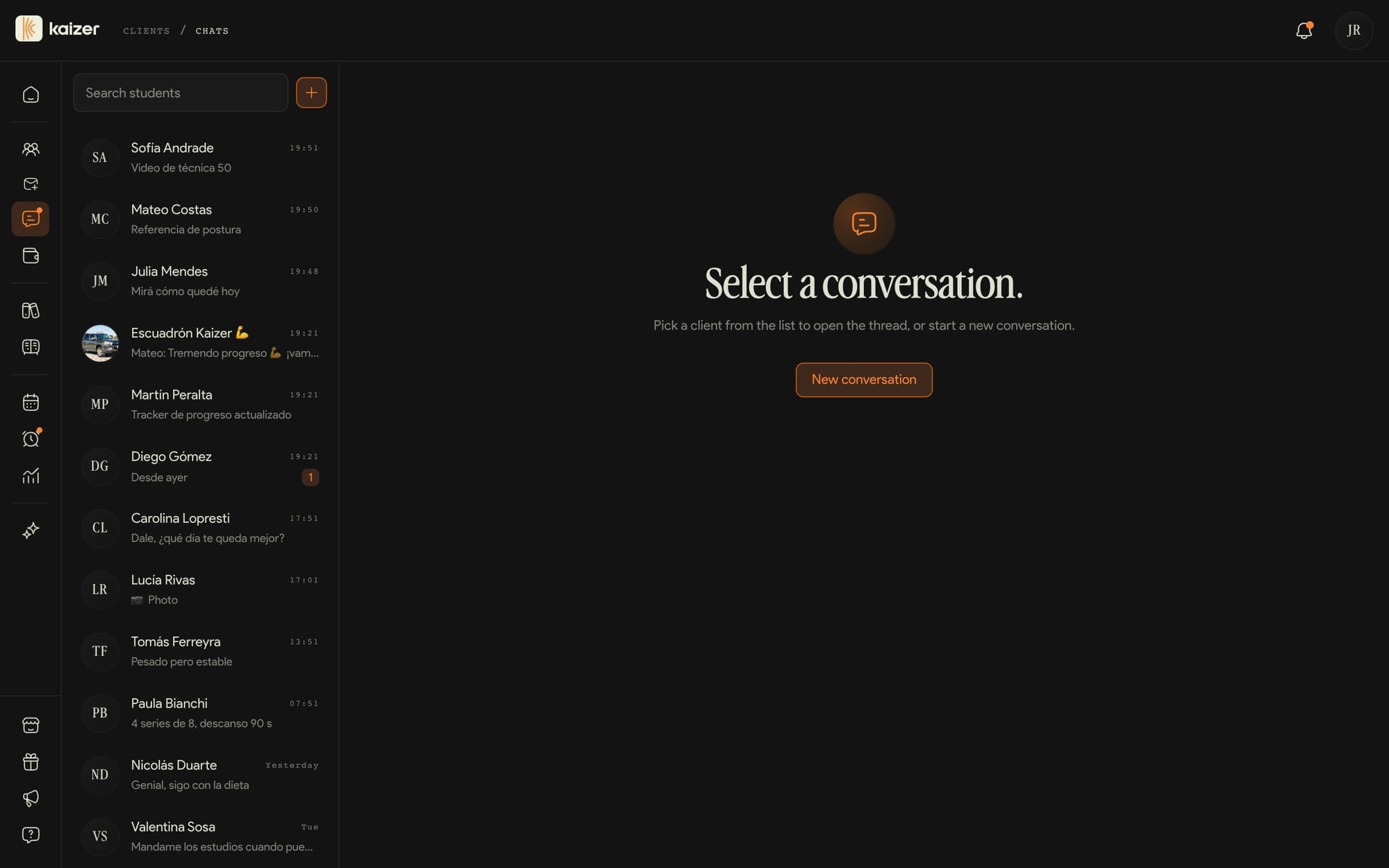
Chat with your clients
It works like the WhatsApp you already use, but inside Kaizer: one-to-one and group conversations, in real time, with photos, audio and documents.
dashboard.kaizer.app/chats
The groups are yours only
Only your clients get in. There's no way to add another trainer or anyone outside your list.
Your client doesn't lose you among messages
What you write them doesn't compete with their personal chats, and you don't mix work into your phone either.
For now the dashboard doesn't send a system notification: you see messages instantly if you have it open, and the counter next to Chats when you come back.
Common questions
Start a chat with a client
Go to Chat. Above the list there's a button to start a new chat: you pick a client and the conversation opens. If you already had one with that person, it takes you to the existing conversation instead of duplicating it. You can also open the chat directly from the client's profile.
Messages travel in real time, so you and your client see them instantly as long as you have the app or the dashboard open. In addition to text, you can send photos and audio messages.
Create a group chat
In Chat, the + button above the conversation list gives you two options: a chat with a single client, or Create group. The group wizard has two steps — first you pick the members (at least two of your clients), then you give it a name and, if you want, a photo. Leave the name blank and Kaizer suggests one built from the members' first names.
Only your own clients can join a group; there's no way to add another trainer or someone outside your roster. Once it's created, clicking the group's name and photo at the top of the conversation opens Group info, where you rename it, change the photo, add a description, and add or remove participants. Each participant row also lets you jump straight into a private chat with that person.
Inside a group, incoming messages show who sent them, and grey notices in the middle of the thread record when the group was created or when someone was added or removed. Everything else works like a normal chat: text, photos, documents, replies, and reactions. There's no "leave group" — if you don't want it anymore, Delete group at the bottom of Group info removes it and all its messages permanently.
Messages and unread
In the chat list, each conversation with unread messages shows a counter, and the total also appears over Chat in the sidebar. The counter only goes down when you open the conversation.
One important note: for now there are no push notifications. That means you see new messages instantly if you have Kaizer open, but if you close it you won't get a system alert. When you come back, you'll see the pending messages with their counter.
Payments
Telling someone they owe you money is awkward. Kaizer does it for you: it sends the client a notification and an email with what they owe.
dashboard.kaizer.app/client-payments
Kaizer doesn't move the money
You keep charging by transfer, cash or whatever you use. What lives here is the record, the status and the reminder.
Set it up once
Currency, amount, frequency (weekly, biweekly, monthly, quarterly, every six months or every so many days) and whether you charge the period upfront or in arrears. That's what decides when Kaizer marks someone as overdue.
Record it when they pay
Each payment settles one period. The list shows you who's up to date, whose period is due soon and who's overdue.
How they pay you is the text that reaches your client in the reminder, so write your real alias or CBU there.
Common questions
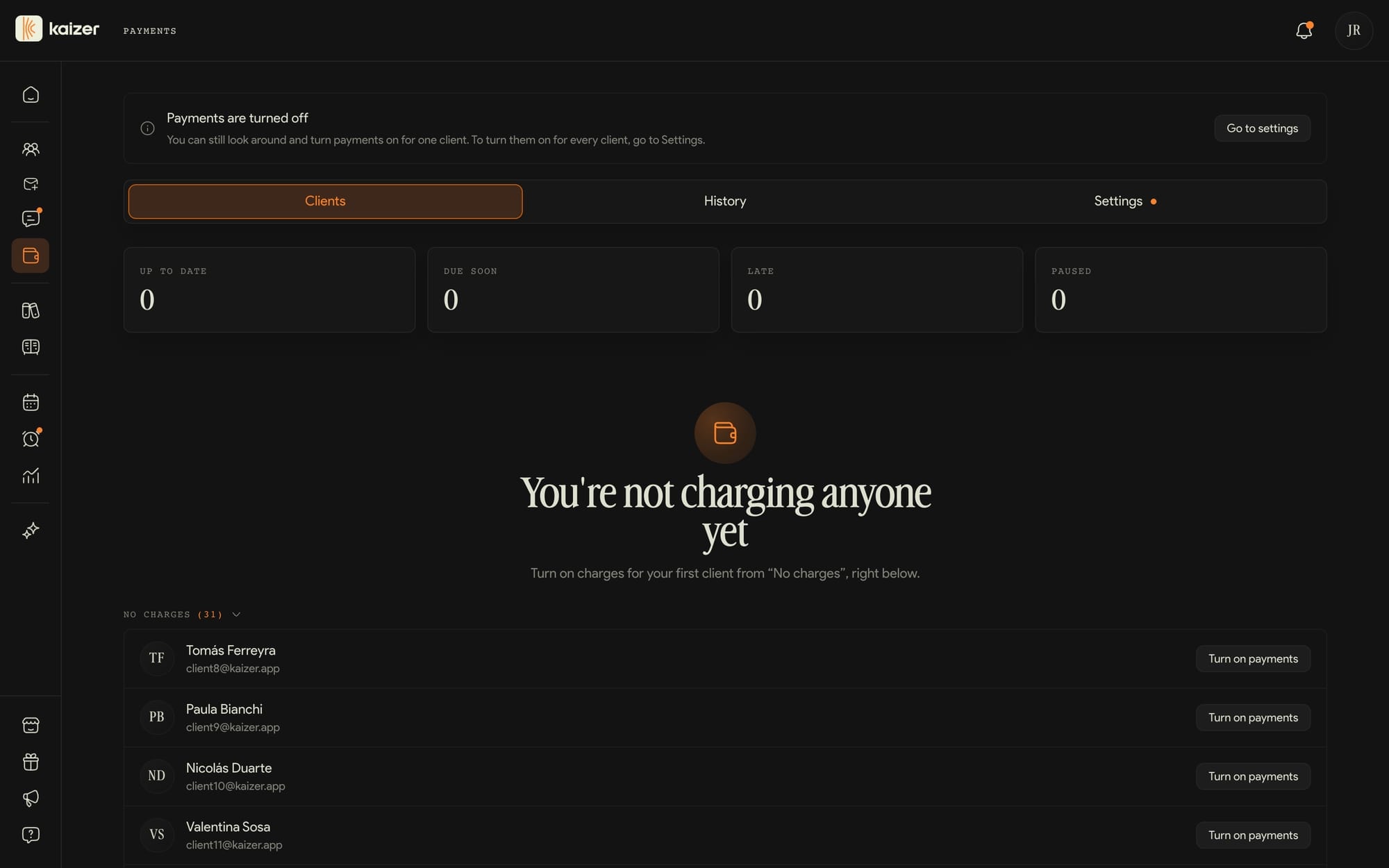
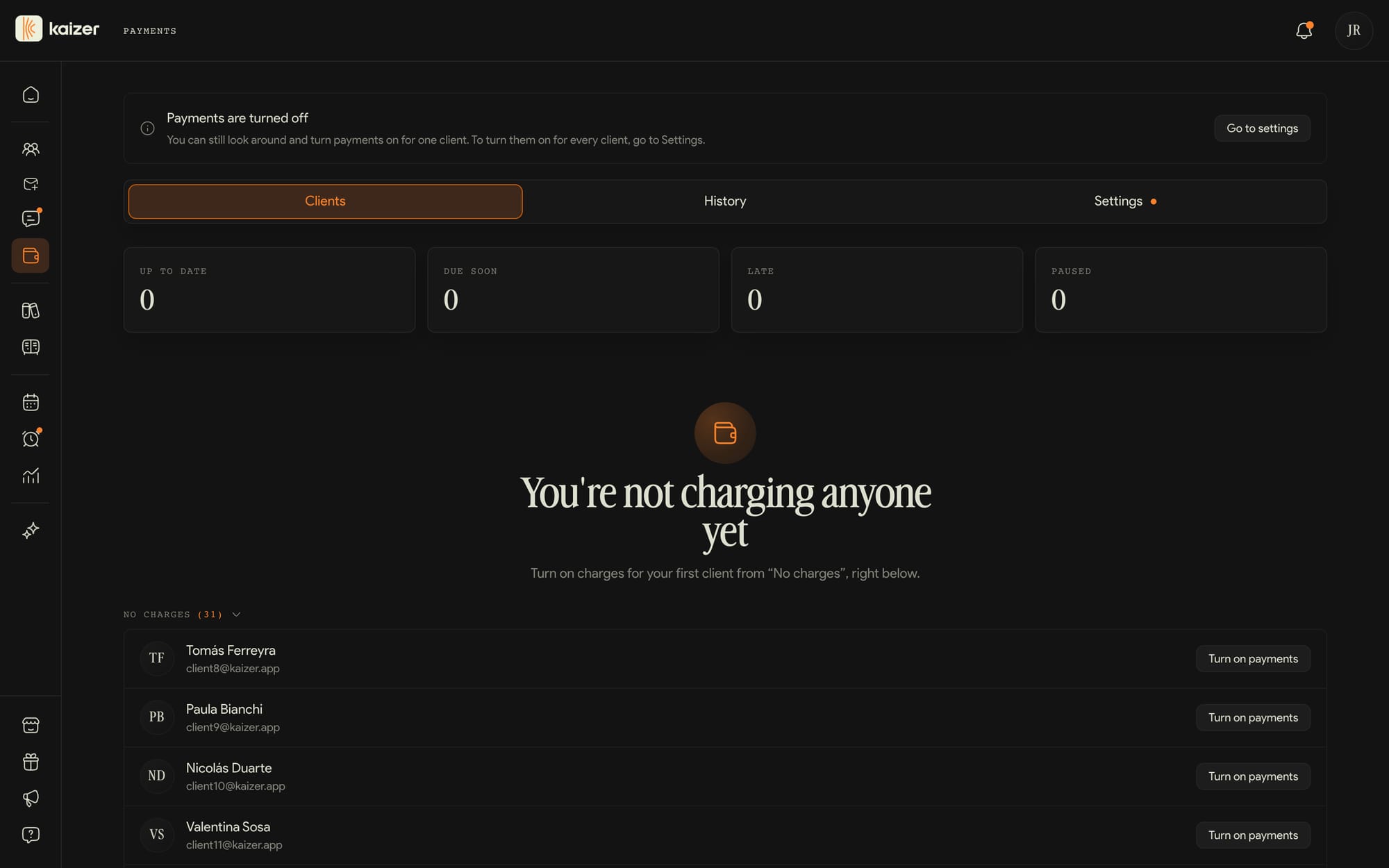
What Payments is
Payments is where you track what each of your clients pays you. Kaizer does not process the money: you keep charging outside the app the way you already do — cash, bank transfer, whatever you use — and here only the count is kept.
The Clients tab shows one row per client with their status: up to date, due soon, late, or paused. From that row you record a payment, send a reminder, or edit how you charge them. History gathers every payment you've recorded, and Settings holds the defaults every new charge starts from.
Payments tracks agreements, due dates and records; Kaizer does not move this money.
Go to Payments → Settings. The Payments for all your clients card holds the master switch, and right below it sits the default configuration every charge starts from: currency, amount, method, frequency, billing mode and How they pay you.
Billing mode is the underlying decision: whether you charge the period in advance (they pay you at the start of the month) or in arrears (they pay you at the end of it). Pick the one you actually use, because it determines when Kaizer marks a client as late.
With the switch on and those values filled in, every client who joins you from then on gets their charge configured automatically with them. While something is missing, the Settings tab flags it with an orange dot and you configure charges by hand, one at a time.
How they pay you is the text your client receives in the reminder, so write how they actually have to pay you: a handle, a bank account or cash at the gym. Payment links are not accepted. With the switch off you can still turn on a charge for a specific client from the list.
Setting up a client's charge
Clients who do not have a charge yet appear in the yellow banner at the top of Payments → Clients. Tap Set up charge and pick the first due date, whether you charge the period in advance or in arrears, and how often you charge: weekly, fortnightly, monthly, quarterly, half-yearly or custom, which lets you build the cycle in days, weeks or months (every 3 weeks, for example). Advance notice is how many days before the due date you want to see it as due soon: 3 by default, up to 30.
Amount, currency, method, billing mode and How they pay you come prefilled from your default configuration, and whatever you do not touch keeps inheriting it: if you raise the general amount later, this client updates on their own. Whatever you do edit here stays fixed for them.
Below the form we sum up when it is due and how often it renews. If you pick a date in the past, the charge deliberately starts late. Afterwards you can change everything with Edit charge, from the row menu or from the client's profile.
Payment reminders
Reminders never go out on their own. You send them with the Remind button, on the client's row inside Payments or from the Reminder card on their page. It goes out as a push notification and an email at once, and it's a single message per client covering everything they owe, not one per period.
Two things have to be in place. That How they pay you is filled in under Settings, because that text is exactly what reaches your client: without it the button stays disabled for everyone. And that the client actually has something to pay: the button only works while their charge is due soon or late.
After sending one there's a wait of a few hours before the next. Whenever the button is disabled, hover over it and the tooltip tells you why: the wait, the missing detail, nothing owed yet, a paused charge, or a client with payments turned off.
Record a payment and read the history
When a client pays you, hit Record payment on their row in Payments or on their page, and pick the date they paid. The dialog shows which period that payment covers, the amount, and how it gets recorded.
Each payment settles exactly one period. If someone owes you three, you record three payments, and the dialog keeps telling you how many late ones are left after this one.
The History tab gathers every payment, with a search by client and a date-range filter; each client's page shows only theirs. Every record keeps the amount that was in force the day you logged it, not today's. You can delete each client's most recent payment for up to 30 days after recording it — that's the only row that shows the delete button.
Turn off, resume, or delete a charge
Turn off payments stops the clock for that client: nothing piles up while they're off, their setup is kept, and they move down to the No charges section of Payments → Clients. It's what you use for someone taking a break. For a client you're simply not charging, Don't charge in the yellow notice does the same thing.
To bring them back, hit Turn on payments in that section. If they had a charge, it comes back paused and you pick the next due date to restart it. Careful here: resuming discards any period left unpaid, so record whatever they did pay you first — when there's something to lose, we warn you.
Delete charge is the last step: it removes the amount, the frequency, and the due dates. They stay your client and the payments you already recorded stay in the history, so you can set a new charge up from scratch later.
Calendar and reminders
A calendar where you see when your clients trained, when their routines expire and whose birthday it is, along with your reminders.
dashboard.kaizer.app/calendar
Filter by client
Useful when you have many and want to follow a specific group. Each client also has their own calendar inside their profile.
Reminders live here
You tap a day and create the reminder with the date and time already filled in: "Call Sofía about the knee injury", with daily, weekly or monthly repetition if you need it. You get the notification at that time, and your client sees none of this.
For the adherence conversation there's nothing better: instead of saying "you're not training enough", you open their calendar for the month and it explains itself.
Common questions
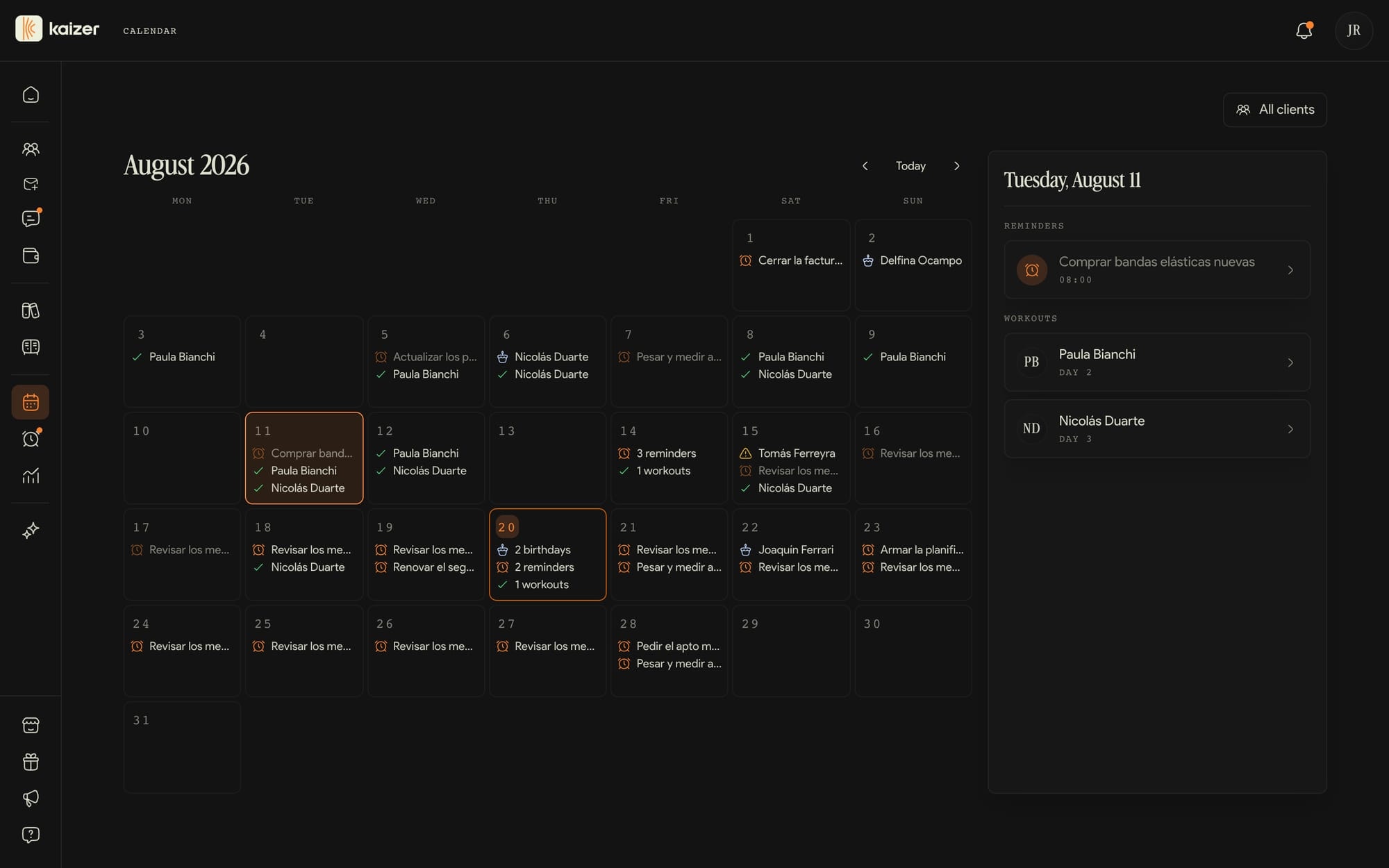
What the calendar shows
The Calendar is the month view of your whole operation. Each day shows four things: the workouts your clients completed, the routines expiring (or already expired), birthdays and your reminders.
Clicking a day opens the detail panel on the right. From there you jump straight to whatever you need: View workout takes you to the session your client logged, View expiring routine to the routine that needs renewing, View profile to the birthday client's page and View reminder to your reminder list.
Up top you have the arrows to move between months and Today to come back to the current one. The All clients filter lets you pick who shows up on the calendar, handy when you have many and want to follow one group.
Each client also has their own calendar inside their profile: see A client's calendar.
A client's calendar
Beyond the general calendar, each client has their own. Open their profile from Clients and go to the Calendar tab: there you see, month by month, which sessions they completed, which they skipped and when their routine expires.
It serves two concrete conversations. One is adherence: instead of saying "you are not training enough", you show them the month and it speaks for itself. The other is programming: before you build the next block, you look at how the current one went.
It is the same information behind their Overview and your Analytics, only laid out on a calendar instead of summed into a number.
What reminders are
Reminders is your to-do list, inside Kaizer instead of on a sticky note. You write down what you have to do and when, and we send you a notification when the moment comes.
To create one, tap New reminder. Give it a title (for example, "Call Sofía about her knee"), an optional description with the details, and the date and time. If it repeats, you set that up right here: see Repeating reminders.
They are yours and private: your client sees none of this. If you want to tell them something, that is Chat.
The list sorts itself into three sections — Overdue, Upcoming and Completed — and has a search box and a status filter. See Where your reminders show up.
Repeating reminders
In the reminder form, the Repeat field gives you four options: Does not repeat, Every day, Every week and Every month. Picking any of the last three reveals Until, where you set the date the series stops generating. It has to be the same as or later than the start date.
In the list, every repeating reminder states its rule in one line: "Repeats every day at 06:00", "Repeats every Thursday at 15:00" or "Repeats on the 5th of every month at 17:00". You do not have to open it to know how it ended up.
Deleting a repeating reminder asks about scope: Delete only this reminder or Delete this and the following ones. Repetitions that already happened are kept either way, whether you completed them or not, so you do not lose the record of what you did.
Where your reminders show up
A reminder crosses your path in five places, so nothing slips.
Reminders holds them all, grouped into Overdue, Upcoming and Completed. The circle on the left marks one as completed, and the row menu lets you edit or delete it. If you have many, the search box and the status filter shorten the list, and Show more loads the rest.
In the sidebar, Reminders carries a counter with how many are overdue. On the Home board, your overdue ones appear under Alerts with a Complete button so you can clear them without leaving. On the Calendar they show on their day, next to workouts and birthdays.
And when the time comes we send the notification, which also stays in the bell at the top right of the dashboard.
Analytics
The overall view of your business, to answer two questions: are they training, and am I growing.
dashboard.kaizer.app/analytics
Four indicators
Active clients, adherence, sessions logged and PRs in period, each with its change and its trend.
Two lists that matter
Your most consistent clients, and the ones at risk with the reason and the button to resolve it right there.
Time saved
An estimate of the hours Kaizer gives you back compared with doing everything by hand.
Your most used exercises
The top list narrows by muscle group, equipment, type, difficulty and tags, in your analytics and in each client's.
Each client's metrics
In their profile you see progress per exercise with the estimated 1RM and relative strength, which is how much they lift relative to their body weight, plus the tests you define with every measurement.
Common questions
Understanding your KPIs
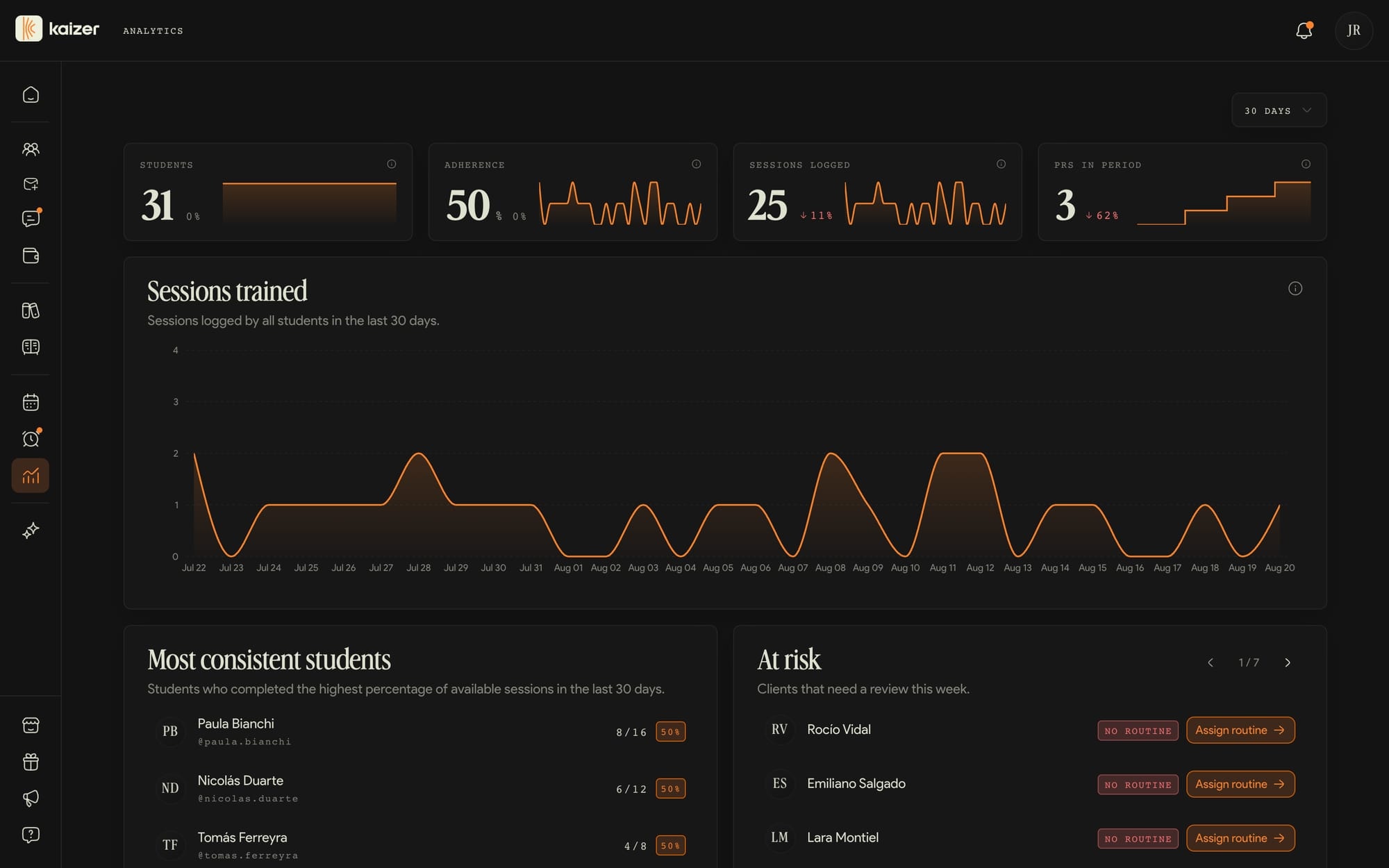
In Analytics, the first row shows your key indicators: how many clients you have, adherence (the percentage of completed sessions out of those that were available), the recorded sessions and the personal records for the period.
Each indicator comes with a change relative to the previous period and a mini trend chart.
At the top there's a range selector to view the last week, the last month, the last few months, and so on. Everything is recalculated when you change it.
Trained sessions and growth
Below the indicators you have the trained-sessions chart: each bar is the number of sessions your clients completed in that period. Only those the client marks as finished in the app count; the ones that were scheduled but not done don't add up.
Further down is client growth: your total, how it evolved over time and the change relative to the previous month.
They're two views that answer two questions: are they training? and am I growing?
Time saved: what it measures
Time saved is an estimate of the hours Kaizer gives back to you compared to doing everything by hand.
The math is simple: it adds about 30 minutes for each routine you create and about 15 minutes for each session your clients complete. It's an approximation to give you a sense of magnitude, not a number that's exact to the minute.
You'll find it in your Analytics alongside the rest of the indicators.
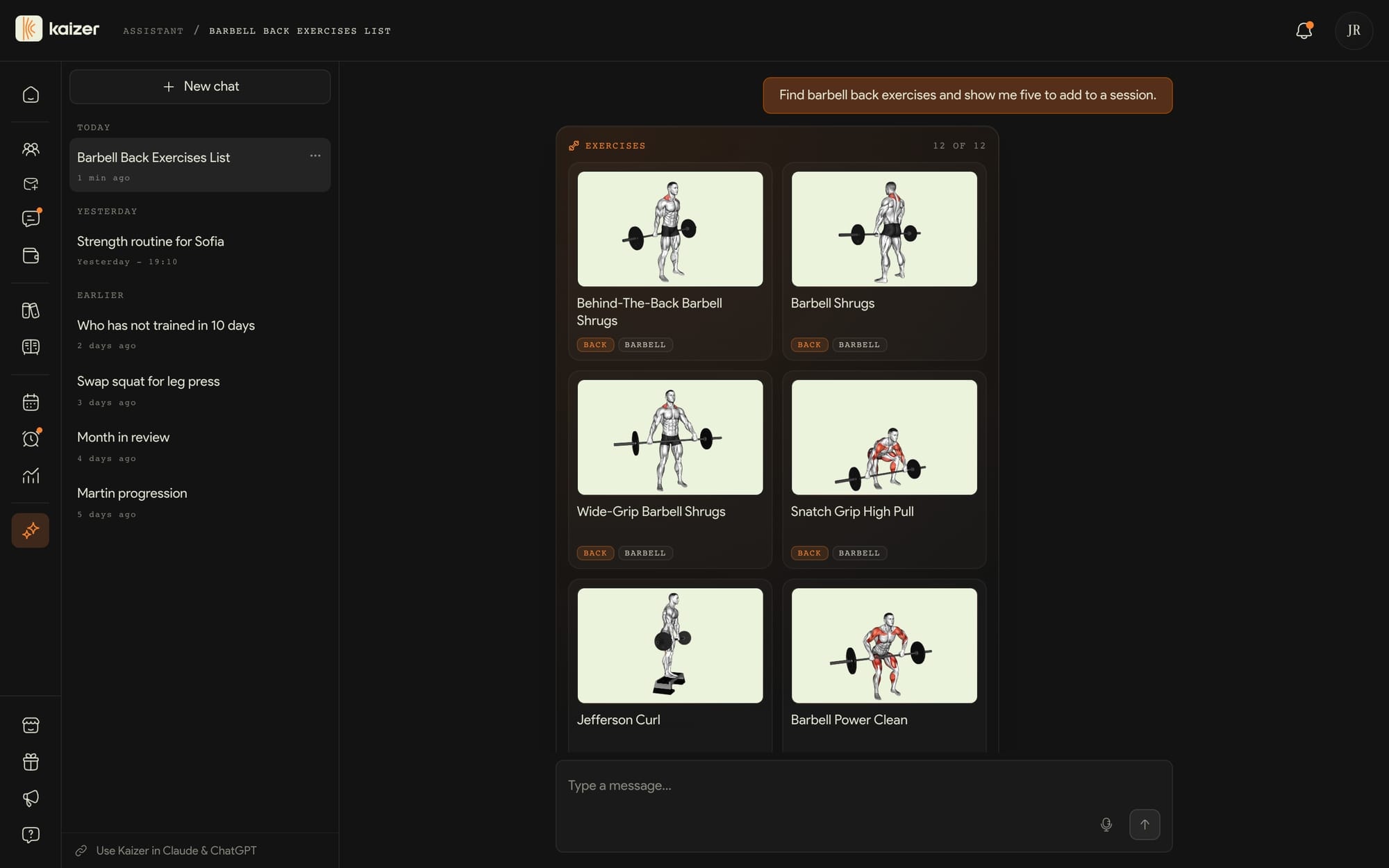
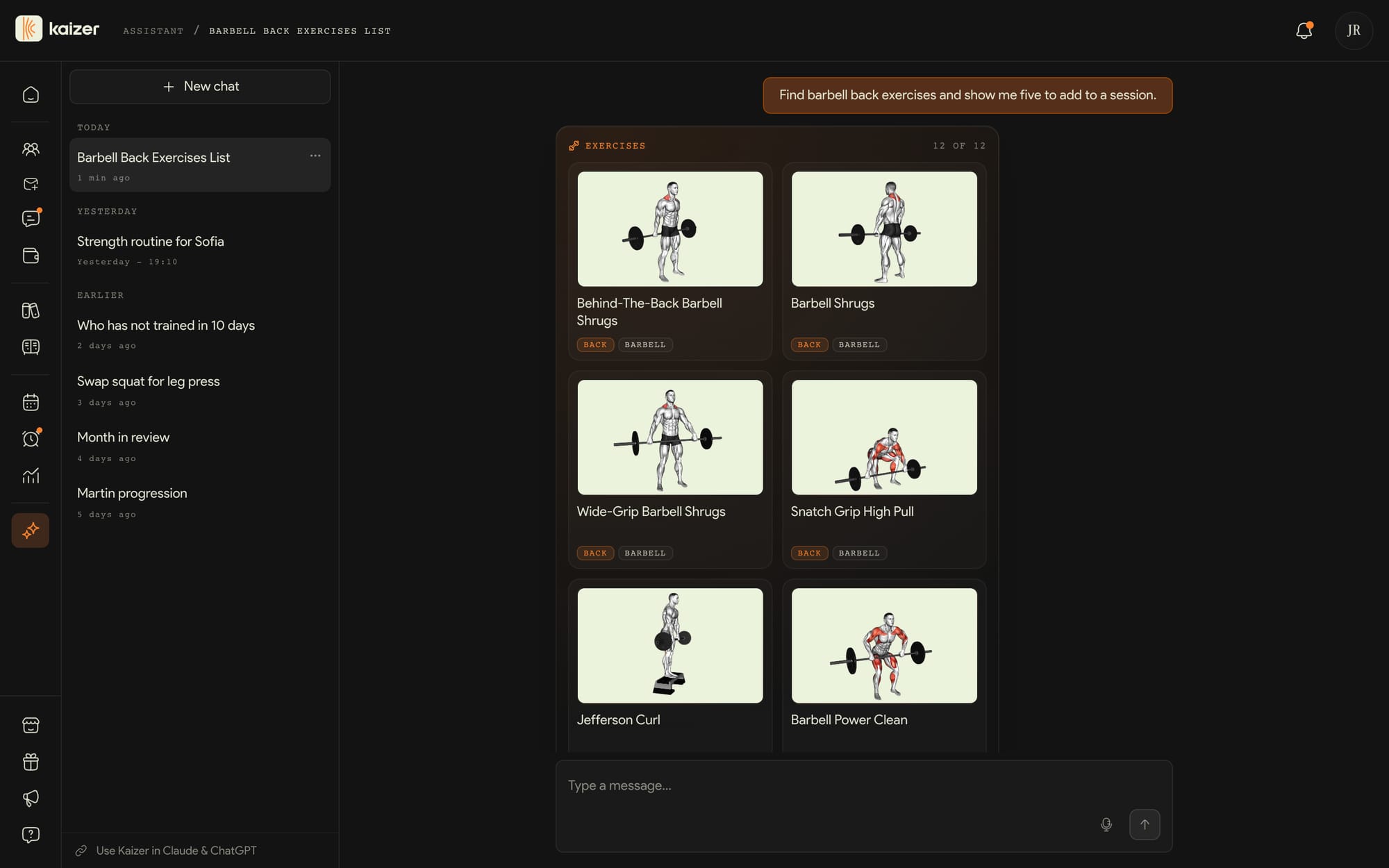
The Assistant
It's ChatGPT inside your work tool. It knows your clients, your routines and your numbers, and beyond answering, it acts. The one thing it can't do is message your clients for you.
dashboard.kaizer.app/chatbot
Ask it for results, not menus
You type or speak to it, and it operates the platform: builds a routine, swaps an exercise, checks expirations, summarizes someone's progress, logs a payment, an injury or a reminder. While it works, it shows you what it's doing.
Hand it files
Attach images or PDFs, like a medical report, a photo or a previous plan, and it uses them to build the routine or to answer you.
Teach it how you program
In Settings, Kaizer AI you tell it your equipment, your split, your ranges of sets, reps and RIR and up to fifty favorite exercises. You fill it in once and it completely changes what it generates.
Review what matters before taking it as done
It operates the platform; it doesn't replace your professional judgment.
Requests that work: "show me the clients with overdue payments", "summarize Paula's last four weeks", "draft a three-day strength routine for Martín", "what reminders do I have this week".
Common questions
What is Kaizer AI
Kaizer AI is your assistant inside the dashboard. It works like a chat: you type what you need and it responds with context about your operation.
Unlike Chat, which are real conversations with your clients, Kaizer AI is just for you. Nothing you type there is seen by any client.
It's available on all plans, with a monthly usage limit based on your plan. If you reach the cap, it lets you know and it resets at the start of the next period.
What you can ask the Assistant
Describe the outcome you want and review what the assistant proposes or changes.
The assistant does not just answer: it acts on your operation. You can ask it to build or edit a routine, swap one exercise for another, create a whiteboard or send a routine to a client. It also creates, updates, assigns and archives training plans, and drafts one with AI for you to review.
The more context you give it, the more useful the first draft will be. A complete request can look like this:
Example: "Create a 4-week draft for Lucía, 3 days per week, focused on strength with 60-minute sessions. Avoid overhead exercises and use a barbell, dumbbells and a cable machine. Leave it pending for me to review."
You do not need to learn commands: write as if you were talking to an assistant. Include the client, goal, available days, session length, equipment and any important constraints.
It handles the rest of your day too: each client's payments, their notes and injuries, the calendar and your reminders. Asking it to "create a reminder to call Sofía on Thursday" or "log Mateo's August payment" works just like doing it by hand.
And it helps you read your business: ask about a client's adherence, which sessions are still pending this week or how your analytics are trending.
The assistant does not send chat messages to your clients. Use Chat to talk to a person and the Assistant to ask the system to do a task.
Whatever it builds or changes shows up in the dashboard immediately for you to review. If you want its routines to look like yours, set your preferences in Settings → Kaizer AI (see Teaching the AI how you program).
Teaching the AI how you program
In Settings → Kaizer AI you tell the AI how you program, so what it generates looks like your work instead of a generic plan. You fill it in once and it applies to every routine it builds from then on.
The fields go from broad to fine. Equipment preferences (for example, "use machines before barbells and dumbbells") and Preferred split (for example, Push/Pull/Legs) set the structure. Sets, Reps and RIR pin down your usual ranges. Session blocks describes how you order a day — warm-up, main lift, accessories, finisher — and Default warm-up whatever always goes first.
Below that you have Exercise preferences for the rules that do not fit a single field, Favourite exercises to flag up to 50 movements you want to see show up, and Additional notes for everything else. Save preferences puts them to work.
This is different from Settings → Automations: this tab defines how your routines get built, the other one what happens on its own to the routines that already exist.
Kaizer AI vs. Chat with clients
They are two separate tools and each lives in its own place in the sidebar. Chat are real conversations with your clients: what you type is read by the other person.
Kaizer AI is an assistant just for you: you use it to ask questions, build things, and analyze data. Nothing you type to it reaches the client.
Rule of thumb: if you want to talk to a person, use Chat; if you want the system to help you think through or carry out a task, use Kaizer AI.
Start a conversation (and talk to it by voice)
When you enter Kaizer AI without history, a welcome screen appears with a few suggestions to get started. Tap one or type what you need below. Enter sends the message and Shift+Enter adds a line break.
You can also talk to it: tap the microphone button, record (up to 60 seconds), and Kaizer transcribes what you said into text. That text stays in the field so you can review or edit it before sending.
Each conversation is saved automatically in the panel on the left so you can pick it up whenever you want.
Conversation history
The panel on the left lists all your conversations, from most recent to oldest. After your first message, Kaizer gives it a title on its own so you can find it easily.
Select any one to open it and pick up where you left off: the assistant keeps the context of that conversation.
From each conversation's menu you can rename or delete it. Keep in mind that deleting is permanent.
Automations
What Kaizer does on its own, so you stop having to remember.
dashboard.kaizer.app/settings/automations
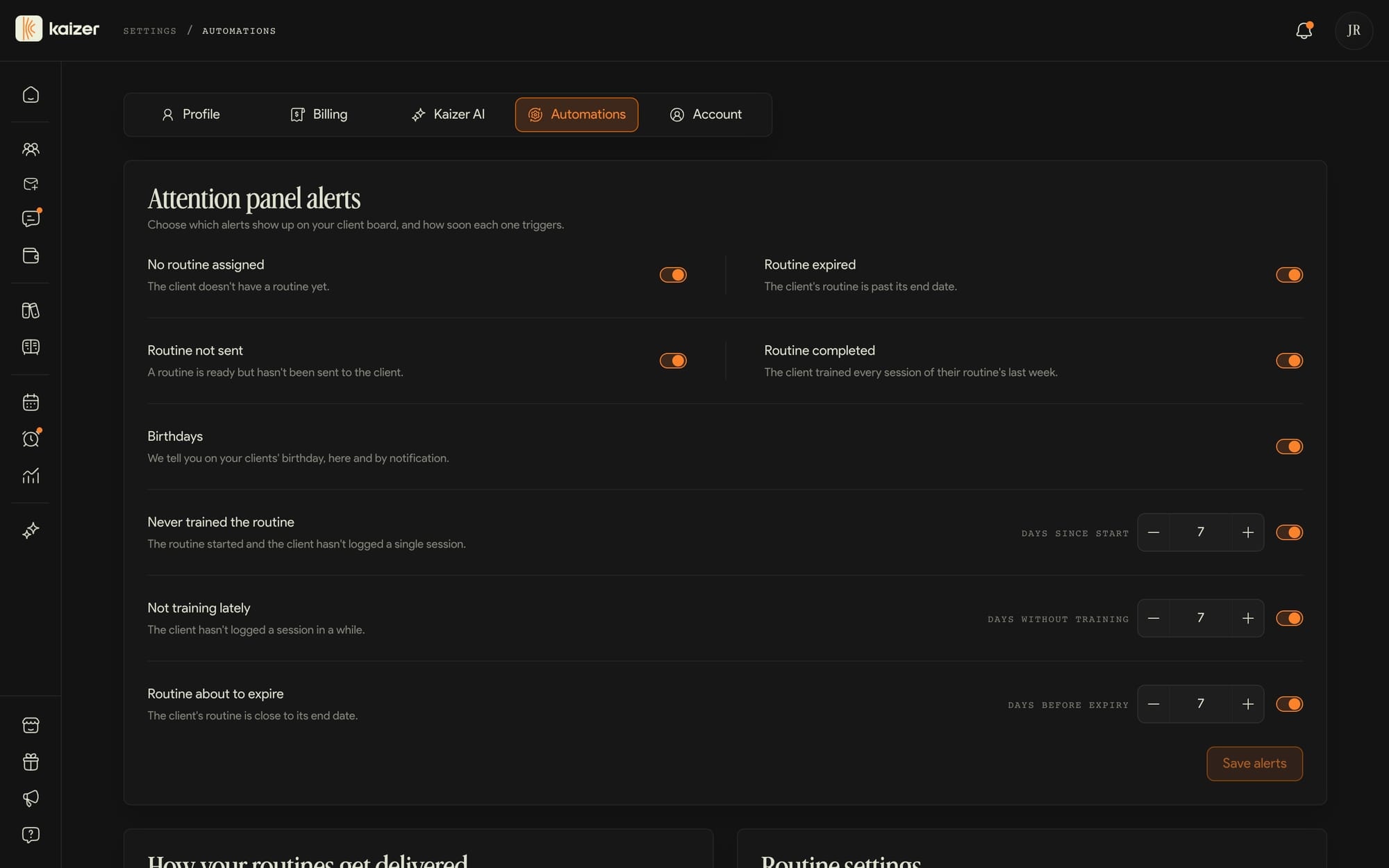
Choose which alerts you want to see
No routine assigned, routine expired, routine not sent, routine completed, birthdays and expired medical clearance; plus the ones measured in days: never trained the routine, not training lately, routine about to expire and medical clearance about to expire.
Client welcome
The message someone new gets as soon as they link up with you, and the training plan that gets assigned to them on its own.
Auto-archive finished routines
It stores the routine when the client completes their last session and takes it out of their view, so they don't pile up over time. It comes turned off: by default you archive them by hand.
When to ask for RIR
The app asks your client how many reps they had left in reserve at the end of each exercise, after each set or never. It's the data that feeds progressive overload, and it asks for it on weighted exercises.
All of this is your general setup, but from a client's Settings tab you can change any of it just for them. Default scope, for example, decides whether adding an exercise in a four-week routine adds it to that week only or to all four.
Common questions
What Automations are
In Settings → Automations you decide what Kaizer does so you do not have to. There are four cards, each covering a different moment of your operation.
Attention panel alerts picks which warnings about your clients show on your board and how far ahead. How your routines are delivered decides whether AI-generated routines go out on their own or wait for your review. Routine settings controls progressive overload, automatic archiving, the RIR question and the editor's default scope. And Client welcome defines the message and the training plan a new client gets as soon as they link to you.
Automations is not the same thing as Settings → Kaizer AI: that tab is about how your routines get built, this one about what happens on its own once they exist.
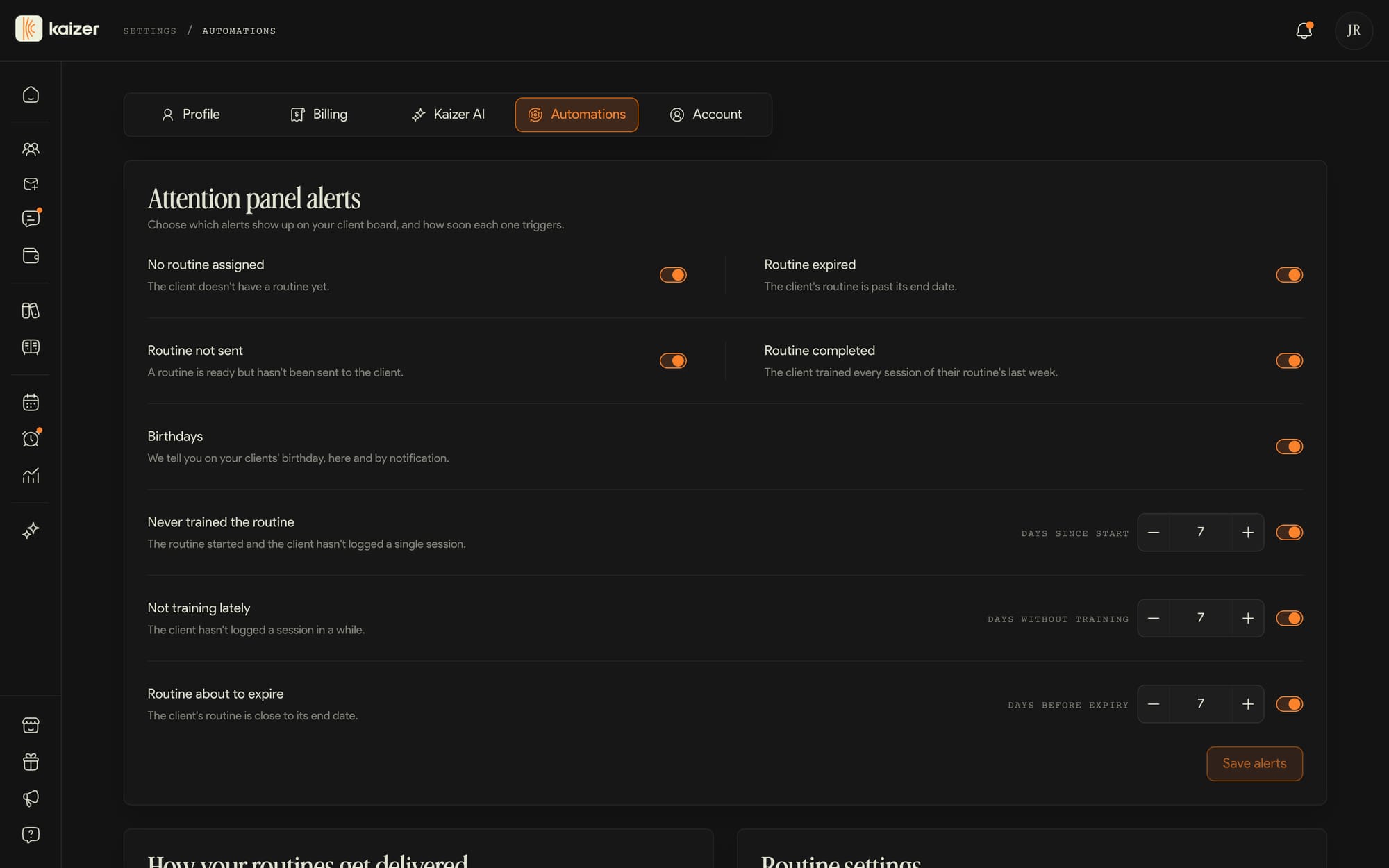
Client attention alerts
The Attention panel alerts card in Settings → Automations controls the warnings you see about your clients: on the Home board, as tags in Clients and in the at-risk list in Analytics.
Five alerts are a simple switch: no routine assigned, routine expired, routine not sent, routine completed and birthdays. Three more also carry a number of days: never trained the routine (days since it started), not training lately (days without logging a session) and routine expiring (days before its end date). You can set anywhere from 1 to 365 days.
Alerts are calculated on the routine the client is actually training, not on the newest one on file, so they reflect what is really going on.
They are yours: they apply across your board and change nothing on your clients' side. Changes only take effect when you tap Save alerts.
Automatic welcome for new clients
In the client welcome card of Settings → Automations you write the message a new client receives over Chat the moment they link with you. You can use text, emojis, and links, up to 2000 characters, and the preview beside the field shows exactly how they'll see it. Leave it empty if you'd rather not send anything.
Below the message you pick a welcome planification. Choose one of your training plans and every new client who joins you gets it assigned automatically, with no extra step from you.
Both are optional and independent, and you can change or remove them whenever you want: a new planification only affects the clients who join after the change.
Automatic routine delivery and updates
Review trigger, scope and outcome before activating a rule.
The How your routines are delivered card in Settings → Automations holds a single decision: whether AI-generated routines are sent to the client automatically. Say no and they stay pending for you to review and send yourself.
The Routine settings card covers what happens to routines already running. Automatic progressive overload adjusts weight per set and per week based on the client's progress, goal and calculated 1RM. Automatic archiving files the routine as soon as the client completes their last session, and new accounts start with this off. The RIR question asks the client how many reps they had left in reserve at the end of each exercise.
That same card holds the Default scope: the option preselected when you add, delete or duplicate something in a multi-week routine. If you almost always work on the whole block, leave it on All weeks and save yourself the click every time.
Those three switches are your default for everyone, but each client can differ: from the client's settings in Clients you can override any of the three or leave it inheriting your global configuration.
Nutrition
Each client's meal plan, in the same place where you build their routine. It takes four steps: you build your food catalogue, work out their daily target, build the plan and they see it in their app.
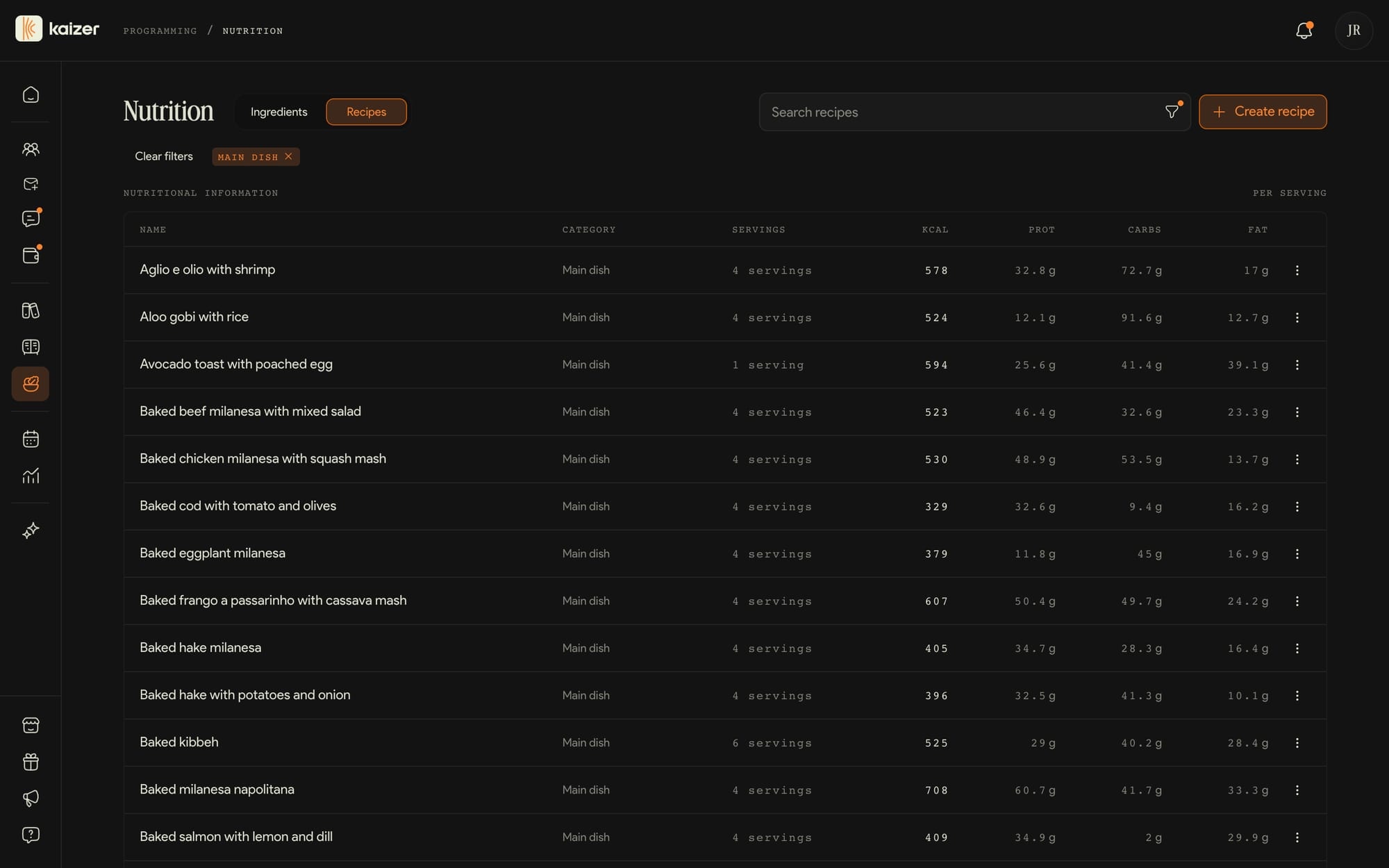
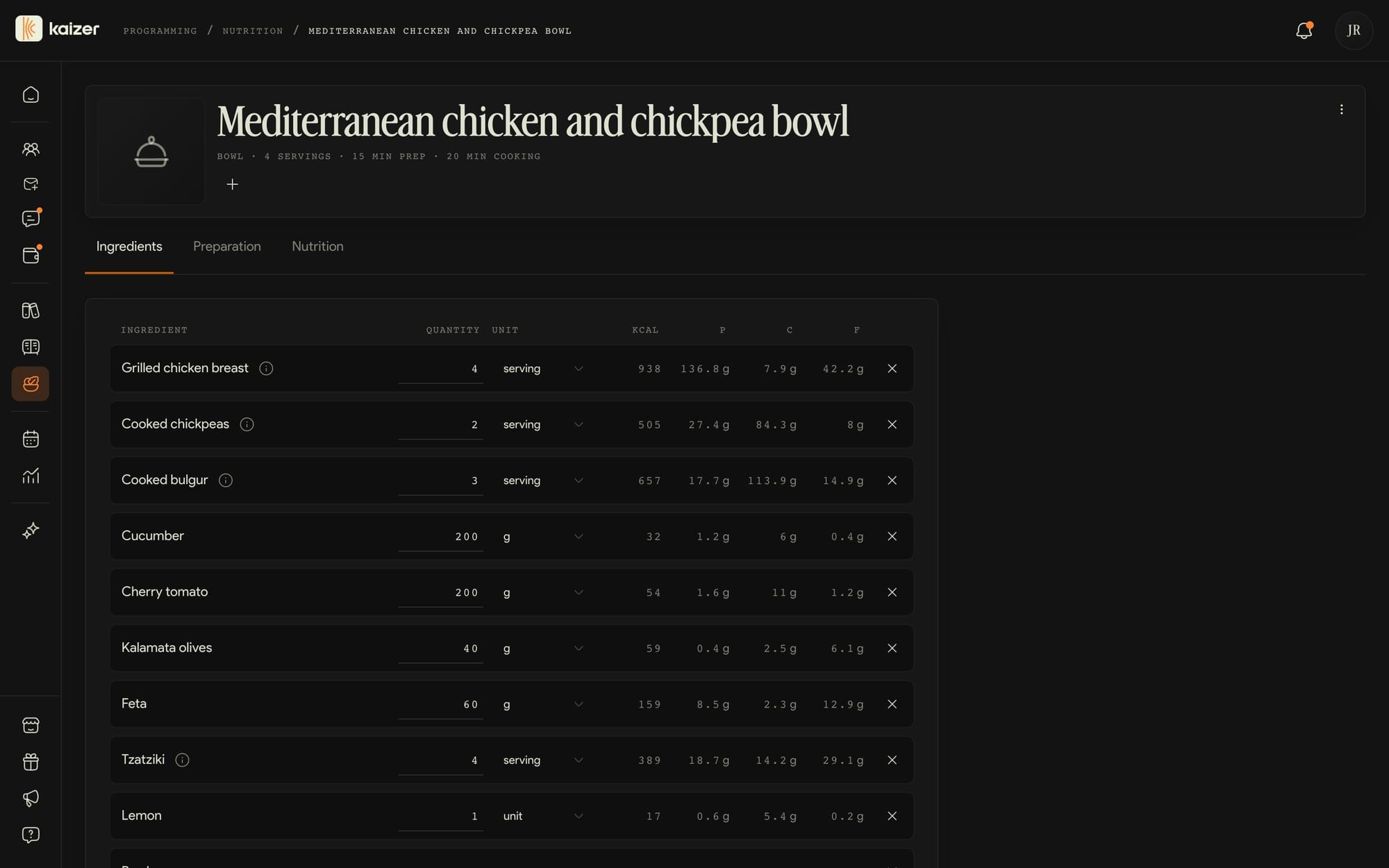
Ingredients and recipes
Under Nutrition, in the side menu, is the catalogue you build plans with: hundreds of Kaizer ingredients and recipes, in English, Spanish and Portuguese, plus the ones you add.
dashboard.kaizer.app/nutrition
dashboard.kaizer.app/nutrition
Each ingredient, with its values
Calories, protein, carbs, fat and fiber per 100 g, or per unit when it's measured in pieces, like an egg or a slice of bread.
Create your own or start from Kaizer's
Create ingredient asks for the name, the category and the values. If one of Kaizer's doesn't convince you, you edit it and get your own copy, which replaces the original only for you.
Recipes that add themselves up
A recipe is built from ingredients, or from other recipes, each with its quantity and unit, plus the preparation steps. The calories and macros per serving come from what goes in.
Or with the values typed in
If you already know a recipe's nutrition facts, you turn off automatic calculation and type the values per serving. From then on the ingredients don't change them.
Nutrition is included from the Starter plan up, and in the free trial too. The Basic plan doesn't include it.
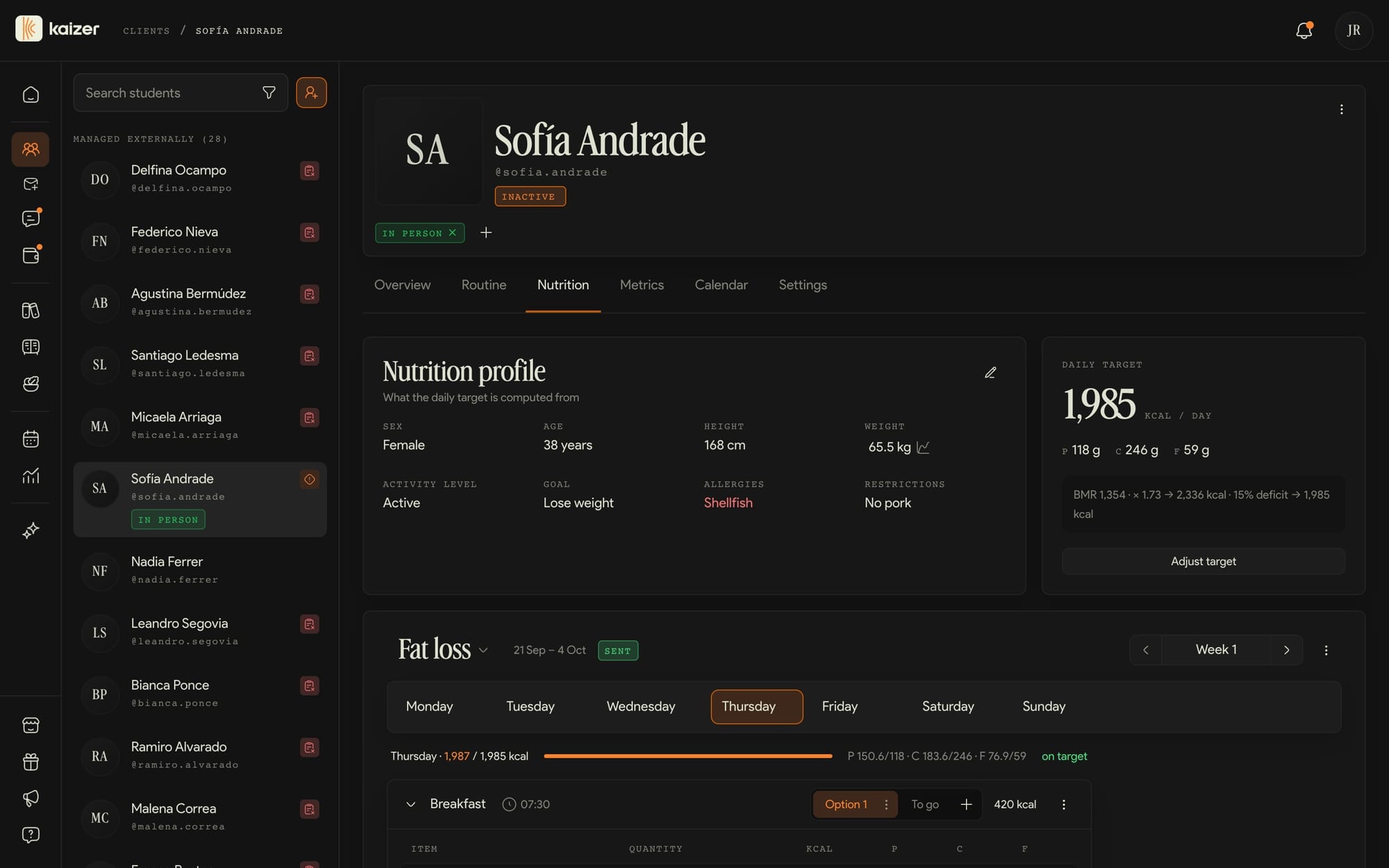
Profile and daily target
Each client has a Nutrition tab in their profile. At the top is their nutrition profile and, next to it, the daily calorie and macro target Kaizer works out from that data.
dashboard.kaizer.app/clients
dashboard.kaizer.app/clients
Fill in their profile
Sex, age, height and weight come from their details in the Overview tab; if one is missing, the card tells you and you complete it from there. With the profile's pencil you set their activity level, their goal (lose weight, maintain or gain weight), their allergies and their restrictions.
The target works itself out
Kaizer uses the Mifflin-St Jeor formula: it takes 15% off to lose weight and adds 10% to gain, and sets 1.8 g of protein and 0.9 g of fat per kilo of body weight; the rest is carbs. The card shows you the full calculation.
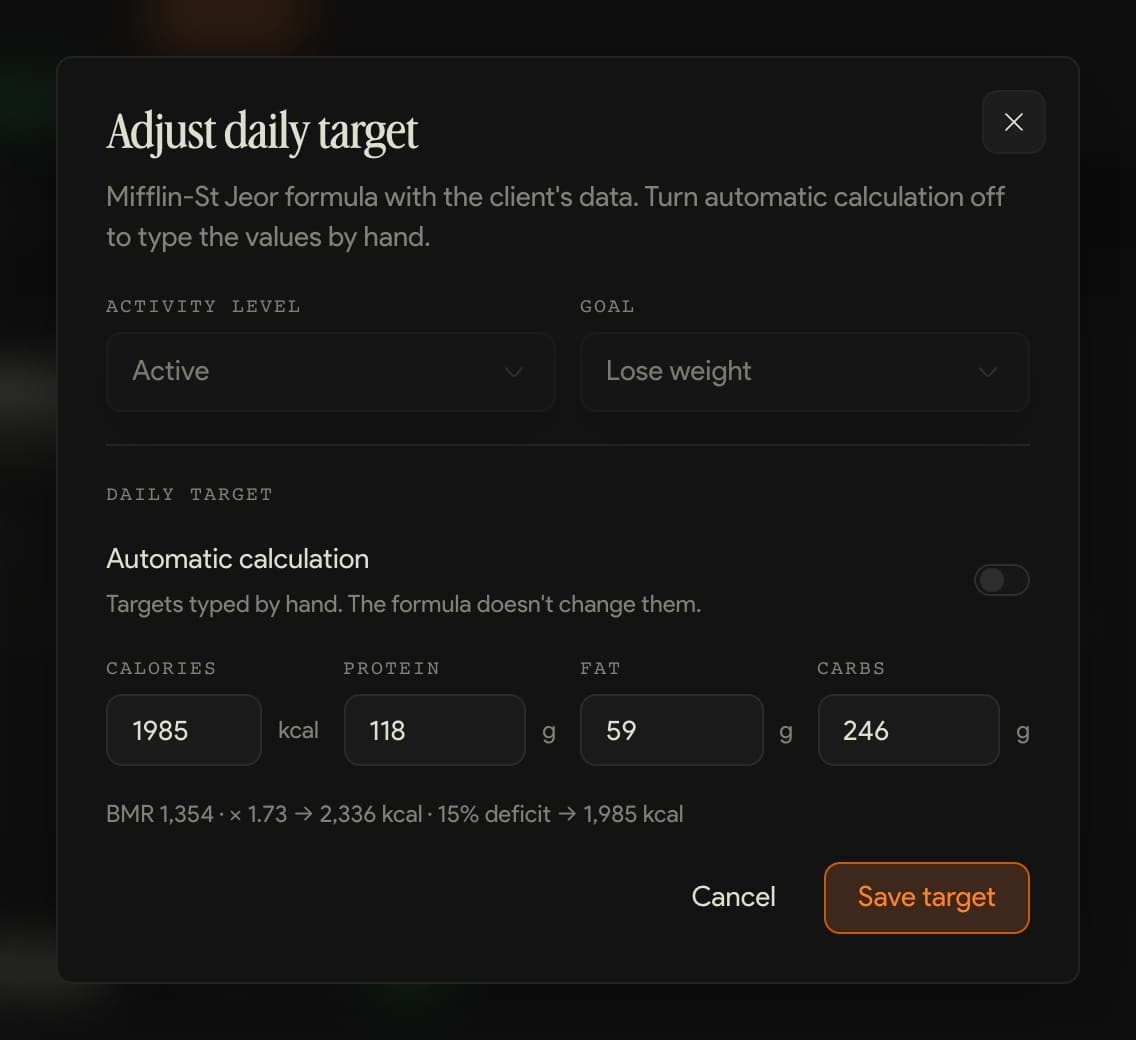
Set the macros by hand
With Adjust target you change the activity and the goal, or you turn off automatic calculation and type the calories, protein, fat and carbs you want. From then on the formula stops touching them. The one thing you can't do is go below 1,200 kcal.
Decide whether they see the numbers
With Show macros to the client turned off, your client sees the foods and the quantities, without calories or macros.
Allergies and restrictions are a reference for you when building the plan: Kaizer doesn't filter foods on its own.
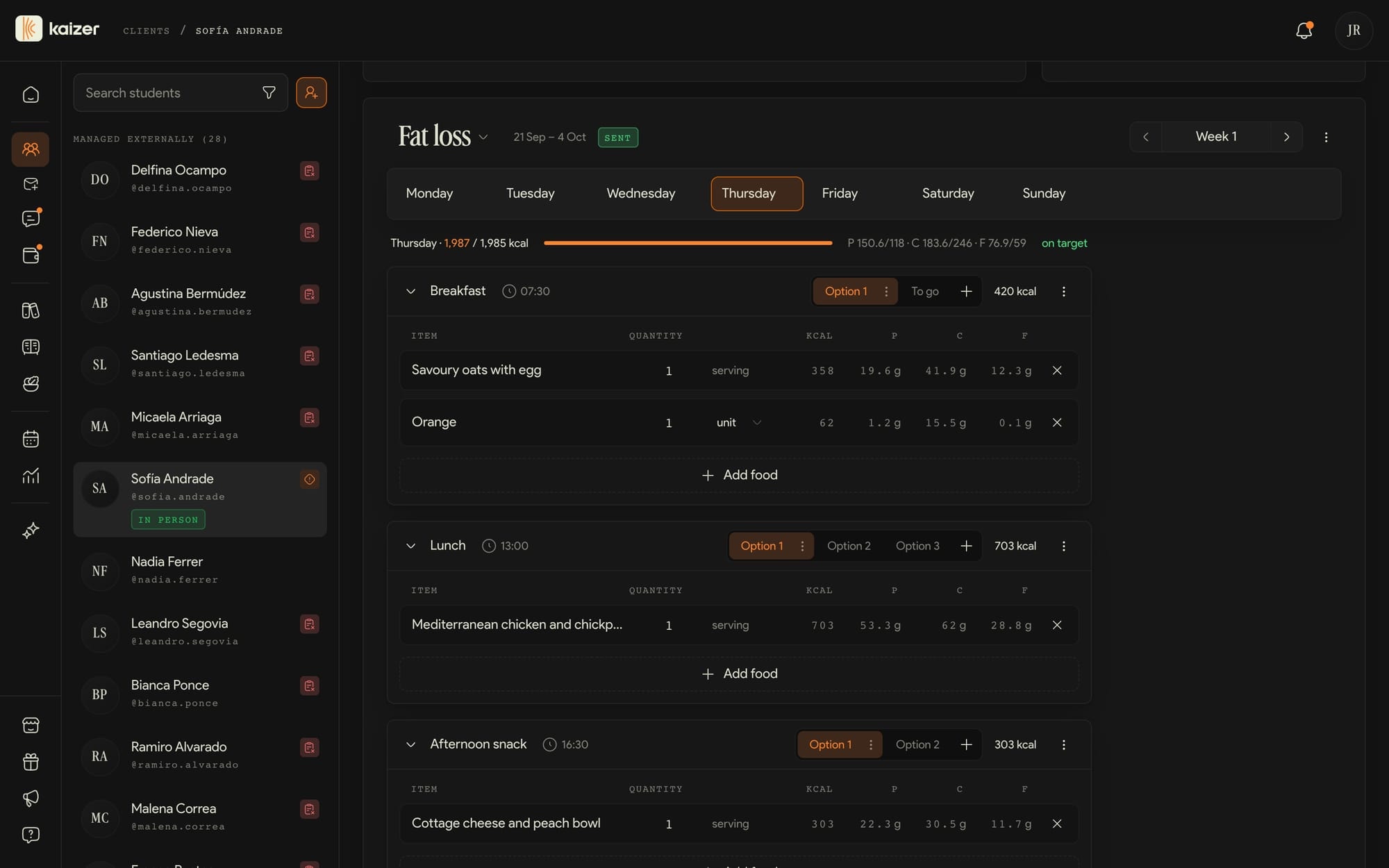
The meal plan
Below the profile is the plan: weeks, days and meals that you fill with recipes and ingredients from the catalogue. Each day is measured against the daily target.
dashboard.kaizer.app/clients
Create the plan
Create plan asks for the name, how many weeks it lasts, when it starts and which meals each day has: breakfast, mid-morning, lunch, afternoon snack, dinner or snack. Every day starts with those meals empty and with the profile's target.
Add foods
In each meal, Add food opens the search with your recipes and ingredients, the categories and what's popular on Kaizer. You pick several at once and then adjust the quantity and unit of each. If something isn't there, you create it right there.
Options to choose from
Each meal can have up to six options, and your client picks the one they prefer. The day's totals are worked out from the first one, so that's where the one you expect them to eat goes.
One week or all of them
When you add a meal, an option or a food, you choose whether it goes on that day only or on the same day of every week.
The day against the target
Above the meals you see the day's total against the target, the calories with their bar and the three macros, and how far over or under you are. If you change the profile's target later, Apply profile target brings it into the plan.
Send
Send delivers it to your client, who gets a notification on their phone. Any changes you make afterwards show up in their app. From the plan's menu you change its weeks, archive it or delete it.
You can do all of this from Kaizer Coach, the trainer app, too.
What your client sees
The plan reaches the Nutrition tab of their app, with the days of the week and each meal with its time.
Their plan, day by day
They pick the day up top and see their meals in order. If you left the macros visible, they also see the calories.
Each option, with its recipe
When they open a meal they see its options, and in each one the ingredients with their quantities and the preparation steps.
They read the plan, they don't log it
Your client doesn't record what they eat: the app shows them the plan, it doesn't keep a food diary.
Grow with Kaizer
What Kaizer does for your business once the operation is in order.
Marketplace
It's the one Kaizer feature that brings you new clients instead of managing the ones you already have. You publish your profile and you're in front of more than 10,000 people a month, between the public site and the directory inside the client app.
dashboard.kaizer.app/marketplace
A published profile gets 2 new clients per month
That's the average observed among the trainers published in the Marketplace, not a promise for every profile.
You set the price
You choose your monthly fee from USD 30, 50, 70 and 90. The client subscribes and pays from the app, and that payment Kaizer does process.
You control when you accept
If you fill up, turn off Accept new clients and leave the profile visible: people keep finding you and you don't lose presence until you open your slots again.
Don't confuse it with Payments. Kaizer processes Marketplace subscriptions through Stripe; Payments only records what clients pay you outside the Marketplace.
Common questions
What is the Marketplace
Complete the public information and review the profile before publishing.
The Marketplace is the public showcase within Kaizer where future clients discover you. When your profile is visible, you appear in the app's directory: people find you, read your bio, and can subscribe to you.
Trainers with a published profile average 2 new clients per month. You do not need your own website: complete your profile, add a way to contact you, and keep your availability up to date.
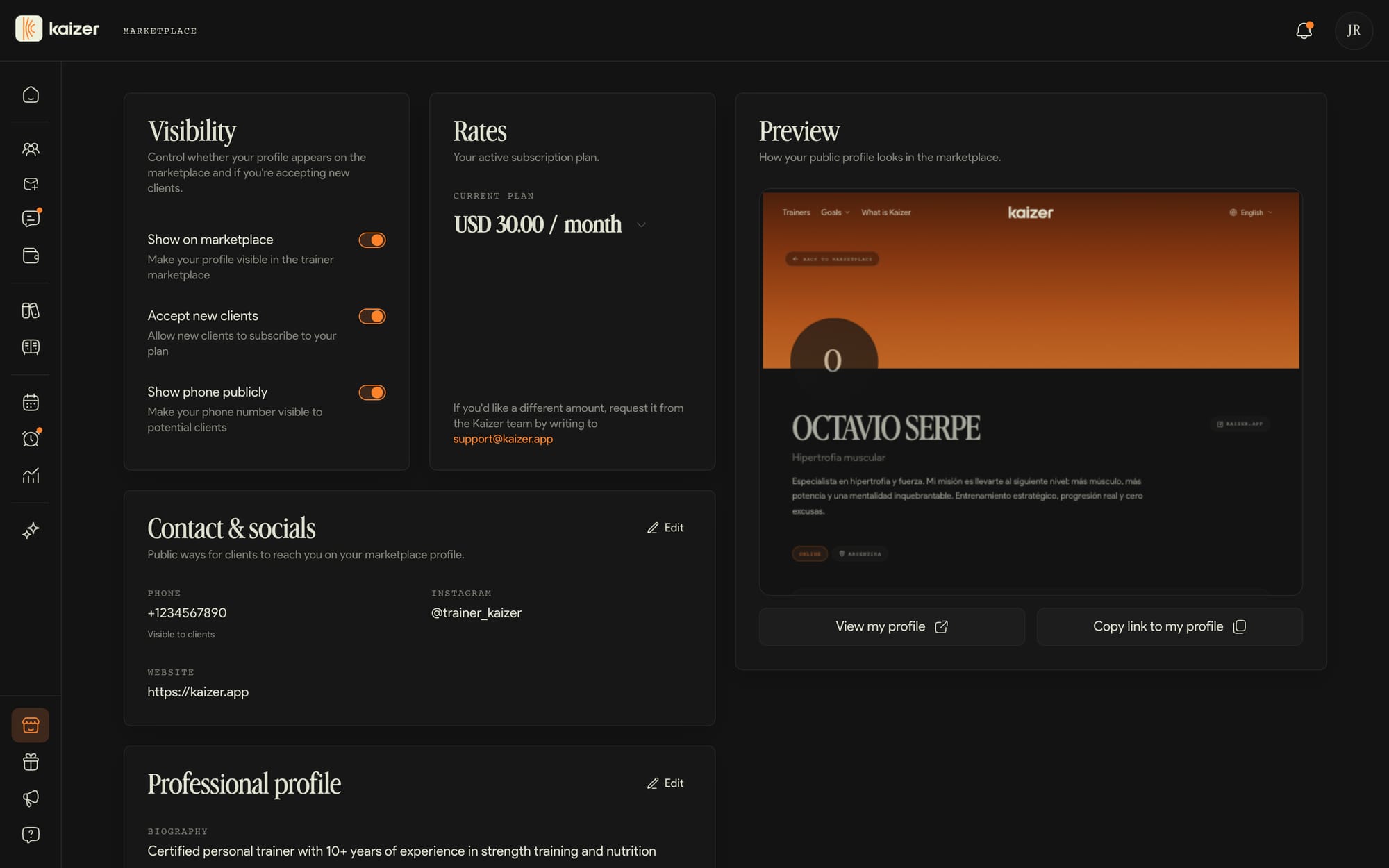
From the Marketplace you control your visibility with three switches: whether your card appears in the directory, whether you're accepting new clients, and whether you show your phone number.
If you're full or want to pause, turn off accepting new clients but keep your profile visible so people can still find you.
Your public profile
From Marketplace you build what new clients see: your bio, your specialization, the modalities you work in (online and/or in person), and your cover image.
You also set up your public contact details: phone number (if you enabled it), Instagram, and website.
The rest of your profile —your photo, your name, and so on— is edited in Settings → Profile. Marketplace changes stay as a draft until you tap Save.
Your rate and how you charge your clients
In Marketplace you choose your rate: it's a monthly subscription that the clients who find you there subscribe to. You select your price from the available values ($30, $50, $70, or $90 per month).
The client subscribes and pays from the app; the charge is processed through the integrated payment methods (card and others depending on the country). It's a recurring monthly charge, not a one-off per-session payment.
If you need a price different from the available ones, write to support and we'll look into it. And if a client pays you outside of Kaizer, in your Clients list they appear as externally managed.
Refer and earn
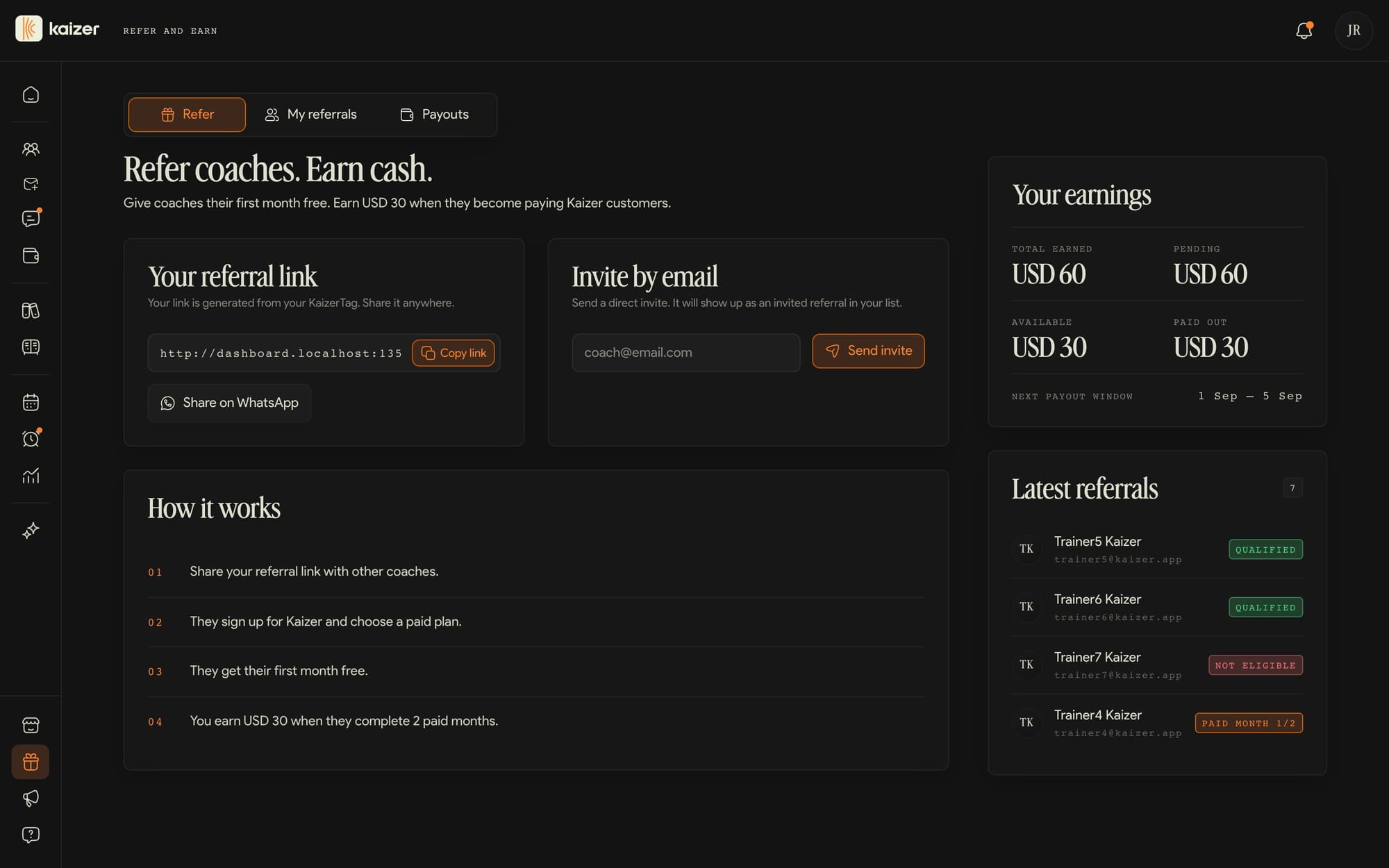
You invite another trainer to Kaizer: they get their first month free and you earn 25% of what they pay, every month while they stay on Kaizer, capped at USD 200 per account per month.
dashboard.kaizer.app/refer
How you earn it
The trainer signs up with your link and takes a paid plan. When they complete two paid months, the reward is approved and keeps running month after month while they remain a customer.
When it gets paid
Between the 1st and the 5th of each month. Anything approved after the 5th goes into the next window.
Your link comes from your KaizerTag and is always the same, so you can share it on WhatsApp, by email or wherever you want.
Common questions
What is Refer and earn
Refer and earn is Kaizer's referral program. You share your referral link with other trainers: whoever signs up with it gets their first month free when they choose a paid plan, and you earn USD 30 once they complete 2 paid months.
Your link is generated from your KaizerTag, so it's always the same and you can reuse it as many times as you want. Copy it from the Refer tab or send it straight over WhatsApp. If you haven't finished setting up your profile, do that first in Settings → Profile — the link needs your tag.
From the same screen you can also invite someone by email. Write the address, send it, and that trainer shows up as Invited in My referrals.
Your referral earnings and payouts
My referrals lists everyone you invited with their status —Invited, Account created, Free month active, Paid month 1/2, Qualified, or Not eligible— plus a progress bar toward the 2 paid months that unlock your reward.
The earnings panel on the side splits your money into four numbers: Total earned, Pending (referrals still on their way), Available (approved rewards you can claim), and Paid out. It also shows the next payout window.
We pay approved rewards between the 1st and the 5th of each month. When the window is open and you have an available balance, the claim button in Payouts opens WhatsApp so we can arrange the payment method with you. Rewards approved after the 5th go into the following month's window, and everything we've already paid you stays in the payout history.
Kaizer Partners
Brands from the fitness, wellness and health ecosystem that give discounts and gifts to Kaizer trainers and their clients.
Your clients gain something by training with you
They get benefits at brands they already buy from, and they read it as something you gave them.
You don't have to do anything
We handle the deals with the brands. Using Kaizer is enough on your side.
Available from the Starter plan up.
Kaizer for gyms
If on top of training clients you own or run a gym, Kaizer has a product built for that, with its own panel.
What it adds
Your team of trainers working in the same place, classes booked from the member app, QR check-in, alerts for members who stop coming and visits by day and hour.
Where it lives
You use it at gyms.kaizer.app, separate from your trainer dashboard.
If you get stuck
Where to look when something doesn't match this guide.
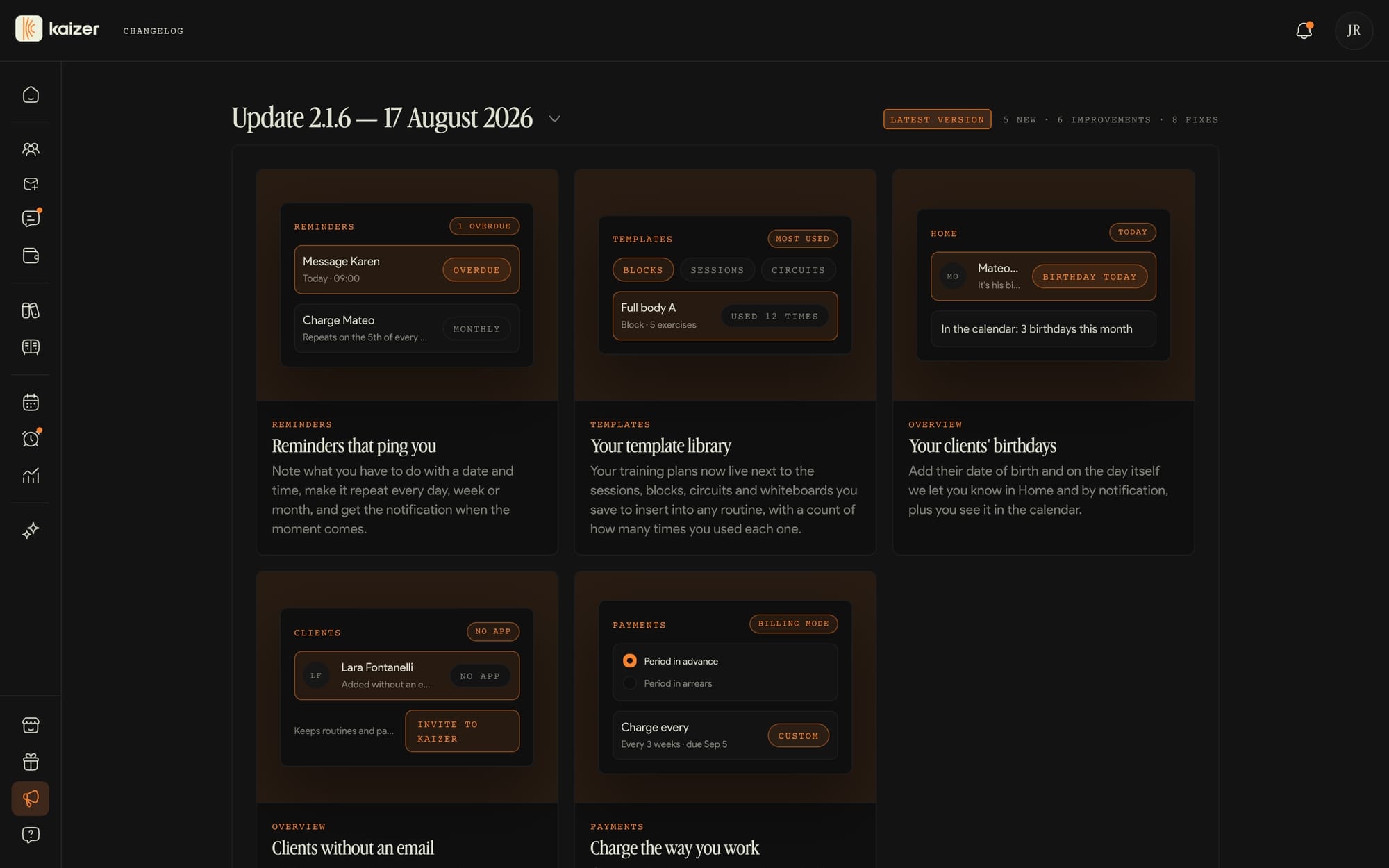
Changelog and Help Center
Kaizer improves day by day. These two sections keep you current without having to ask.
dashboard.kaizer.app/changelog
Changelog
Every release publishes what changed, split into new features, improvements and fixes. If a button shows up that wasn't there before, the explanation is here.
Help Center
The same articles you are reading folded into this guide, but inside the dashboard and with a search box, for when the question hits you mid-work.
The Watch the tour again button is also there, and it reopens the step-by-step guide you saw the first time.
Support
If something isn't solved by this guide or the Help Center, write to us. We're people and we answer.
Tell us in detail
What you were trying to do, what screen you were on and what you saw. The clearer it is, the faster we resolve it.
WhatsApp is the fastest route. For something longer, support@kaizer.app.
Common questions
The verification email isn't arriving
If the email doesn't arrive after you register, the first thing to do is check the spam or junk folder: sometimes the filter sends it there.
On the verification screen there's a button to resend it. You can use it once every 30 seconds, so you'll see a countdown while you wait.
If you've tried everything and it still doesn't arrive, the most likely cause is a typo in the address. Sign out, go back to registration, and try with the correct email. If it still doesn't show up, write to support.
I can't log in
If you enter your credentials correctly but can't get in, check two things. First, that your email is verified: if you see the verification screen, your login is fine but you're missing that step (see Verify your email).
Second, that the password has no spaces at the start or end, a common mistake when copying and pasting.
If you forgot it, use Recover password from the login screen: you'll receive a link in your email to reset it. If you still can't get in, write to support.
I invited a client and they don't show up
When you invite someone (by link or manual signup), they don't appear in your Clients list until they finish accepting. In the meantime they live in Invitations as pending.
From there you can copy the link again and resend it. When the client downloads the app, creates their account, and confirms the association, they move to your list on their own.
If a lot of time has passed, resend the link or ask whether they managed to install the app. The link doesn't expire, so you can send it as many times as needed.
Talk to support
If you didn't find the answer here, we're here to help. The fastest way is on WhatsApp, at +1 (206) 238-2302.
Tell us what's happening in as much detail as possible (what you were trying to do, on which screen, and what you saw). The clearer it is, the faster we resolve it.
If the upload stalls or the video doesn't appear after a while, check three things.
First, the connection: uploading a video on unstable wifi can interrupt the transfer. Try a stable network. Second, the size and format: Kaizer accepts mp4, webm, and mov up to 10 MB. If yours is heavier, compress it first (with HandBrake or similar).
If the video was left half-uploaded, delete it from the exercise and upload it again (see Upload video and thumbnail).
Log out or delete your account
To log out, go to Settings → Account and tap Log out. You don't lose anything: the next time you sign in with the same email, your data is still there.
Deleting the account is another matter. From that same screen, deleting the account asks you to type the word DELETE to confirm, and it's permanent: your trainer profile, your plans, and your exercises are erased.
Your clients are not deleted: they keep their account and all their data, but they're left without a trainer and will need to associate with another one. If you only want to pause, logging out or turning off your Marketplace visibility is enough.
Why it's worth it
One tool instead of four
Today the routine lives in an Excel, the diet in a PDF, the follow-up in WhatsApp and the files in Drive. In Kaizer all of that is the same profile, and your client opens it on their phone without zooming in or hunting for the right tab.
Alerts that arrive before the problem
Kaizer flags the routine about to expire, the client who hasn't paid and the one who hasn't trained in days. You act while there is still time, not once they have already left.
Program once, assign many times
You build one training plan and hand it to as many clients as you want. Each gets their own copy, and you adjust it without touching the others.
Your client sees an app, not a PDF
They open their routine, log every set they do, see their meal plan and message you from the same place.