Two paths, for two different moments. The + button above your list opens both.
Your invitation link
It's unique and never expires, so you can leave it pinned in your Instagram bio. From Home you can also download its QR code, to print it or post it. If your client doesn't have the app yet, the link takes them to download it and then to link up with you.
Manual registration
You enter a first and last name and you can start programming right away. Email is optional, and you can also pick a welcome planification so they don't land on an empty screen.
Clients with no app
Without an email the client is created all the same and gets marked as No app: you build their routine and track their payments in the meantime. When you want them on the app, Invite to Kaizer gives you a link to send over WhatsApp, or you send it by email. When they sign up they keep everything already loaded.
The link for a client with no app is for them only: the first person who opens it and signs up keeps that profile, and it expires after 30 days. It's how you digitize your whole gym in one go, even if nobody has downloaded the app yet.
Common questions
Adding a client
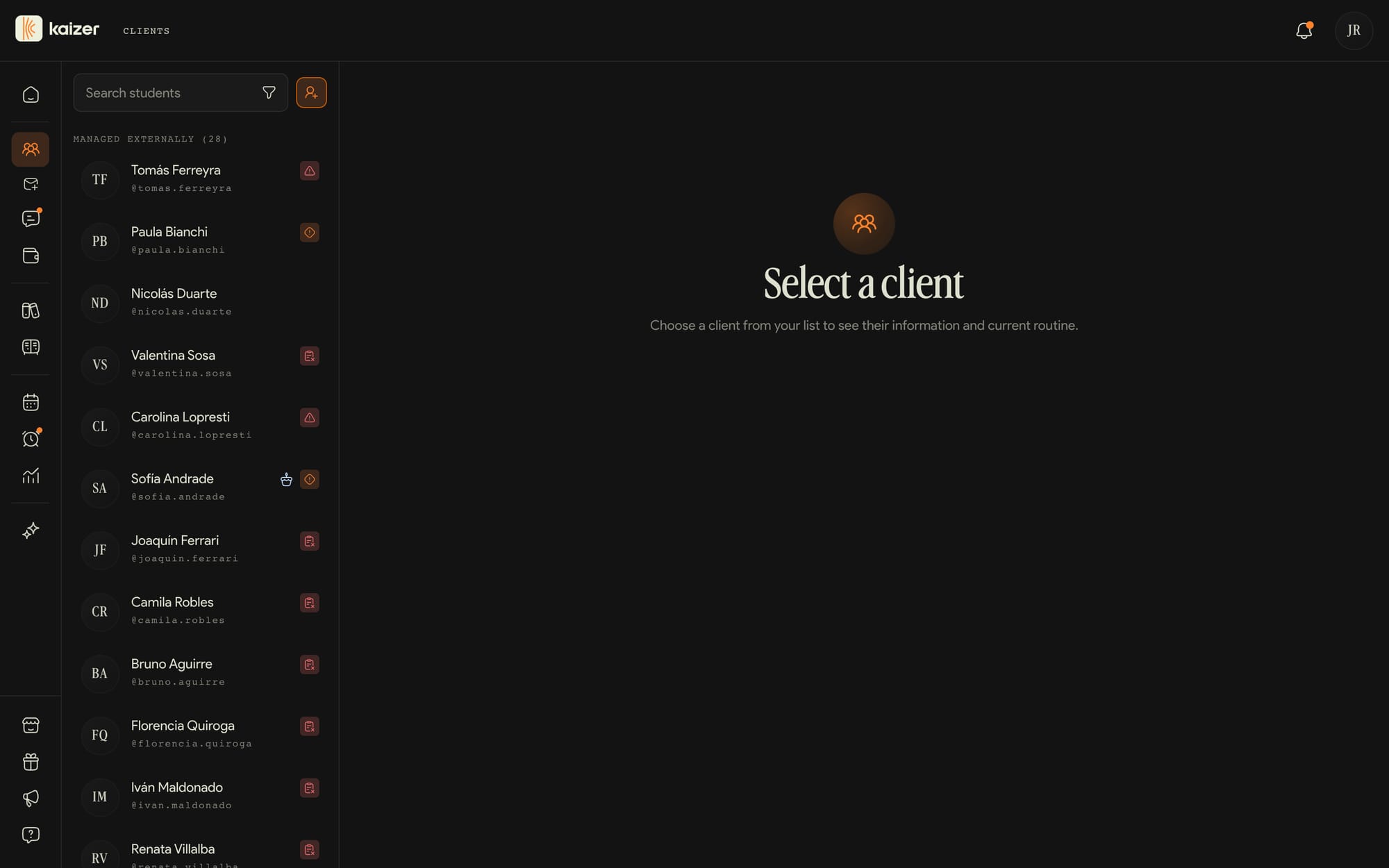
Create a profile or open the invitation flow from Clients. On Clients, the + button above the list opens Add client, with two tabs.
Quick invitation gives you your unique access link, built from your KaizerTag (something like links.kaizer.app/trainers/your-tag). Copy it and send it over WhatsApp, Instagram or email. If your client does not have the app, the link sends them to download it and then connects them to you; if they already have it, it opens the screen to link to your profile directly. The link never expires and is always the same, so reuse it as often as you like.
Manual registration is for when you already have their details and do not want to wait. You enter first and last name, the only required fields, and optionally their email, their date of birth and a welcome training plan, which is assigned as you create them so it is ready when they log in. Leave the email empty and the client is still created, just without the app: see Clients without the app.
With an email, the client stays as invited until they sign up in the app with that same address, at which point they are linked to you automatically. Meanwhile you see them in Invitations, and you can already start building their routine.
What your client does to get started
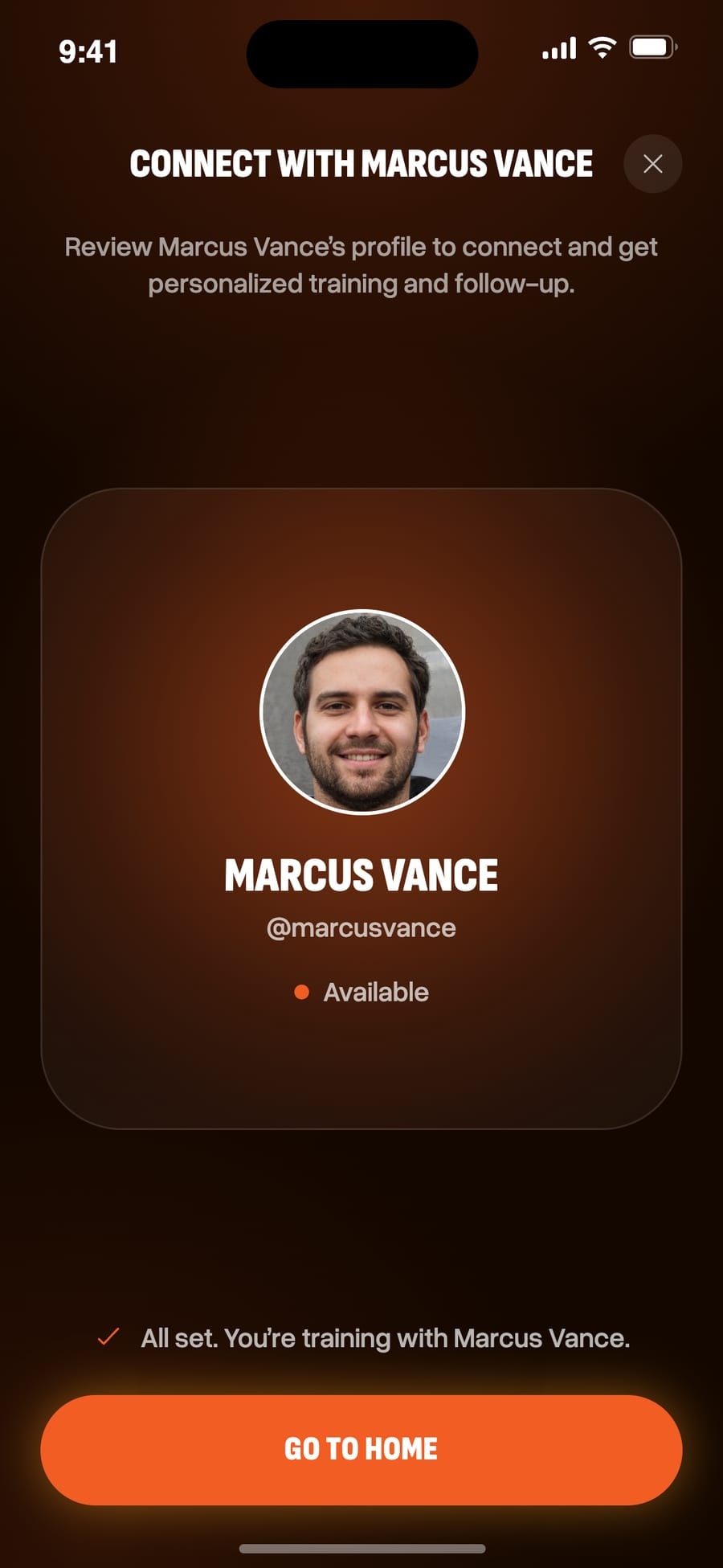
Your clients use the Kaizer app (not the dashboard). When they open your invitation link, if they don't have the app yet it takes them to download it, and when they open it the app greets them with your name and photo.
Creating the account takes a minute: they sign in with Apple, Google, or their email, add their name, and that's it. Because they come through your link, they don't fill in measurements or goals and they don't see any payment. When they finish, the screen appears for them to confirm they want to train with you: they tap a button and get linked to your list. That link-based association is free.
If they downloaded the app on their own, in the first step they choose that they train with a trainer and paste your link or scan your QR code.
The other way they reach you is through the Marketplace: they find you, view your profile, and subscribe to your monthly rate from the app. In either case, when the client accepts they move from Invitations to your Clients list.
Clients without the app
You can add a client without their email. In the Add client dialog on Clients, the Manual registration tab treats email as optional: leave it empty and the client is created anyway, flagged as No app.
No app means they have no Kaizer account. You build their routine, track their payments and write notes just like anyone else, but they see none of it: no app, no notifications, no way to log workouts. Their profile reminds you with a banner at the top. In your roster they are grouped under No app.
When you want them on board, the Invite to Kaizer button on their profile gives you two paths: by email, typing their address, or by link, to send over WhatsApp. The link expires in 30 days and whoever opens it first and signs up claims that profile, so share it only with your client.
The important part: accepting the invitation keeps everything already loaded: their routines, their history and their payments. Nothing starts over.
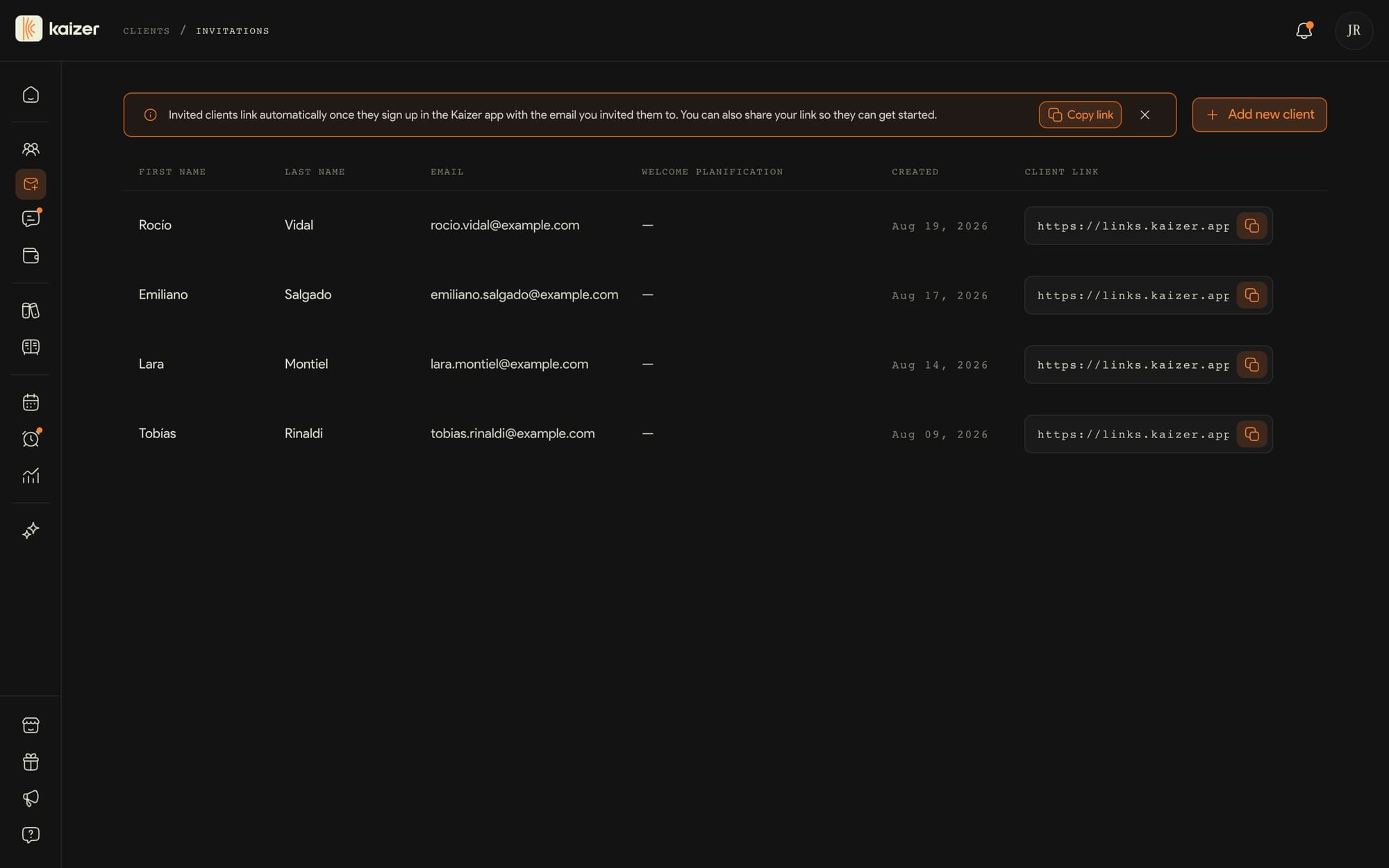
Pending invitations
Invitations lists the clients you added with an email who have not finished activating their account. The table shows first and last name, email, the welcome training plan you assigned, when you invited them and their link.
The client links to you on their own, as soon as they sign up in the Kaizer app with the address you invited them at. They do not have to do anything else. If you want to nudge them, each row has its own link to send again, and your general one sits above with Copy link.
You can also add people from this screen: Add new client opens a blank row where you enter first name, last name, email and, if you want, the welcome training plan.
As soon as they confirm in the app they disappear from here and move to your Clients list. If a lot of time goes by, resend the link or ask whether they got around to installing the app.
Two paths: you send them your link so they join on their own, or you add them yourself.
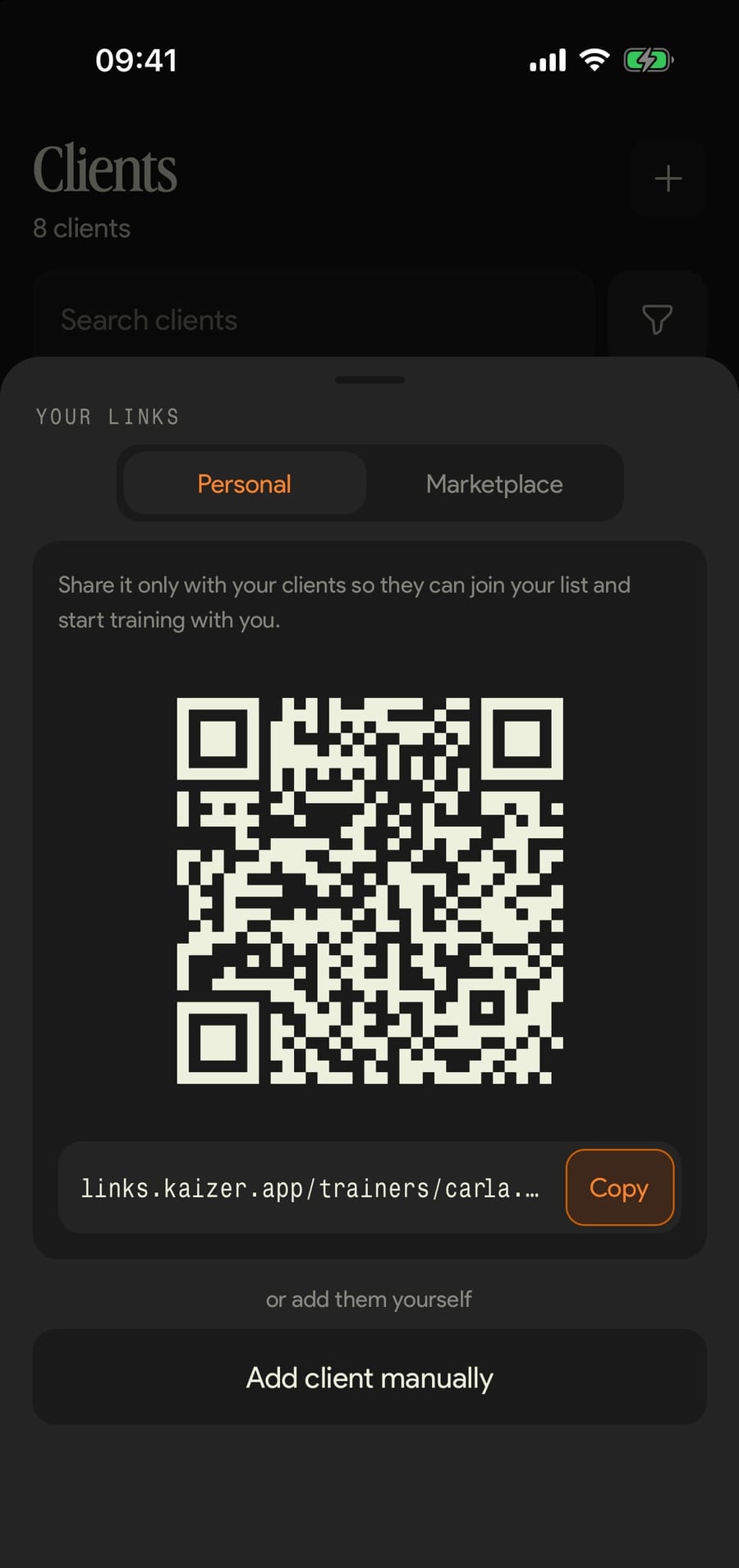
Your personal link
You copy it from the quick actions on Home, or from the + in Clients, where its QR code is too. It's unique and never expires, so you can leave it pinned in your Instagram bio. If your client doesn't have the app yet, the link takes them to download it and then to link up with you.
Add client
With a first and last name they're already on your list. If you enter their email they get the invitation; if not, you invite them whenever you want. You also pick an initial training plan and, with their birthday, Kaizer reminds you on the day.
The requests
In More, Invitations, you see the clients who asked to join and you accept or decline them.