It's the heart of Kaizer. Everything else exists so this screen is fast.
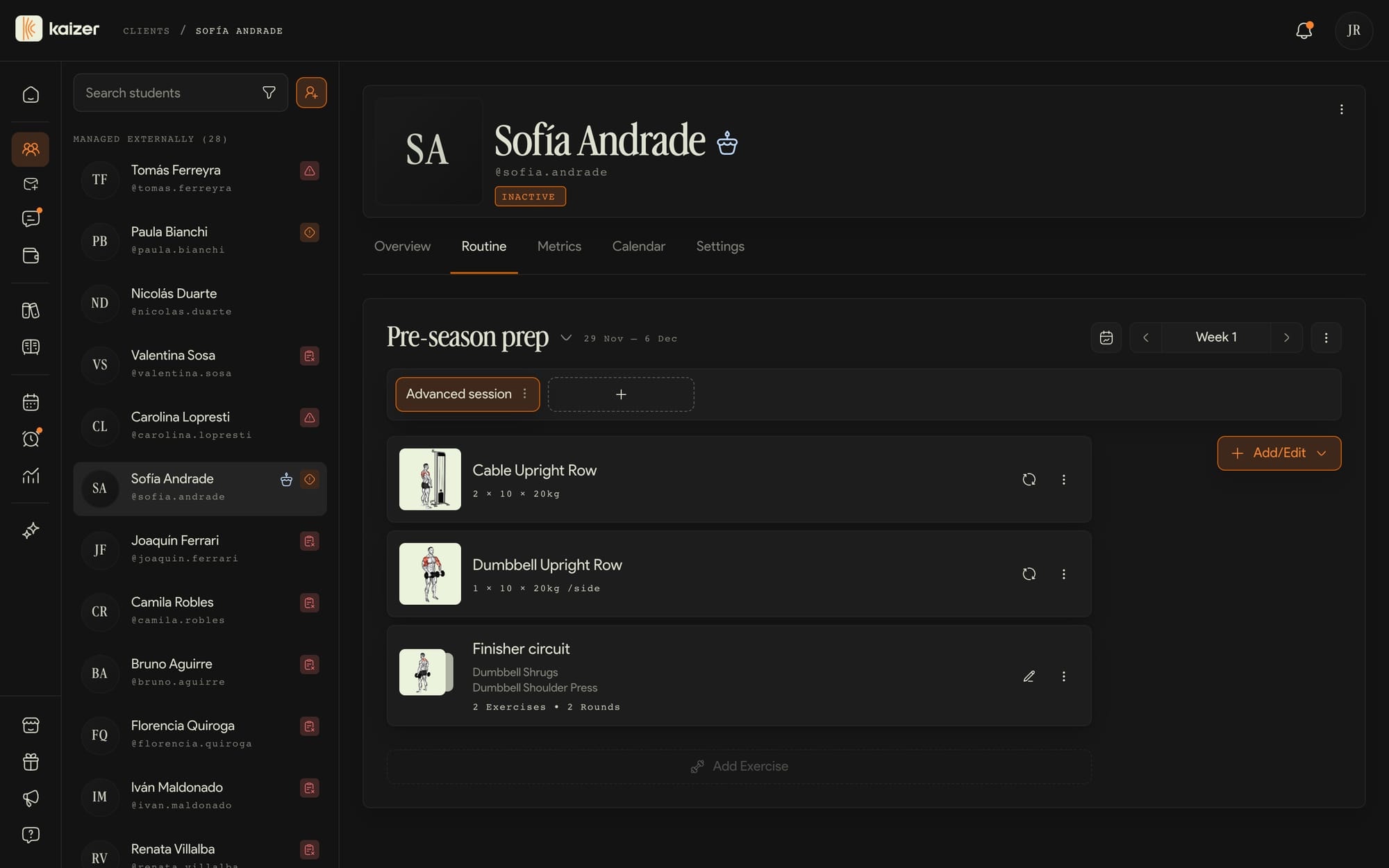
Routine or training plan
The routine belongs to one client. The training plan is the template you assign to several: each gets an independent copy, so adjusting it for one doesn't touch the others. If its sessions have days, when you assign it you choose whether it follows the plan's calendar or starts this week.
Weeks, sessions and what goes inside
Exercises with their sets, loads and rests; blocks, circuits and supersets for what gets done together; and free-text whiteboards for the warm-up or the rules of a TABATA. Everything reorders by dragging, and when you add an exercise you choose whether it goes in every week or only the ones you pick.
Guided activities
For what isn't measured in sets, like a mobility flow or a walk: you give it a title, instructions and a video, with a YouTube link or a file up to 500 MB. Your client watches it in the app and marks it done.
Four ways to start
From scratch, from a template, by importing a PDF, Word, Excel or even a photo, or by asking the AI for the first draft, which only asks for instructions if you want to give any. Once the routine is built, Edit with AI applies the changes you describe and leaves the rest as it was. And with Assign days, in each session's menu, you pin it to a day of the week: the client sees it suggested that day and can train it on another.
Draft until you send it
Until you send it, the routine carries the Draft label. When you send it, your client gets an email and a notification in the app to start training.
Export and archive
You can download the routine as a PDF, with each exercise's image, to print it or send it to someone who won't install the app. Archiving takes it out of the active view and off the client without losing the history; deleting has no way back.
Undo a workout
If your client finished a session by mistake, that session's menu has Undo workout: it goes back to pending, the sets they logged are deleted and it stops counting toward their streak and their analytics.
The more detail you give the AI, the better it comes out. A request that works: "4-day hypertrophy routine, 60 minutes per session, with a warm-up block for the rotator cuff and four-week progression". Kaizer builds the draft; sending it to the client is your call.
Common questions
Routine vs. training plan: when to use each
A routine lives inside a client's profile. It is built for that person and changes never affect anyone else.
A training plan is a template. You build it once and assign it to several clients. Each time you assign it, Kaizer creates an independent copy (a new routine) for that client, so adjustments stay isolated. Your training plans live in Templates, in the Training plans section, alongside everything else you save to reuse.
Rule of thumb: if you are programming for one person, work directly in their Routine tab. If you want the same block on several people, build a training plan and assign it.
If what you want to reuse is smaller than a whole plan (a single day, a block of exercises, a circuit), that gets saved too: see What your template library is.
Build a routine from scratch
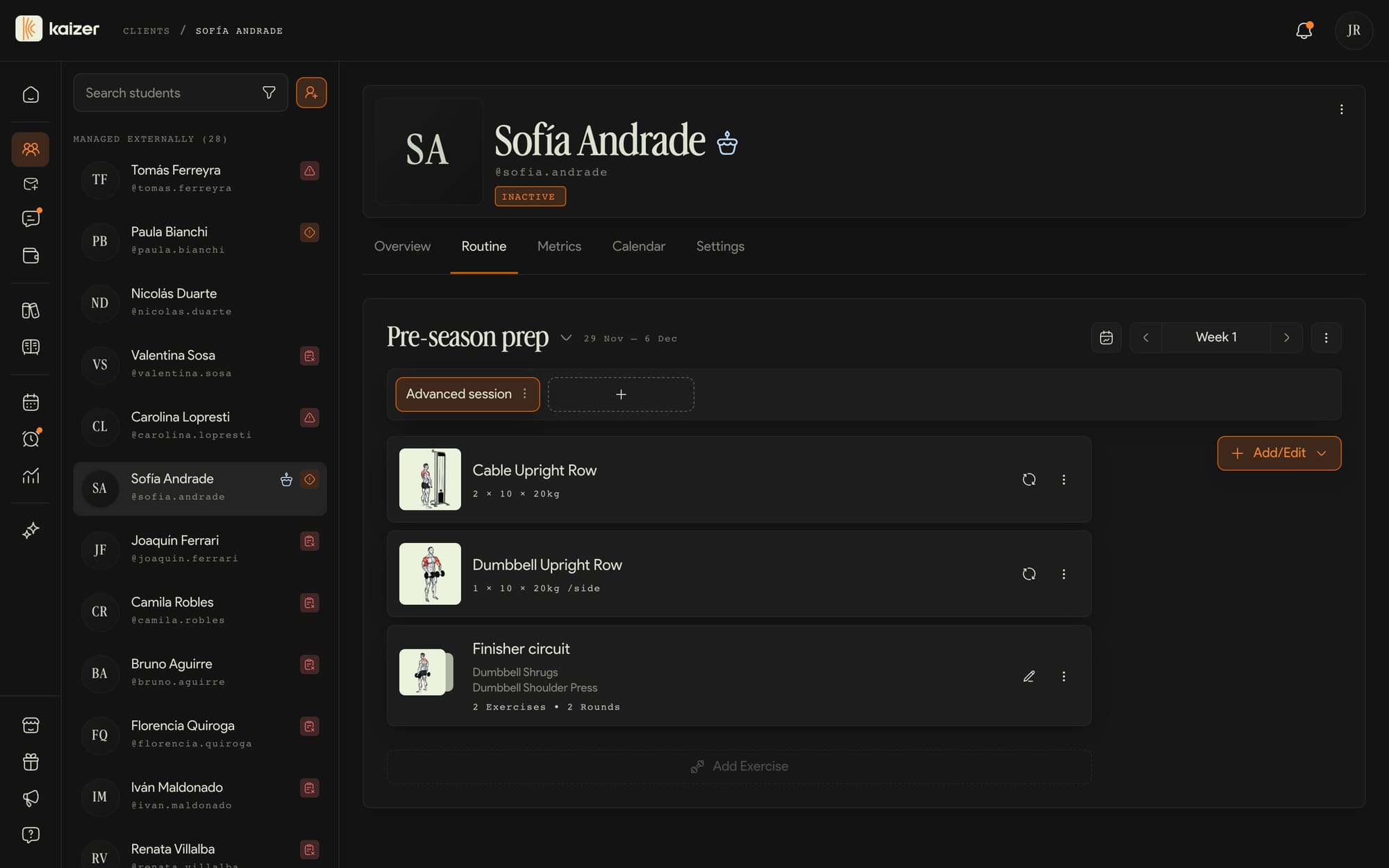
Build from broad to specific and review before assigning. A routine has three levels: weeks, sessions (the training days), and, inside each session, nodes.
There are two types of node: an exercise (with its sets, reps, weight, and rest) and a whiteboard, which is a free-form text block for the warmup, notes, or anything that doesn't fit as an exercise. You reorder everything by dragging, and each change saves on its own when you drop.
One detail to keep in mind: when you add a new week, it comes in empty (it doesn't copy the previous one). If you make a mistake, you can always delete it. If you want the AI to build it, see Generate a routine with AI.
Generate a routine or a plan with AI
Generated work ends in the editor so you can validate it. Kaizer can put together a first draft of a routine or a plan with AI so you don't start from a blank page. You give it the goal and the context, and it generates the structure with its sessions and exercises.
You can request it from the builder or directly from Kaizer Assistant, your assistant. The AI prepares the proposal and you review it: you adjust whatever is needed and only then assign it or send it to the client.
Think of it as a starting point, not a replacement for your judgment. What gets sent always stays under your control.
Import a routine from a file
If you already program outside Kaizer, you don't have to retype anything. Open the create-routine dialog from a client's Routine tab and the first step has an Import routine button at the bottom; the same thing exists as Import plan when you create one from Plans. Drop the file in and the assistant transcribes it into an editable routine.
It accepts PDF, Word (.docx), Excel (.xlsx), CSV, plain text, and images, one file at a time, up to 500 KB. Old .doc and .xls files aren't supported; re-save them in the modern format first.
The dialog closes as soon as you confirm and the transcription runs in the background: an assistant card in the bottom-right corner shows the job's status, and clicking it takes you to the routine once it's done. Importing always creates a new routine (or a new plan) and never writes over an existing one. There's no preview step either, so read it over in the editor before it reaches your client.
Circuits and supersets
Inside a session you can group two or more exercises so the client runs them together. A group of two exercises is a superset; with more, a circuit.
When you group them, you define the rounds and the rest between them. If the exercises had different numbers of sets, Kaizer matches up the rounds so the block stays tidy.
You can apply the grouping to that day only or propagate it to all the repeated sessions in the plan at once. And if you later want to undo it, you ungroup the block whenever you like and the exercises go back to being separate.
Sync a plan to your clients
A plan and the routines built from it drift apart: assigning it creates an independent copy per client, so editing the plan afterwards changes nothing for them. Syncing is how you close that gap. Open the plan from Plans and, in the Assigned clients card of its Overview tab, the Sync plan button pushes the current version to everyone it's assigned to.
You can also go one client at a time: hover a client's avatar in that card and the same button appears, and inside View all, clicking a client's row syncs just that person.
Syncing overwrites. Whatever you adjusted directly on that client's routine is replaced by the plan, and there's no undo: that's what the confirmation warns about before it runs. It has a "Don't ask me again" box, so only tick it once you're comfortable, because there's no setting to bring the warning back. An archived plan can't be synced; restore it first (see Archive and restore routines and plans).
Archive and restore routines and plans
Archiving is how you retire a routine without losing it. In a client's Routine tab, the ⋮ menu next to the routine name has Archive: the routine leaves the active list, your client stops seeing it, and all of its training history stays intact. It's not a delete: Delete sits right below in the same menu, and that one is permanent.
An archived routine is still there to consult. The routine name dropdown splits routines into Active routines and Archived, and opening an archived one shows it read-only, with a banner reminding you to restore it before you can edit, extend, or send it again. Restore is on that banner, on each archived row of the dropdown, and in the ⋮ menu: one click and it's active again.
Plans work the same way, from the ⋮ menu on the plan card in Plans or on the plan's own page, with one difference worth knowing: archiving a plan also archives the routine of every client it was assigned to, and restoring it brings all of them back. The confirmation tells you how many clients that is. To find archived plans, open the filter next to the search box and switch Status to Archived.
Kaizer can also do this on its own. Settings → Automations has "Auto-archive finished routines", which files a routine as soon as your client completes its last session. New accounts start with it off, and you can override it for a single client from that client's settings.
Export a routine or a plan as PDF
In a client's Routine tab, the ⋮ menu has Export as PDF. It opens a full-screen preview of the real document, where you choose what goes in it (the full routine, one whole week, or a single session) and the preview redraws with each change. When it looks right, Download PDF saves the file.
Plans export the same way: the ⋮ menu on the plan card in Plans, or on the plan's own page, opens the same preview with the same choices. The only difference is that a plan doesn't have a client yet, so the Student line comes out empty.
The PDF carries your name and your client's, and then each session with its exercises: muscle and equipment, your notes, and a table with reps, weight, RIR, and rest, plus drop sets, circuits and supersets round by round, and any whiteboards. Videos, images, and QR codes are not included, and the document comes out in your account's language. Two things can't be exported: sessions your client already trained (those are a record, not a plan) and archived routines or plans.
It's the heart of Kaizer. In each client's Routine tab you see the one they have and build the next one.
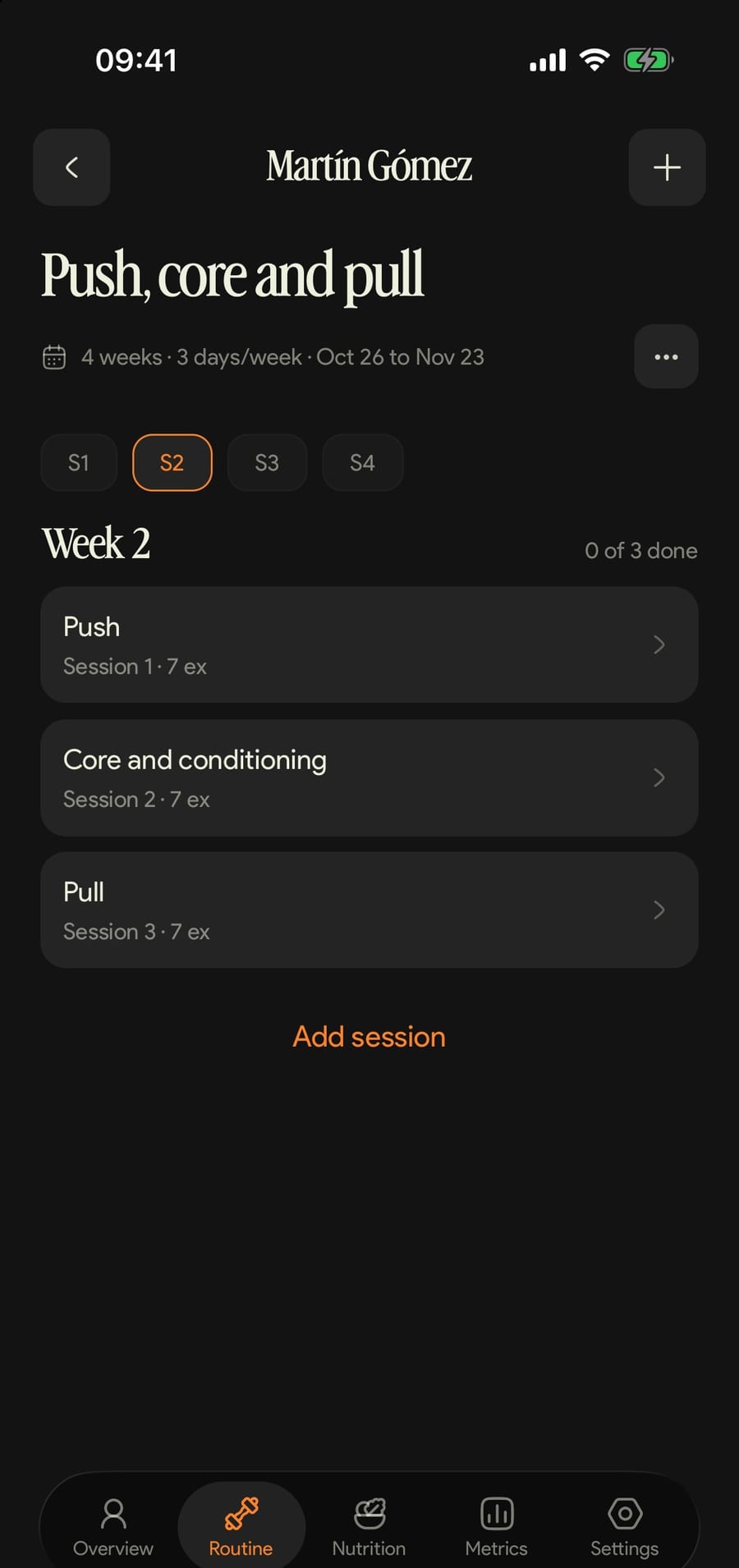
Routine or training plan
The routine belongs to one client. The training plan is the template you assign to several, and each one gets their own copy. Your training plans are in More, Plans.
Four ways to start
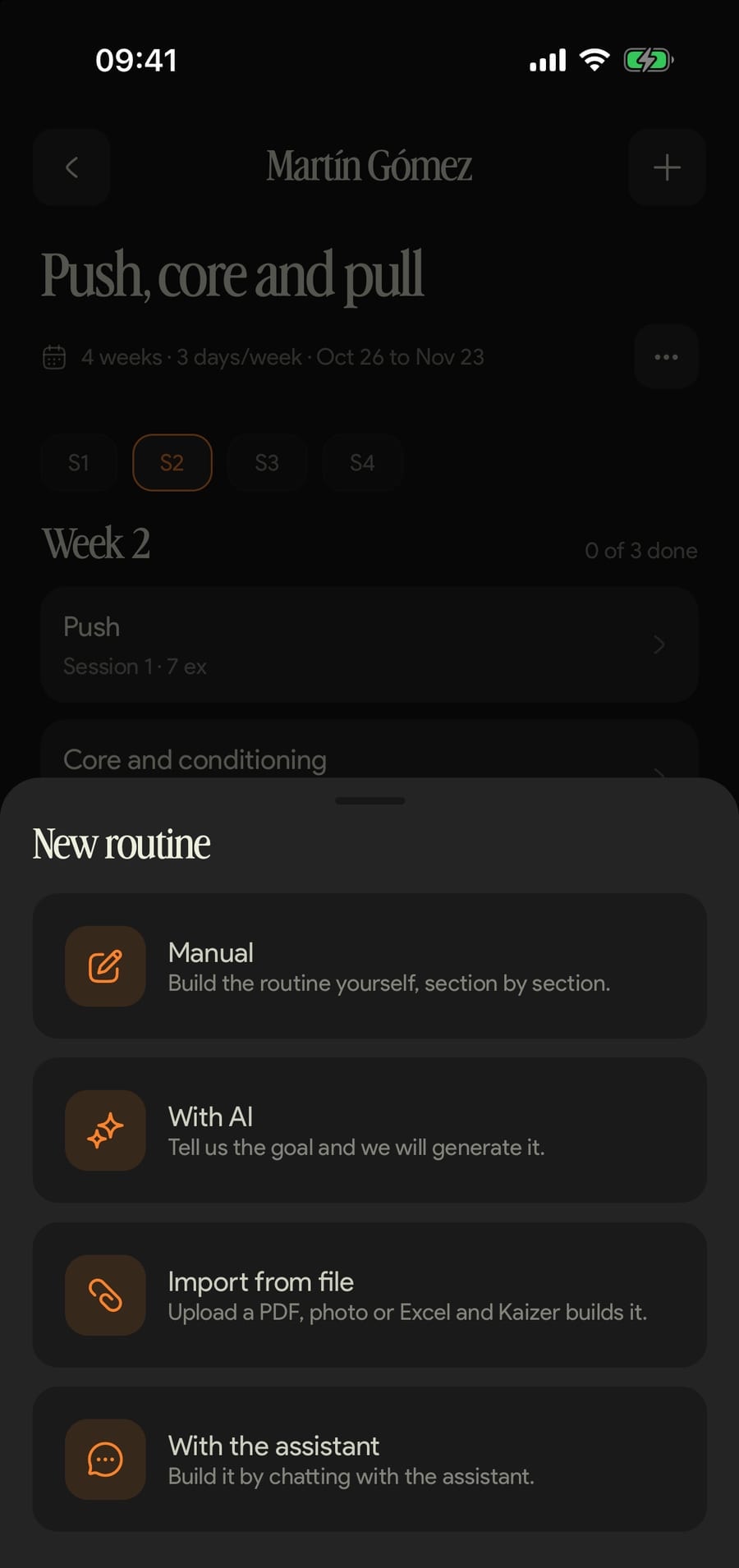
New routine lets you build it by hand, block by block; ask the AI for it with what you're after; build it chatting with the assistant, or import it from a PDF, a photo or an Excel.
What goes inside
Exercises with their sets, blocks, circuits and supersets, free-text whiteboards and guided activities with a video, for a mobility flow or a walk.
Changes with AI
On a routine that's already built you ask Kaizer for changes by text or voice, and the rest stays as it was.
Send
When it's ready you send it, and your client gets the notice to start training.
What the AI builds, you review before it reaches your client. If you'd rather it go out on its own, in More, Customization, you turn on Send AI routines without reviewing them.